# Conditions & Exceptions

## Editing transition conditions

<figure><img src="https://content.gitbook.com/content/5hqlx79C7yAtTmCBPpSq/blobs/DPewqBn8WGjYUqIPkQqr/edit_condition_panel.png" alt=""><figcaption></figcaption></figure>

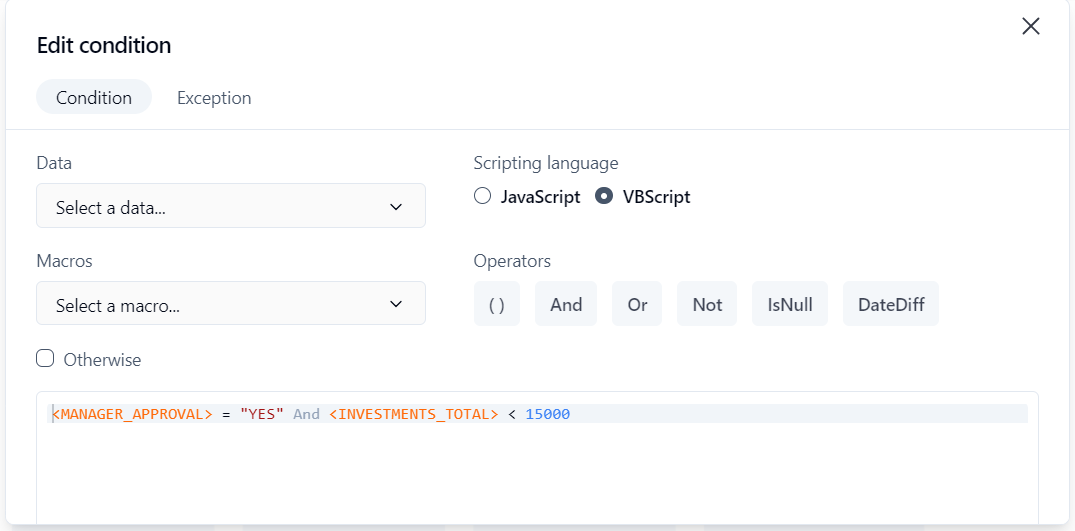
The **Edit condition** panel allows a condition (evaluated during the transition to the next action) to be modified. The banner located above the input area allows the condition’s expression syntax to be edited quickly. Any JavaScript or VBScript expression with a correct syntax can be used as a condition (select either **JavaScript** or **VBScript** next to **Language**). The syntax is validated upon saving the condition or by clicking the **Check the syntax** button.

{% hint style="info" %}

* This JavaScript implementation is based on ECMAScript 3.5.<br>
* In JavaScript, time units are expressed in milliseconds:

  * 1 minute = 60,000 milliseconds (`1 * 60 * 1000 = 60000`)
  * 1 hour = 3,600,000 milliseconds (`1 * 60 * 60 * 1000 = 3600000`)
  * 1 day = 86,400,000 milliseconds (`1 * 24 * 60 * 60 * 1000 = 86400000`)<br>

  In conditions, you can divide by the time unit's equivalent in milliseconds to use in comparisons. For example, a notification sent when a request is 12 or more hours late might look like this:

  ```
  <WF_SYSTEM_DATETIME> - <WF_ACTIVITY_INST_LIMIT_DATETIME>) / 3600000 >= 12
  ```

{% endhint %}

### Functions

<table data-header-hidden><thead><tr><th valign="top">Fields</th><th valign="top">Remarks</th></tr></thead><tbody><tr><td valign="top"><strong>Fields</strong></td><td valign="top"><strong>Remarks</strong></td></tr><tr><td valign="top">Data</td><td valign="top">List of process data that can be used in the condition</td></tr><tr><td valign="top">Macros</td><td valign="top">List of WorkflowGen macros that can be used in the condition</td></tr><tr><td valign="top"><code>Otherwise</code></td><td valign="top">Inserts the keyword <code>OTHERWISE</code></td></tr><tr><td valign="top"><strong>JavaScript</strong></td><td valign="top"></td></tr><tr><td valign="top"><code>Fnc()</code></td><td valign="top">Encapsulate the condition in an IIFE (see <a href="#iife">IIFE</a> below)</td></tr><tr><td valign="top"><code>&#x26;&#x26;</code></td><td valign="top">Inserts the logical operator <code>AND</code></td></tr><tr><td valign="top"><code>||</code></td><td valign="top">Inserts the logical operator <code>OR</code></td></tr><tr><td valign="top"><code>==</code></td><td valign="top">Inserts the logical operator <code>EQUAL TO</code></td></tr><tr><td valign="top"><code>!=</code></td><td valign="top">Inserts the logical operator <code>NOT</code></td></tr><tr><td valign="top"><code>null</code></td><td valign="top">Test function to find out if the data contains no value</td></tr><tr><td valign="top"><code>getTime()</code></td><td valign="top">Returns the numerical value of a date in milliseconds</td></tr><tr><td valign="top"><strong>VBScript</strong></td><td valign="top"></td></tr><tr><td valign="top"><code>( )</code></td><td valign="top">Enclose the selected text between parentheses</td></tr><tr><td valign="top"><code>And</code></td><td valign="top">Inserts the logical operator <code>AND</code></td></tr><tr><td valign="top"><code>Or</code></td><td valign="top">Inserts the logical operator <code>OR</code></td></tr><tr><td valign="top"><code>Not</code></td><td valign="top">Inserts the logical operator <code>NOT</code></td></tr><tr><td valign="top"><code>IsNull()</code></td><td valign="top">Test function to find out if the data contains no value</td></tr><tr><td valign="top"><code>DateDiff</code></td><td valign="top">Inserts blank <code>DateDiff</code> condition syntax to set values (see <a href="../notifications#overdue-and-pre-overdue-notifications">Overdue and pre-overdue notifications</a>)</td></tr></tbody></table>

{% hint style="info" %}
Press **`Ctrl+Space`** or **`Alt+Space`** directly within the editor to display a drop-down list from which you can insert process data and WorkflowGen macros, instead of choosing them from the **Data** and **Macros** drop-down lists above the editor.
{% endhint %}

### IIFE

In JavaScript mode, use the `Fnc()` button to encapsulate the condition in an IIFE (Immediately-Invoked Function Expression). For example:

```javascript
(function(){
  var myVar = <DATA>
  return myVar == "Lorem ipsum"
})()
```

### Examples

#### Process data equal to `Lorem ipsum`:

* JavaScript: `<DATA> == "Lorem ipsum"`
* VBScript: `<DATA> = "Lorem ipsum"`&#x20;

#### Process data greater than `5`:

* JavaScript: `<DATA> > 5`
* VBScript: `<DATA> > 5` <br>

#### Compare process data dates:

* JavaScript: `<DATE1> > <DATE2>`
* VBScript: `DateDiff("s",<DATE1>,<DATE2>) > 0`

#### More than 5 hours have elapsed since:

* JavaScript: `(<WF_SYSTEM_DATETIME> - <DATE1>) * 3600000 > 5`
* VBScript: `DateDiff("h",<WF_SYSTEM_DATETIME>, <DATE1>) > 5`

#### Combination of different comparisons:

* JavaScript: `<DATA1> == "Lorem ipsum" || (<DATA2> > 10000 && <DATA3> == "Director")`
* VBScript: `<DATA1> = "Lorem ipsum" Or (<DATA2> > 10000 And <DATA3> = "Director")`&#x20;

### Condition rules

* You can only add one condition to a transition. To add more conditions between the same actions, create additional transitions between the actions and place the additional conditions on them.
* You can only place one condition or one exception on a given transition.
* Each condition is evaluated individually. For example, if there are two conditions on separate transitions between actions, and both are TRUE, then the next action will be created twice.

## Editing exceptions

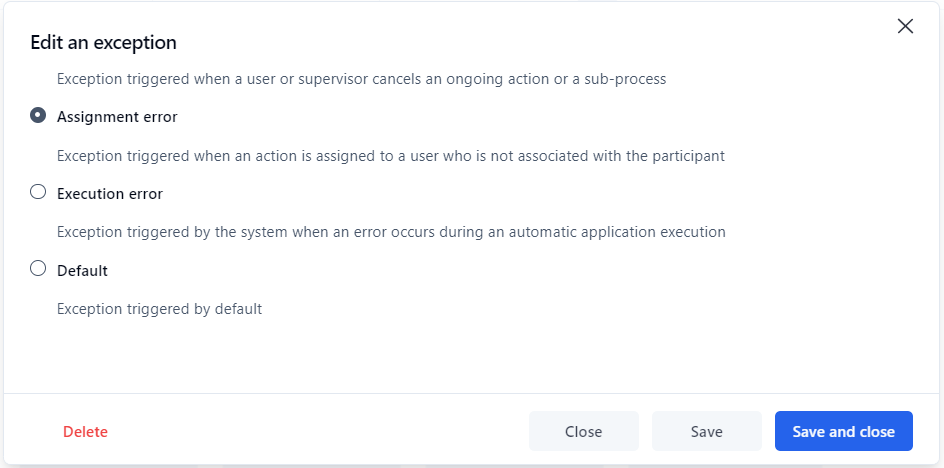
To edit an exception, click the **Exception** tab in the **Edit condition** panel.

<figure><img src="https://content.gitbook.com/content/5hqlx79C7yAtTmCBPpSq/blobs/qt855L7V4ADZ0MQWitIr/edit_exception_panel.png" alt=""><figcaption></figcaption></figure>

<table data-header-hidden><thead><tr><th valign="top">Exception type</th><th valign="top">Remarks</th></tr></thead><tbody><tr><td valign="top"><strong>Exception type</strong></td><td valign="top"><strong>Remarks</strong></td></tr><tr><td valign="top">Action overdue</td><td valign="top">Exception triggered by the system when an action is overdue</td></tr><tr><td valign="top">Action cancellation triggered by</td><td valign="top"><p>Exception triggered when a user or supervisor cancels an ongoing action or sub-process</p><p></p><p>To prevent users and/or supervisors from cancelling the action, uncheck <strong>Users</strong> and/or <strong>Supervisors</strong>. Otherwise, <strong>Users</strong>, <strong>Supervisors</strong>, <strong>Administrators</strong>, and <strong>System</strong> are checked by default, and can all cancel actions.</p><p></p><p>✏️ <strong>Note: Administrators</strong> and <strong>System</strong> cannot be unchecked, and can always cancel actions.</p></td></tr><tr><td valign="top">Assignment error</td><td valign="top">Exception triggered when an action is assigned to a user that is not associated with the participant</td></tr><tr><td valign="top">Execution error</td><td valign="top">Exception triggered by the system when an error occurs during an automatic application execution (a system action)</td></tr><tr><td valign="top">Default</td><td valign="top">Exception triggered by default</td></tr></tbody></table>

### Exception rules

* You can only add one exception to a transition. To add more exceptions between the same actions, create additional transitions between the actions and place the additional exceptions on them.
* You can only place one exception or one condition on a given transition.
* Each exception is evaluated individually. For example, if there are two exceptions on separate transitions between actions, and both exceptions occur, then the next action will be created twice.
* When an exception occurs at runtime, the default exception is assumed if no specific exception path corresponding to the exception type was defined in the process definition.
* If an exception path is linked to the end of the process and the exception occurs at runtime, all the ongoing actions are cancelled and the request is closed with the status `Closed – Cancelled`.