# Form

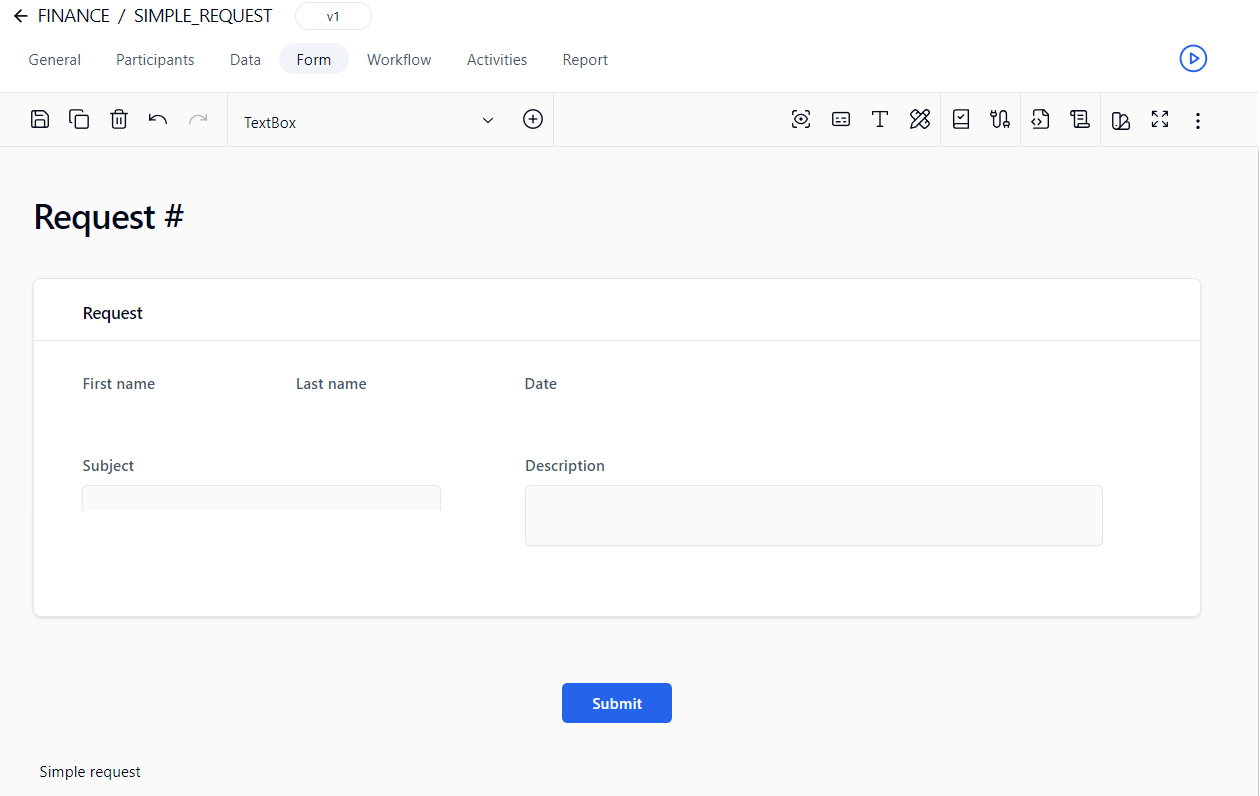
## Form Designer

### Design mode

<figure><img src="/files/CoqYa5J1REMU0lBfXczj" alt=""><figcaption></figcaption></figure>

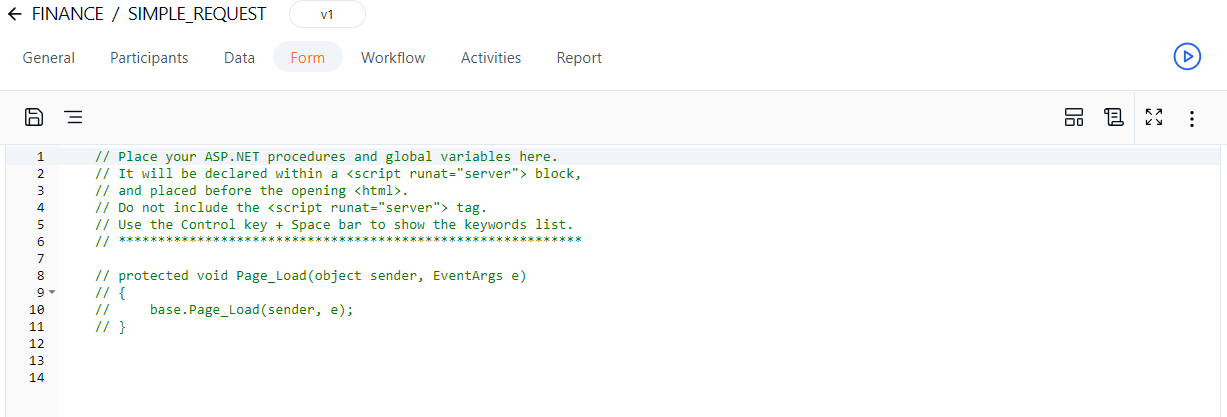
### ASP.NET editor

Click ![](/files/awhtf3igJ0QTPPvAL2eY) in the toolbar to open the ASP.NET code editor, which can be used to define server-side procedures, events, and global variables to handle any specific custom tasks. This feature is mainly intended for ASP.NET server-side development.

<figure><img src="/files/3LoEWMzft24cflWibA8O" alt=""><figcaption></figcaption></figure>

{% hint style="info" %}
As of WorkflowGen version 7.19.0, all `default.aspx` files are saved with the `Page Async` property set to `true` (e.g. `<%@ Page Async="true" ... %>`). This allows asynchronous ASP.NET web form development (see the [Using Asynchronous Methods in ASP.NET 4.5](https://docs.microsoft.com/en-us/aspnet/web-forms/overview/performance-and-caching/using-asynchronous-methods-in-aspnet-45) Microsoft article for more information).
{% endhint %}

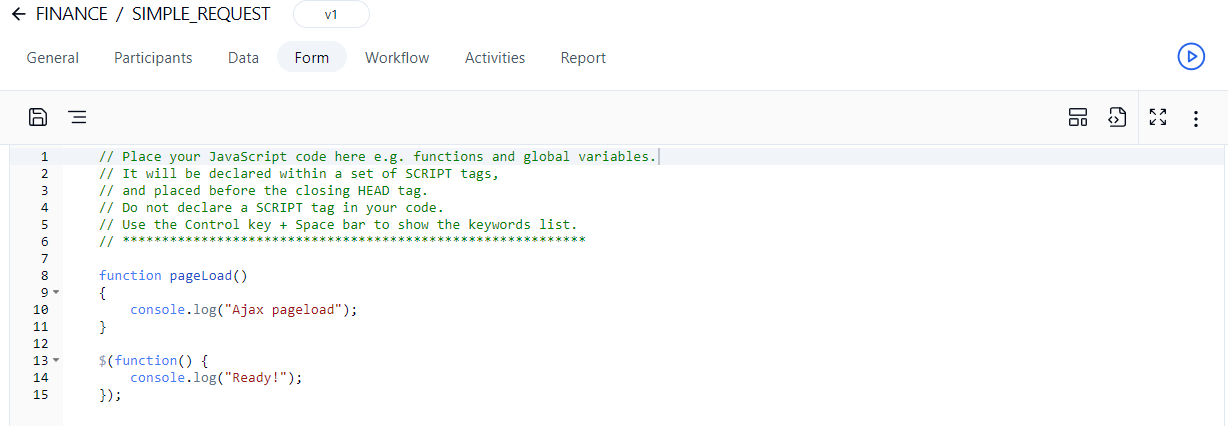
### JavaScript editor

Click ![](/files/6Ow2jVp9mrRcQIOPUyXj) in the toolbar to open the JavaScript code editor, which can be used to define server-side procedures, events, and global variables to handle any specific custom tasks. This feature is mainly intended for JavaScript client-side development.

<figure><img src="/files/O7shjjW7e1LcC6jUD86b" alt=""><figcaption></figcaption></figure>

### Advanced features

#### Server-side editing mode

Check **Enable server-side editing mode** on the **General** tab in the **Form configuration** panel to activate this mode, which allows form designers to modify the content of the form's C# `runat` server tag (e.g. `<script runat="server"`) and JavaScript script tag (e.g. `<script jseditor="true">`) directly in the generated `default.aspx` file on the server (usually located in the `\wfapps\webforms[PROCESSNAME]\V[VERSION]` folder) using Visual Studio Professional or Visual Studio Code.&#x20;

{% hint style="info" %}
The .NET and JavaScript editors are disabled when server-side editing mode is enabled.
{% endhint %}

{% hint style="warning" %}
You must save the form on the WorkflowGen **Form** screen every time you make changes to a script's code in the `default.aspx` file in order to keep the form's HTML script tags (`FORM_HTML`) up to date. This is mandatory before you can export the XPDL process definition for deployment on another server.
{% endhint %}

#### AJAX mode

If you're using the Form Designer, you can enable AJAX mode by checking **Enable AJAX mode** on the **General** tab of the **Form configuration** panel.

{% hint style="info" %}
When adding a custom control (e.g. a button to handle form submission), you must register the control ID as a postback control in the `Page_Load` event's `ScriptManager` object. For example:

```csharp
protected void Page_Load(object sender, EventArgs e)
{
    base.Page_Load(sender, e);    
    
    // Register the custom button to the script manager for postback management in AJAX mode
    if (ScriptManager.GetCurrent(this) != null) {
        ScriptManager.GetCurrent(this).RegisterPostBackControl(ACTION1_BUTTON1);
    }
}
```

{% endhint %}

## Toolbars

### Design mode

<table data-header-hidden><thead><tr><th align="center" valign="top">Icon</th><th valign="top">Name</th><th valign="top">Description</th></tr></thead><tbody><tr><td align="center" valign="top"><strong>Icon</strong></td><td valign="top"><strong>Name</strong></td><td valign="top"><strong>Description</strong></td></tr><tr><td align="center" valign="top"><img src="/files/OLXZbmiMQqzdH9BiwQ53" alt="" data-size="original"></td><td valign="top">Save the form</td><td valign="top">Saves the current form (you can also press <strong><code>Ctrl+S</code></strong> to save)</td></tr><tr><td align="center" valign="top"><img src="/files/cLwHKEpJhfViMTbNcLUb" alt="" data-size="original"></td><td valign="top">Duplicate a section or field</td><td valign="top">Makes a copy of the selected section or field and inserts it in the form; the duplicate section or field will appear below the selected section or field</td></tr><tr><td align="center" valign="top"><img src="/files/mCzeaaZhjbOMpsXLMKlz" alt="" data-size="original"></td><td valign="top">Delete a section or field</td><td valign="top">Deletes the selected section or field from the form</td></tr><tr><td align="center" valign="top"><img src="/files/edhIr9ssbC2kvaTtJnF3" alt="" data-size="original"> <img src="/files/NvxgyxKi76q7rO1Szm4m" alt=""></td><td valign="top">Undo/redo</td><td valign="top">Undoes or redoes the most recent changes made to the form</td></tr><tr><td align="center" valign="top"><img src="/files/AgDCrXUkiUd5bss8KMCs" alt="" data-size="original"></td><td valign="top">Select a style</td><td valign="top">List of default and custom styles; select an item to change the style of the current form</td></tr><tr><td align="center" valign="top"><strong>Tools</strong><br><strong>drop-down list</strong> </td><td valign="top">Select a tool</td><td valign="top">List of default and custom tools; select an item in order to add the tool to the form using the Insert button</td></tr><tr><td align="center" valign="top"><img src="/files/XjG3XgVKchwUoJtx3Y21" alt="" data-size="original"></td><td valign="top">Insert the selected tool</td><td valign="top">Inserts the selected tool in the form</td></tr><tr><td align="center" valign="top"><img src="/files/wJYrSkP7U6rSbDF7fFs9" alt="" data-size="original"></td><td valign="top">Edit field ID</td><td valign="top">Edit section and field identifiers</td></tr><tr><td align="center" valign="top"><img src="/files/EC78eYWUYFkJPUWGo6Ds" alt="" data-size="original"></td><td valign="top">Edit field tooltip</td><td valign="top">Edit section and field tooltips</td></tr><tr><td align="center" valign="top"><img src="/files/MfP30acc2TVuFqRRyA5n" alt="" data-size="original"></td><td valign="top">Edit field format</td><td valign="top">Edit section and field format</td></tr><tr><td align="center" valign="top"><img src="/files/viQsImx2RrQuV0CuBxY4" alt="" data-size="original"></td><td valign="top">Edit form's style and layout</td><td valign="top">Edit the appearance of headers, footers, labels, sections, and fields (see <a href="/pages/-LX-zSiJVksGnMQvm5Fc#appearance">Appearance</a>)</td></tr><tr><td align="center" valign="top"><img src="/files/dYV7JEw35HXWeoJ8uQT0" alt="" data-size="original"></td><td valign="top">Edit field's action behavior</td><td valign="top">Displays the interactive view of the workflow, activates the <strong>Required</strong>, <strong>Read-only</strong>, and <strong>Hidden</strong> clickable options for each form field, and sets the behavior of sections and form fields for each action (see <a href="/pages/-LX-zSiJVksGnMQvm5Fc#field-and-section-behavior">Field &#x26; section behavior</a>)</td></tr><tr><td align="center" valign="top"><img src="/files/uulwBlhnAz5IZEdCb4U1" alt="" data-size="original"></td><td valign="top">Edit field’s action data mapping</td><td valign="top">Displays the interactive view of the workflow, activates clickable options <strong>Retrieve the value</strong> and <strong>Send the value</strong> for each form field and defines the data input and output for each action (see <a href="/pages/-LX-zSiJVksGnMQvm5Fc#field-data-mapping">Field data mapping</a>)</td></tr><tr><td align="center" valign="top"><img src="/files/S7hJQV7PeXKiwDzD8is8" alt="" data-size="original"></td><td valign="top">ASP.NET</td><td valign="top">Switch to the ASP.NET code-behind editor</td></tr><tr><td align="center" valign="top"><img src="/files/xH7kGfdj8co2vrTovP8H" alt="" data-size="original"></td><td valign="top">JavaScript</td><td valign="top">Switch to the JavaScript code editor</td></tr><tr><td align="center" valign="top"><img src="/files/A6WNLPsZ5L52zNrfg9Mz" alt="" data-size="original"></td><td valign="top">Maximize canvas</td><td valign="top">Maximize the canvas size</td></tr><tr><td align="center" valign="top"><img src="/files/17QfO57SdOjtQijNPI0I" alt="" data-size="original"></td><td valign="top">Restore canvas</td><td valign="top">Restore the canvas to its default size</td></tr><tr><td align="center" valign="top"><em>Click</em> <img src="/files/OpJMxysJBgONXQsWVGeE" alt=""> <em>to display the additional functions listed below</em></td><td valign="top"></td><td valign="top"></td></tr><tr><td align="center" valign="top"><img src="/files/7UytjLvTgtV9COuol1xO" alt="" data-size="original"></td><td valign="top">New form</td><td valign="top">Creates a new form or replaces the current form</td></tr><tr><td align="center" valign="top"><img src="/files/qiwnhwDwd3ze7ug1jesV" alt="" data-size="original"></td><td valign="top">Save a section or field as tool</td><td valign="top">Saves the selected section or field as a custom tool</td></tr><tr><td align="center" valign="top"><img src="/files/IVblJswGKJQ2avYMXVNK" alt="" data-size="original"></td><td valign="top">Manage custom tools</td><td valign="top">Allows you to name custom sections and tools</td></tr><tr><td align="center" valign="top"><img src="/files/H9IXZmTwgsovqM9XYdlV" alt="" data-size="original"></td><td valign="top">Workflow view</td><td valign="top">Displays the interactive workflow view</td></tr><tr><td align="center" valign="top"><img src="/files/v2FYram4bGY8DgoCXHjr" alt="" data-size="original"></td><td valign="top">Form configuration</td><td valign="top">Opens the <strong>Form configuration</strong> panel</td></tr><tr><td align="center" valign="top"><img src="/files/fZA3Qsn9QCT2DYEsuBLy" alt="" data-size="original"></td><td valign="top">Print</td><td valign="top">Prints the current form</td></tr></tbody></table>

### ASP.NET editor

<table data-header-hidden><thead><tr><th align="center" valign="top">Icon</th><th valign="top">Name</th><th valign="top">Description</th></tr></thead><tbody><tr><td align="center" valign="top"><strong>Icon</strong></td><td valign="top"><strong>Name</strong></td><td valign="top"><strong>Description</strong></td></tr><tr><td align="center" valign="top"><img src="/files/B978ac3x3fdJuuyccayP" alt="" data-size="original"></td><td valign="top">Save</td><td valign="top">Saves the ASP.NET code</td></tr><tr><td align="center" valign="top"><img src="/files/0USHCjtVs6EgJ6lC74si" alt="" data-size="original"></td><td valign="top">Comment/uncomment</td><td valign="top">Adds or removes <code>//</code> before the selected line(s)</td></tr><tr><td align="center" valign="top"><img src="/files/Fc8JYDds9RihYwF8hwJ3" alt="" data-size="original"></td><td valign="top">Form Designer</td><td valign="top">Switch to the Form Designer</td></tr><tr><td align="center" valign="top"><img src="/files/KfEnyJMEzN3QyBkhvWeS" alt="" data-size="original"></td><td valign="top">JavaScript</td><td valign="top">Switch to the JavaScript code editor</td></tr><tr><td align="center" valign="top"><img src="/files/A6WNLPsZ5L52zNrfg9Mz" alt="" data-size="original"></td><td valign="top">Maximize canvas</td><td valign="top">Maximize the canvas size</td></tr><tr><td align="center" valign="top"><img src="/files/17QfO57SdOjtQijNPI0I" alt="" data-size="original"></td><td valign="top">Restore canvas</td><td valign="top">Restore the canvas to its default size</td></tr><tr><td align="center" valign="top"><em>Click</em> <img src="/files/OpJMxysJBgONXQsWVGeE" alt=""> <em>to display the additional function listed below</em></td><td valign="top"></td><td valign="top"></td></tr><tr><td align="center" valign="top"><img src="/files/S7hJQV7PeXKiwDzD8is8" alt="" data-size="original"></td><td valign="top">New</td><td valign="top">Clears the ASP.NET code</td></tr></tbody></table>

### JavaScript editor

<table data-header-hidden><thead><tr><th align="center" valign="top">Icon</th><th valign="top">Name</th><th valign="top">Description</th></tr></thead><tbody><tr><td align="center" valign="top"><strong>Icon</strong></td><td valign="top"><strong>Name</strong></td><td valign="top"><strong>Description</strong></td></tr><tr><td align="center" valign="top"><img src="/files/B978ac3x3fdJuuyccayP" alt="" data-size="original"></td><td valign="top">Save</td><td valign="top">Saves the JavaScript code</td></tr><tr><td align="center" valign="top"><img src="/files/0USHCjtVs6EgJ6lC74si" alt="" data-size="original"></td><td valign="top">Comment/uncomment</td><td valign="top">Adds or removes <code>//</code> before the selected line(s)</td></tr><tr><td align="center" valign="top"><img src="/files/Fc8JYDds9RihYwF8hwJ3" alt="" data-size="original"></td><td valign="top">Form Designer</td><td valign="top">Switch to the Form Designer</td></tr><tr><td align="center" valign="top"><img src="/files/S7hJQV7PeXKiwDzD8is8" alt="" data-size="original"></td><td valign="top">ASP.NET</td><td valign="top">Switch to the ASP.NET code-behind editor</td></tr><tr><td align="center" valign="top"><em>Click</em> <img src="/files/OpJMxysJBgONXQsWVGeE" alt=""> <em>to display the additional function listed below</em></td><td valign="top"></td><td valign="top"></td></tr><tr><td align="center" valign="top"><img src="/files/THqlwJuFbcZQv7gHfiGX" alt="" data-size="original"></td><td valign="top">New</td><td valign="top">Clears the JavaScript code</td></tr></tbody></table>

## Form configuration

A form created with the built-in Form Designer has one header, one or several sections, one or several fields per section, a **Submit** button, an optional **Save as a draft** button, and one footer.

Click ![](/files/Op7S6JuIkkItLCwVz7Z5) in the top right corner of the Form Designer toolbar then ![](/files/mQDOxKRqVg8dBgotoEK8) to open the **Form configuration** panel.&#x20;

### General tab

<figure><img src="/files/cvT76e3X5g9tGYkIHBnU" alt=""><figcaption></figcaption></figure>

<table data-header-hidden><thead><tr><th valign="top">Name</th><th valign="top">Description</th></tr></thead><tbody><tr><td valign="top"><strong>Name</strong></td><td valign="top"><strong>Description</strong></td></tr><tr><td valign="top"><strong>Web forms</strong></td><td valign="top"></td></tr><tr><td valign="top">Enable server-side code editing mode</td><td valign="top">See <a href="/pages/-LV-mVmRUvJVGqbtKuAH#server-side-editing-mode">Server-side editing mode</a></td></tr><tr><td valign="top">Enable AJAX mode</td><td valign="top">See <a href="/pages/-LV-mVmRUvJVGqbtKuAH#ajax-mode">AJAX mode</a></td></tr><tr><td valign="top"><strong>Header</strong></td><td valign="top"></td></tr><tr><td valign="top">Title</td><td valign="top">The title of the form</td></tr><tr><td valign="top">Width</td><td valign="top"><p>The width of the form header</p><p></p><p>Numeric value with or without the unit of measure (<code>px</code>, <code>pt</code>, <code>in</code>, <code>cm</code>, <code>mm</code>, <code>pc</code>, <code>em</code>, <code>ex</code>, <code>%</code>), e.g. <code>720px</code></p></td></tr><tr><td valign="top">Height</td><td valign="top"><p>The height of the form header</p><p></p><p>Numeric value with or without the unit of measure (<code>px</code>, <code>pt</code>, <code>in</code>, <code>cm</code>, <code>mm</code>, <code>pc</code>, <code>em</code>, <code>ex</code>, <code>%</code>), e.g. <code>38px</code></p></td></tr><tr><td valign="top">Image alignment</td><td valign="top"><p>The alignment for the header image:</p><ul><li><strong>Right</strong>: The image will be aligned to the right</li><li><strong>Left</strong>: The image will be aligned to the left</li><li><strong>None</strong>: No alignment</li></ul></td></tr><tr><td valign="top">Image URL</td><td valign="top">The URL of the image to be shown</td></tr><tr><td valign="top">Image width</td><td valign="top">The width of the image</td></tr><tr><td valign="top">Image height</td><td valign="top">The height of the image</td></tr><tr><td valign="top">Image repeat</td><td valign="top"><p>Sets if and how the image will be repeated:</p><ul><li><strong>No-repeat</strong>: the image will not be repeated</li><li><strong>Repeat</strong>: the image will be repeated both vertically and horizontally (this is the default setting)</li><li><strong>Repeat x</strong>: the image will be repeated only horizontally</li><li><strong>Repeat y</strong>: the image will be repeated only vertically</li></ul></td></tr><tr><td valign="top"><strong>Sections</strong></td><td valign="top"></td></tr><tr><td valign="top">Width</td><td valign="top"><p>The width for all sections</p><p></p><p>Numeric value with or without the unit of measure (<code>px</code>, <code>pt</code>, <code>in</code>, <code>cm</code>, <code>mm</code>, <code>pc</code>, <code>em</code>, <code>ex</code>, <code>%</code>), e.g. <code>720px</code></p></td></tr><tr><td valign="top">Adjust width automatically</td><td valign="top">Check to apply adjusted width to all sections</td></tr><tr><td valign="top"><strong>Labels</strong></td><td valign="top"></td></tr><tr><td valign="top">Alignment</td><td valign="top"><p>The alignment for all field labels:</p><ul><li><strong>Right</strong>: the label will be aligned to the right of the field</li><li><strong>Left</strong>: the label will be aligned to the left of the field</li><li><strong>Top</strong>: the label will be aligned on top of the field</li></ul></td></tr><tr><td valign="top">Width</td><td valign="top"><p>The width for all field labels</p><p></p><p>Numeric value with or without the unit of measure (<code>px</code>, <code>pt</code>, <code>in</code>, <code>cm</code>, <code>mm</code>, <code>pc</code>, <code>em</code>, <code>ex</code>, <code>%</code>), e.g. <code>150px</code></p></td></tr><tr><td valign="top">Apply the width</td><td valign="top">Check to apply the width to all field labels</td></tr><tr><td valign="top"><strong>Buttons</strong></td><td valign="top"></td></tr><tr><td valign="top">Submit label</td><td valign="top">The label for the submit button</td></tr><tr><td valign="top">Save-as-draft label</td><td valign="top">The label for the save as draft button</td></tr><tr><td valign="top">Enable save-as-draft</td><td valign="top">Check to enable and display the save as draft button</td></tr><tr><td valign="top"><strong>Footer</strong></td><td valign="top"></td></tr><tr><td valign="top">Width</td><td valign="top"><p>The width of the form footer</p><p></p><p>Numeric value with or without the unit of measure (<code>px</code>, <code>pt</code>, <code>in</code>, <code>cm</code>, <code>mm</code>, <code>pc</code>, <code>em</code>, <code>ex</code>, <code>%</code>), e.g. <code>720px</code></p></td></tr><tr><td valign="top">Height</td><td valign="top"><p>The height of the form header</p><p></p><p>Numeric value with or without the unit of measure (<code>px</code>, <code>pt</code>, <code>in</code>, <code>cm</code>, <code>mm</code>, <code>pc</code>, <code>em</code>, <code>ex</code>, <code>%</code>), e.g. <code>22px</code></p></td></tr><tr><td valign="top">Image alignment</td><td valign="top"><p>The alignment for the footer image:</p><ul><li><strong>Right</strong>: the image will be aligned to the right side</li><li><strong>Left</strong>: the image will be aligned to the left side</li><li><strong>None</strong>: no alignment</li></ul></td></tr><tr><td valign="top">Image URL</td><td valign="top">The URL of the image to be shown</td></tr><tr><td valign="top">Image width</td><td valign="top">The width of the image</td></tr><tr><td valign="top">Image height</td><td valign="top">The height of the image</td></tr><tr><td valign="top">Image repeat</td><td valign="top"><p>Sets if and how the image will be repeated:</p><ul><li><strong>No repeat</strong>: the image will not be repeated</li><li><strong>Repeat</strong>: the image will be repeated both vertically and horizontally (this is the default setting)</li><li><strong>Repeat-x</strong>: the image will be repeated only horizontally</li><li><strong>Repeat-y</strong>: the image will be repeated only vertically</li></ul></td></tr><tr><td valign="top"><strong>Security</strong></td><td valign="top"></td></tr><tr><td valign="top">Enable XML Signature</td><td valign="top"><p>Check to enable the use of XML signature in the form data</p><p></p><p>Digital signatures are used to certify that a document has not been modified by the system or by someone who gained unauthorized access to the system. The XML signature is a W3C standard that defines the syntax and processing rules for creating and representing digital signatures. This is a method of associating a key with referenced data to insure the integrity of this data.</p></td></tr><tr><td valign="top"><strong>Misc.</strong></td><td valign="top"></td></tr><tr><td valign="top">Display a confirmation message for quick deletion</td><td valign="top">Check to prompt a confirmation message prior to deletion</td></tr></tbody></table>

### Web References tab

<figure><img src="/files/SewwycvTO0I3zNRWOgVq" alt=""><figcaption></figcaption></figure>

<table data-header-hidden><thead><tr><th valign="top">Name</th><th valign="top">Description</th></tr></thead><tbody><tr><td valign="top"><strong>Name</strong></td><td valign="top"><strong>Description</strong></td></tr><tr><td valign="top">Include jQuery API and jQuery UI libraries</td><td valign="top"><p>Check this option to include the <strong>jQuery</strong> and <strong>jQuery UI</strong> libraries in runtime mode (form execution); by default, these libraries are available in design mode</p><p></p><p>Available versions:</p><ul><li>v1.7.2 &#x26; v1.8.20</li><li>v1.10.2 &#x26; v1.10.3</li><li>v3.5.1 &#x26; v1.12.1 (default)</li></ul></td></tr><tr><td valign="top">Free text</td><td valign="top"><p>Custom web references to be included in the HTML head that will be available in both design and run-time modes. Only <code>&#x3C;script></code>, <code>&#x3C;meta></code>, <code>&#x3C;link></code>, and <code>&#x3C;style></code> tags are supported. When you enter a tag, the free text editor automatically inserts its closing tag.</p><p></p><p>📌 <strong>Example:</strong></p><pre class="language-html"><code class="lang-html">&#x3C;link rel="stylesheet" type="text/css" href="mystyle.css" />
&#x3C;style type="text/css">
    body {background-color: yellow;}
    p {color: blue;}
&#x3C;/style>
&#x3C;meta name="description" content="my content" />
&#x3C;script type="text/javascript">
    alert("Hello World!");
&#x3C;/script>
&#x3C;script type="text/javascript" src="myscript.js">
&#x3C;/script>
</code></pre><p><br>To fold a code block, click the down arrow next to the line number, which will insert a double-arrow icon in place of the code. To unfold the code block, click the right arrow. <br><br>Press <strong><code>Ctrl+Space</code></strong>to display a drop-down menu that lists the available variables and keywords.</p></td></tr></tbody></table>

### Translations tab

<figure><img src="/files/GHEh318YrJFbNqo91hcj" alt=""><figcaption></figcaption></figure>

<table data-header-hidden><thead><tr><th valign="top">Name</th><th valign="top">Description</th></tr></thead><tbody><tr><td valign="top"><strong>Name</strong></td><td valign="top"><strong>Description</strong></td></tr><tr><td valign="top">Select a language</td><td valign="top"><p>The Form Designer allows you to translate form labels and error messages to the languages available in WorkflowGen. Select a language for translation from the languages available in the drop-down list.</p><p></p><p>✏️ <strong>Note:</strong> Generic language selections such as English, French, Spanish, etc., correspond to the version of the language that the administrator initially used to create a form. For example, if the administrator used <strong>English (United States)</strong> to create a form, then in this instance the selections <strong>English (United States)</strong> and <strong>English</strong> would be one and the same.</p></td></tr><tr><td valign="top">Free text</td><td valign="top">Write translated text that corresponds to the selected language. If a field is left empty, then the language will defer in the following order: <strong>Country-specific language > Generic language > Default language</strong>.</td></tr></tbody></table>


---

# Agent Instructions: Querying This Documentation

If you need additional information that is not directly available in this page, you can query the documentation dynamically by asking a question.

Perform an HTTP GET request on the current page URL with the `ask` query parameter:

```
GET https://docs.workflowgen.com/admin/form.md?ask=<question>
```

The question should be specific, self-contained, and written in natural language.
The response will contain a direct answer to the question and relevant excerpts and sources from the documentation.

Use this mechanism when the answer is not explicitly present in the current page, you need clarification or additional context, or you want to retrieve related documentation sections.