# Appearance, Behavior & Mapping

## Appearance

### Styles

Built-in style templates are available in the ![](https://content.gitbook.com/content/KjZcMxkzmJaMCI7tSLjB/blobs/hQUJEyK6P5UnVjzIumd3/fd_style_small.png) drop-down menu in the Form Designer toolbar. These contain additional CSS that will automatically format and optimize web forms to display on smartphone and tablet devices based on their screen resolution.

Custom styles can be created and deployed on the server using the following folder and file structure: `\wfgen\App_Data\Templates\Forms[language][folder name]\css[style name].css`

📌 **Example**

`\wfgen\App_Data\Templates\Forms\En\MyCompany\css\MyStyle.css`

{% hint style="info" %}
Styles selected in the ![](https://content.gitbook.com/content/KjZcMxkzmJaMCI7tSLjB/blobs/zyhMl1TSlFehtYUxO34T/image.png) drop-down menu will be applied to the entire form. The **Appearance Editor** lets you fully customize individual form elements, such as font and size, text and background colors, border styles and colors, etc.
{% endhint %}

### Appearance Editor

The **Appearance Editor** lets you customize the appearance of individual form items and provides further options. You can change the appearance of headers and footers, fields and their labels, radio buttons, checkboxes, the **Submit** button, and the optional **Save-as-draft** button. Click ![](https://content.gitbook.com/content/KjZcMxkzmJaMCI7tSLjB/blobs/IJbKoEWI4okCK5SKmJu2/fd_style_layout_small.png) in the Form Designer toolbar to open the Appearance Editor, which you can use in **Express** or **Advanced** modes.

#### Express mode

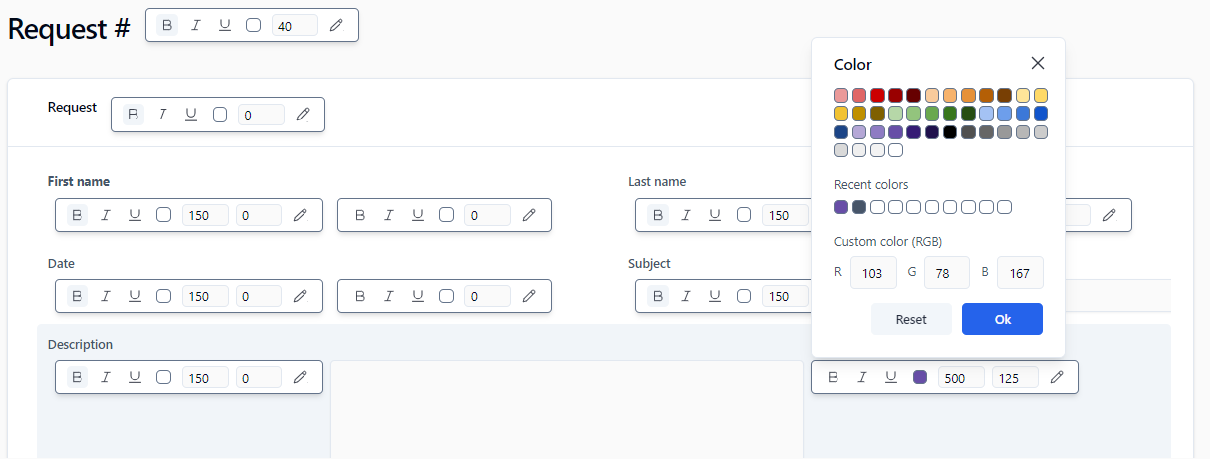
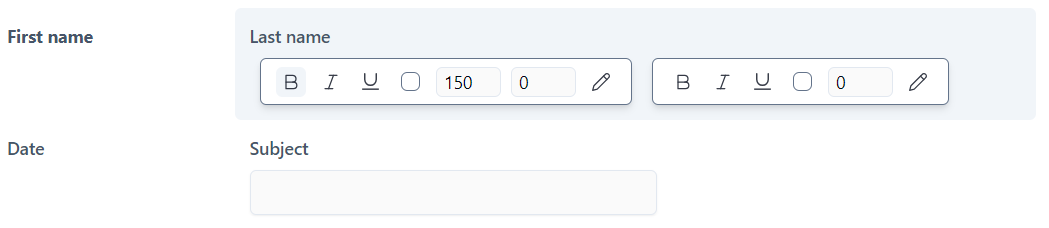
To use **Express** mode, hover the mouse over the item you want to customize and a toolbar will appear that lets you change the appearance of text and the size of the top margin. (If the item contains several fields, toolbars will appear in the corresponding positions.) You can also change the width of labels and fields.&#x20;

<div align="left"><figure><img src="https://content.gitbook.com/content/KjZcMxkzmJaMCI7tSLjB/blobs/wLDBDeft7WaaMxWKj3y9/form_appearance_express.png" alt=""><figcaption><p>Editing form item appearance in Express mode</p></figcaption></figure></div>

{% hint style="info" %}
To display the Express mode toolbars for all of the items on the form, press **`Ctrl+Shift+A`**.
{% endhint %}

<div align="left"><figure><img src="https://content.gitbook.com/content/KjZcMxkzmJaMCI7tSLjB/blobs/ZS1W1Dgoj3ixec3NU6Fr/appearance_editor_ctrlshifta.png" alt=""><figcaption><p>Express mode toolbars displayed for all form items</p></figcaption></figure></div>

#### **Advanced mode**

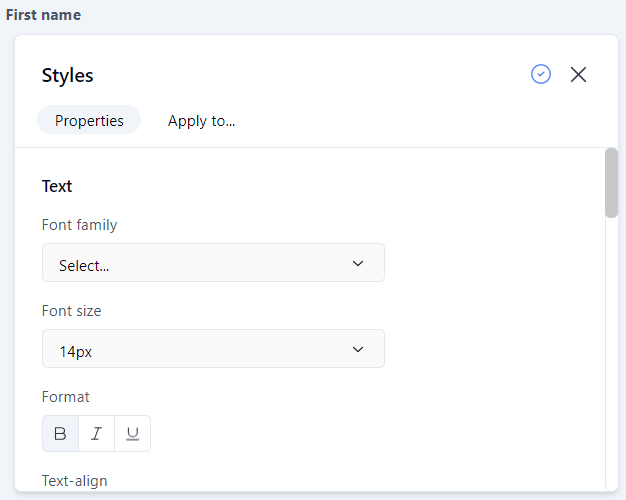
**Advanced** mode provides extended customization options. To display the Advanced mode panel, hover the mouse over the form item to display the Express mode toolbar, then click the ![](https://content.gitbook.com/content/KjZcMxkzmJaMCI7tSLjB/blobs/zyCGijiiqJljxf9Wanj8/pencil.png) icon to the right.

<div align="left"><figure><img src="https://content.gitbook.com/content/KjZcMxkzmJaMCI7tSLjB/blobs/mD3gmFEf4UA4w5j1kO3w/appearance_editor_advanced.png" alt=""><figcaption><p>Editing form item appearance in Advanced mode</p></figcaption></figure></div>

The **Text** section lets you set the text appearance, alignment, and word spacing. The **Layout** section sets the width and padding of the item. In the **Borders** section, you can add borders and customizes their appearance. The **Field** section sets the top, left, and right margins of the field.

On the **Apply to...** tab, you can choose the items to which you want to apply the customized appearance settings using the checkboxes.

To apply your customized appearance and exit the Advanced mode editor, click the ![](https://content.gitbook.com/content/KjZcMxkzmJaMCI7tSLjB/blobs/Y9JFTcaNikk65Puhdi4M/close_apply.png) icon at the top right of the panel. To cancel changes and exit, click the ![](https://content.gitbook.com/content/KjZcMxkzmJaMCI7tSLjB/blobs/CwD9d8j5NxkbqlzuGsMD/close_cancel.png) icon.

## Field & section behavior

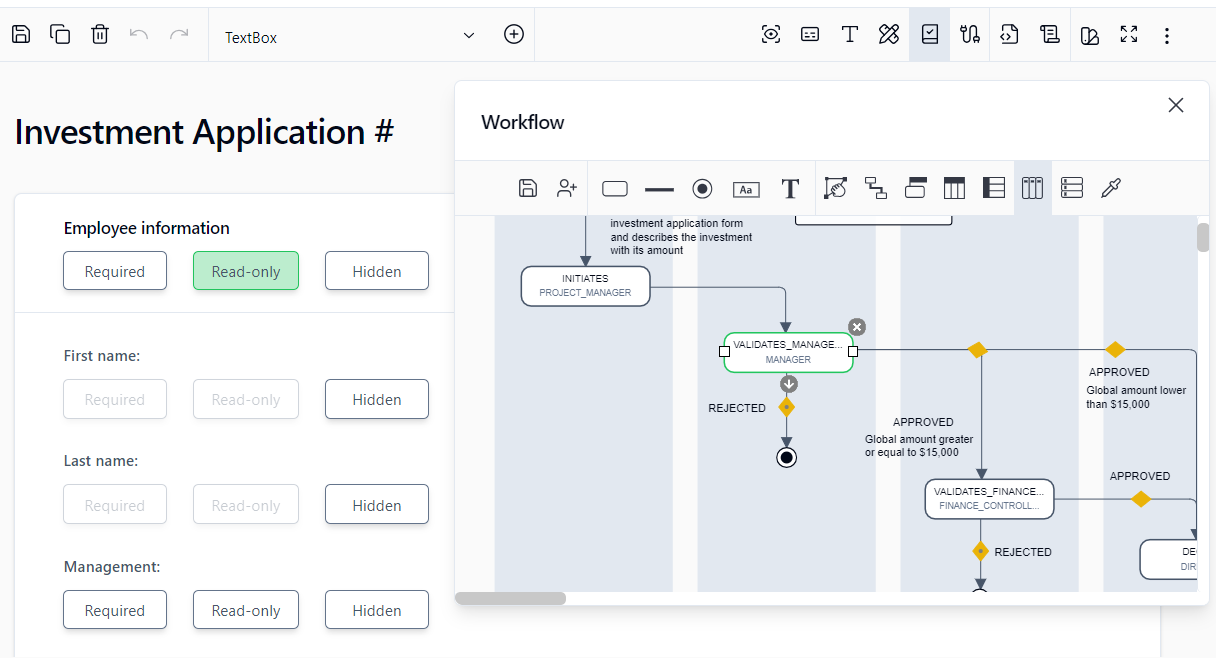
<div align="left"><figure><img src="https://content.gitbook.com/content/KjZcMxkzmJaMCI7tSLjB/blobs/gv2MRxBw0s3IA4ixVMLC/fd_behavior.png" alt=""><figcaption><p>Interactive workflow view: Behavior</p></figcaption></figure></div>

The **Behavior** screen is used to visually define the behavior of form sections nd fields for each action of the workflow.

To activate the interactive workflow view and define the behavior of the form, click ![](https://content.gitbook.com/content/KjZcMxkzmJaMCI7tSLjB/blobs/RrV9VQiSDHPOTYPrcBAK/fd_behavior_small.png) on the toolbar.

To define the behavior of sections and fields of the form at the action level, click the desired action in the interactive workflow view. Once the action is selected, the **Required**, **Read-only**, and **Hidden** settings are activated as clickable buttons for each section and the form field.

To activate the **Required**, **Read-only**, and **Hidden** settings of each section and form field, click the button related to the section or field for which you want to manage the behavior.

To define the behavior of the form for the other actions of the workflow, click another action via the interactive workflow view and repeat the above operation according to the desired behavior.

#### Table of supported behaviors for sections

| **Sections** | **Required** | **Read-only** | **Hidden** |
| ------------ | :----------: | :-----------: | :--------: |
| All sections |      ✔️      |       ✔️      |     ✔️     |

#### Table of supported behaviors per field type

| **Default – Fields**                                 | **Required** | **Read-only** | **Hidden** |
| ---------------------------------------------------- | :----------: | :-----------: | :--------: |
| File attachment (standard .NET `FileUpload` control) |      ✔️      |       ✔️      |     ✔️     |
| File attachment (`WorkflowFileUpload` control)       |       ❌      |       ✔️      |     ✔️     |
| CheckBox                                             |       ❌      |       ✔️      |     ✔️     |
| CheckBoxList                                         |       ❌      |       ✔️      |     ✔️     |
| CheckBoxListVertical                                 |       ❌      |       ✔️      |     ✔️     |
| Currency                                             |      ✔️      |       ✔️      |     ✔️     |
| Date                                                 |      ✔️      |       ✔️      |     ✔️     |
| DateTime                                             |      ✔️      |       ✔️      |     ✔️     |
| DropdownListBox                                      |      ✔️      |       ✔️      |     ✔️     |
| Gridview                                             |     ✔️\*     |       ✔️      |     ✔️     |
| Gridview - Column                                    |     ✔️\*     |       ❌       |      ❌     |
| Label                                                |       ❌      |       ❌       |     ✔️     |
| ListBox                                              |      ✔️      |       ✔️      |     ✔️     |
| Numeric                                              |      ✔️      |       ✔️      |     ✔️     |
| Password                                             |      ✔️      |       ✔️      |     ✔️     |
| RadioButton                                          |       ❌      |       ✔️      |     ✔️     |
| RadioButtonList                                      |      ✔️      |       ✔️      |     ✔️     |
| RadioButtonList Vertical                             |      ✔️      |       ✔️      |     ✔️     |
| ReadOnlyCurrency                                     |       ❌      |       ❌       |     ✔️     |
| ReadOnlyDate                                         |       ❌      |       ❌       |     ✔️     |
| ReadOnlyDateTime                                     |       ❌      |       ❌       |     ✔️     |
| ReadOnlyNumeric                                      |       ❌      |       ❌       |     ✔️     |
| ReadOnlyText                                         |       ❌      |       ❌       |     ✔️     |
| TextArea                                             |      ✔️      |       ✔️      |     ✔️     |
| Text                                                 |      ✔️      |       ✔️      |     ✔️     |

\* Not supported in field conditions.

## Field data mapping

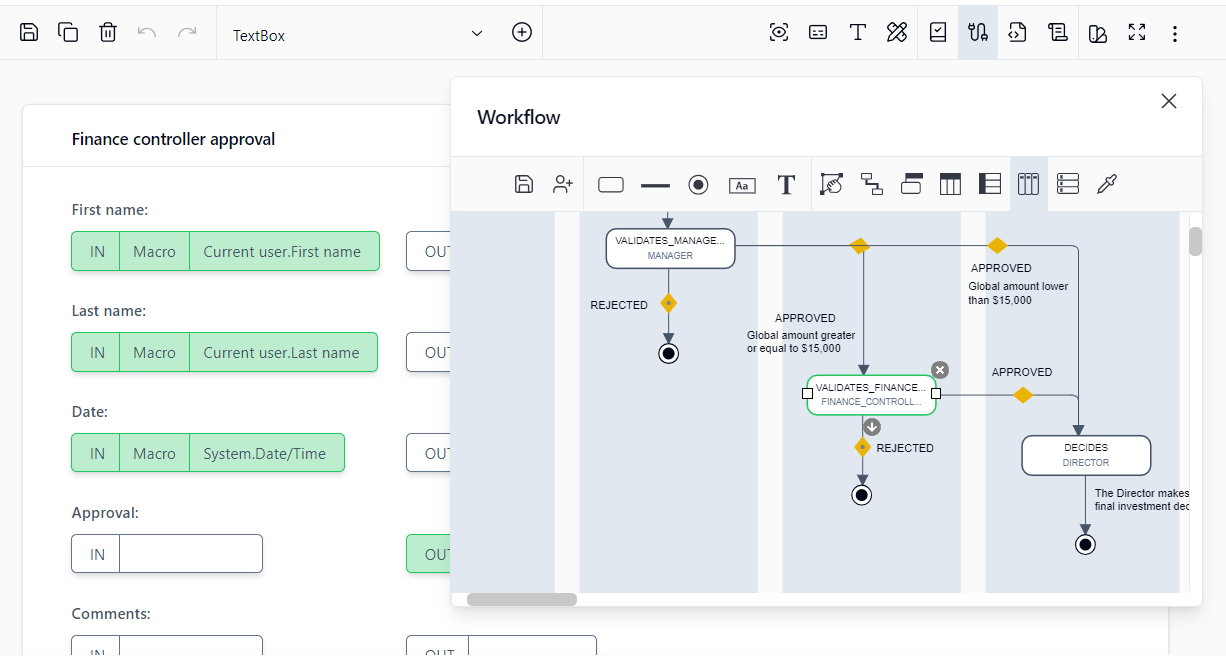
The **Mapping** screen enables you to visually define the default values ​​(data in) and/or data to be stored by the workflow (data out) of the form fields for each action of the workflow.

To activate the interactive workflow view and manage the mapping of the form, click ![](https://content.gitbook.com/content/KjZcMxkzmJaMCI7tSLjB/blobs/55V6IeEYsozHlxT39SkP/fd_mapping_small.png) on the toolbar.

<figure><img src="https://content.gitbook.com/content/KjZcMxkzmJaMCI7tSLjB/blobs/bOprukIDoBdcIG52Sbc8/fd_mapping.png" alt=""><figcaption><p>Interactive workflow view: Mapping</p></figcaption></figure>

To set the default values ​​of form fields at the action level, click the desired action in the interactive workflow view.

Once the action is selected, the value **IN** and value **OUT** buttons are activated in each form field.

#### Default value (data in)

A default value will automatically populate a field when displaying the form following the launch of an action. These default values can be of several types:

* Manually-entered text
* A macro selected from the list of available macros
* Workflow data selected in the data list

To set the default value of a field at the action level, click the **IN** button to the right of the field concerned.

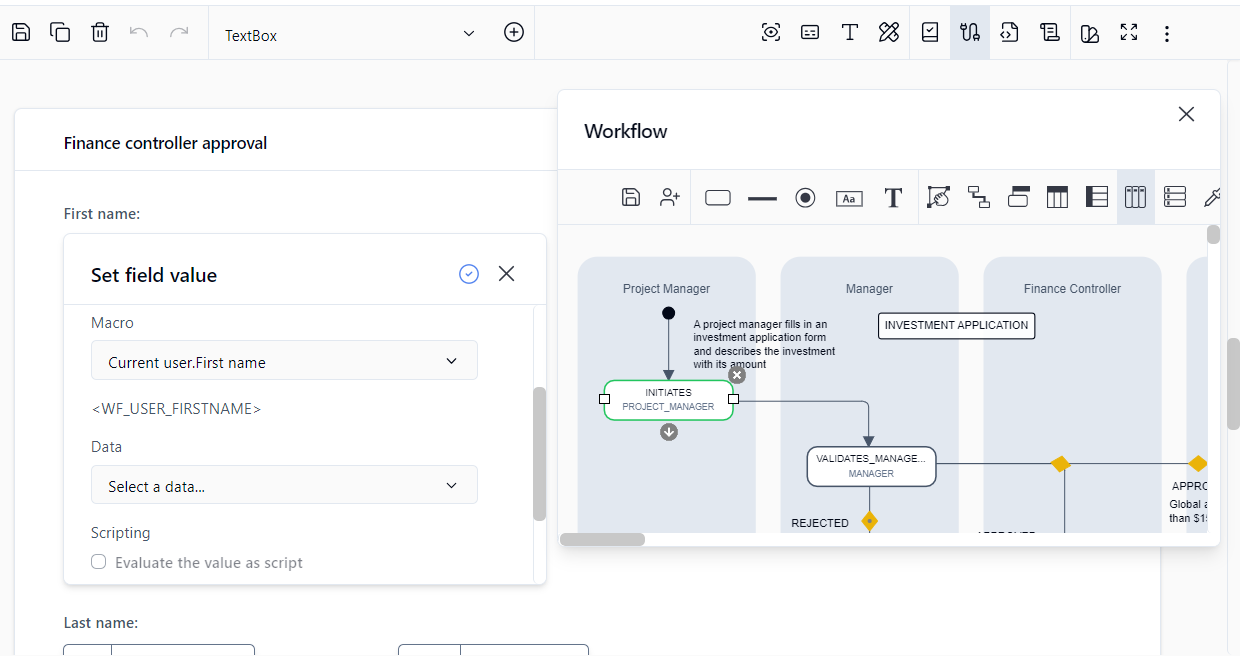
<div align="left"><figure><img src="https://content.gitbook.com/content/KjZcMxkzmJaMCI7tSLjB/blobs/vqTD9INZXEwp87G4vfHv/fd_mapping_default_value.png" alt=""><figcaption><p>Interactive workflow view: Mapping default IN values</p></figcaption></figure></div>

In the dialog box that appears, set the default value of the field by entering text in the **Text** section, by selecting a macro from the drop-down **Macro** list, or by selecting process data in the **Data** combo box. Click the checkmark at the top right to save.

To set the default values ​​of other form fields for each of the actions of the workflow, click another action via the interactive workflow view and repeat the previous operation.

{% hint style="info" %}
When configuring a value IN mapping, you can select **Apply to all form activities** to propagate the same mapping to all other activities in the process that use the same form application type (EFORMASPX).

This option is useful when multiple form activities (for example, Request, Approval, and Review) need to share the same input mapping configuration.
{% endhint %}

#### Data stored by the workflow (data out)

To set the form data to be stored for an action, click the desired action in the interactive workflow view.

Data stored by the workflow corresponds to the value of form fields that will be retrieved by the workflow as a result of an action, and that can be used for the following purposes:

* As workflow conditions
* In the assignment of an action, setting the time for action and content of notifications
* Through the tracking features and/or statistics (reporting)

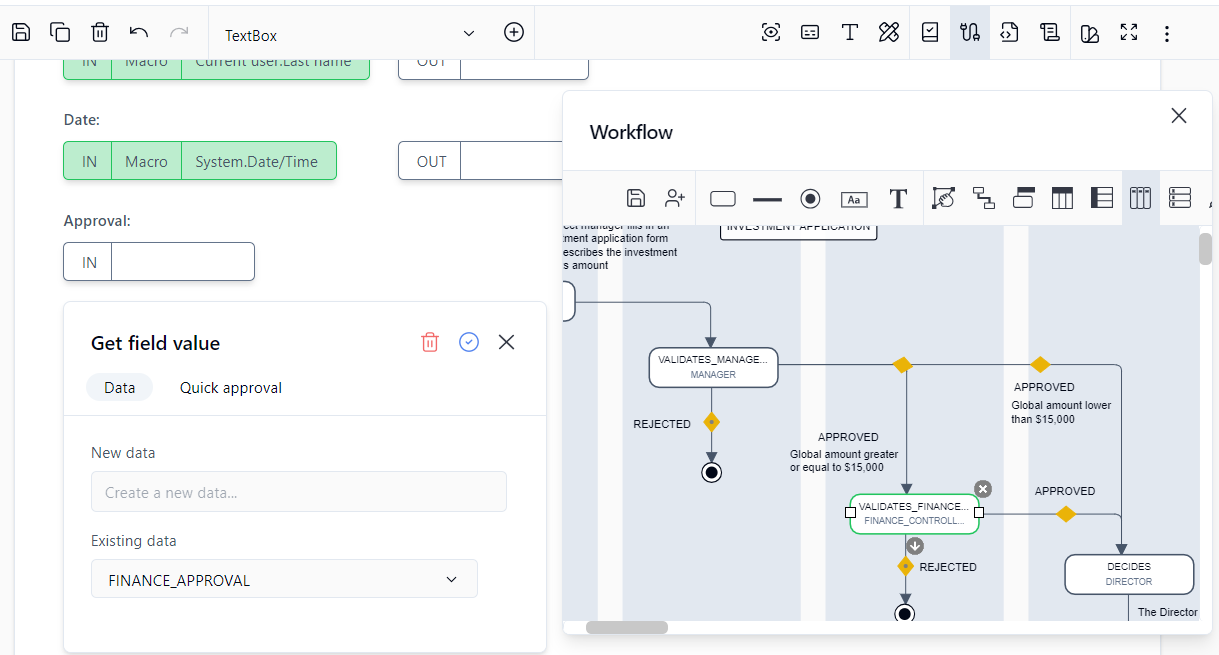
To send the value of a form field and therefore store it as process data, click **OUT** to the right of each field in question.

<div align="left"><figure><img src="https://content.gitbook.com/content/KjZcMxkzmJaMCI7tSLjB/blobs/fGcd4IoYHJFBnWWgClwt/fd_mapping_out_value.png" alt=""><figcaption><p>Interactive workflow view: Mapping OUT values</p></figcaption></figure></div>

Fields whose values have been sent are automatically declared in the **Data** tab of the process definition and will be usable as workflow transitions, as tracking features and analytics (reporting), etc.

{% hint style="info" %}
Data names should respect the following XML naming rules:

* They should begin with a letter or an underscore
* They should contain only letters, digits, hyphens, underscores, and periods
* They should not contain spaces
* They should not begin with the letters `XML` in any case (e.g. `xml` or `Xml`)

Otherwise, the action parameter will be successfully saved, but a warning message will be displayed upon saving. For more information, see <https://www.w3schools.com/xml/xml_elements.asp>.
{% endhint %}

To define the data stored for each of the actions of the workflow, click another action via the interactive view and repeat the previous operation.

{% hint style="info" %}
When configuring a value OUT mapping, you can select **Apply to all form activities** to propagate the same output mapping to all other activities in the process that use the same form application type (EFORMASPX).

This helps keep output data mappings consistent across all form activities in the workflow.
{% endhint %}

#### Quick approval

To enable the **Quick approval** feature on validation actions, click the **Quick approval** tab and check **Enable Quick approval**. Click **Edit email approval keywords** to specify email approval keywords (comma-separated) for the configured Quick approval parameters. Once enabled, you can also **Enable Quick approval comments** for comments actions.

To enable Quick approval by default, check **Enable Quick approval by default** on the **Portal** tab in the **Configuration** panel.

{% hint style="info" %}
If you've modified the default Quick approval parameters or added additional ones, the parameter values must be static and not bound to dynamic process data.
{% endhint %}