# Global Lists

## Overview

The **Global lists** module allows authorized users to manage data lists from the Administration Module. It's a solution to manage and centralize data that you can use to populate drop-down lists in your web forms.

There's no limit to the number of items in a global list, which can have up to 20 columns. Good user interface performance depends on the number of cells (items × columns), and is optimized for at least 5000 cells (for example, 1000 items with 5 columns or 250 items with 20 columns).

The supported data types for columns are TEXT, NUMERIC, or DATE.

The data that populate a **static global list** come from within the user interface.

The data that populate a **dynamic global list** come from a database. The contents of the list are updated each time the web form is executed.

## Global lists screen

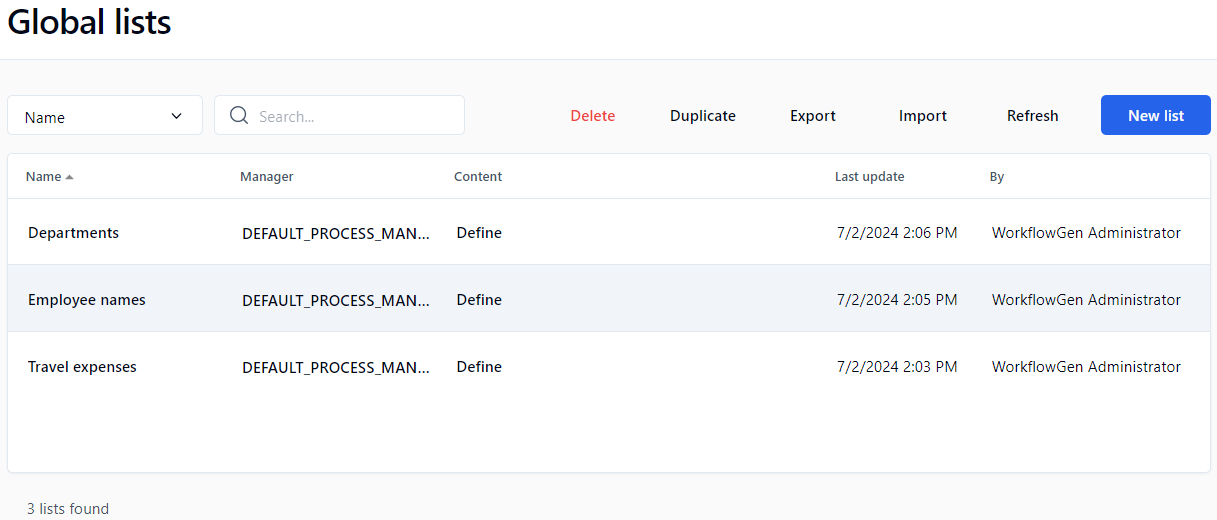
In the left menu on the Administration Module home page, click ![](https://content.gitbook.com/content/KjZcMxkzmJaMCI7tSLjB/blobs/4zI8C30vJX05FSXTbe6G/left_menu_global_lists_small.png) to display the **Global lists** screen.

<figure><img src="https://content.gitbook.com/content/KjZcMxkzmJaMCI7tSLjB/blobs/mD4zpmiwCFnAyc9S1veU/global_lists_screen.png" alt=""><figcaption></figcaption></figure>

## Menu banner

<table data-header-hidden><thead><tr><th valign="top">Buttons</th><th valign="top">Remarks</th></tr></thead><tbody><tr><td valign="top"><strong>Buttons</strong></td><td valign="top"><strong>Remarks</strong></td></tr><tr><td valign="top">New list</td><td valign="top">Adds a new global list</td></tr><tr><td valign="top">Refresh</td><td valign="top">Refreshes the global lists screen</td></tr><tr><td valign="top">Import</td><td valign="top">Imports data from CSV or XML format into an existing list or as a new list; this is useful to quickly add data from a file or copy/paste from the clipboard.</td></tr><tr><td valign="top">Export</td><td valign="top">Exports data to a CSV or XML file; this is useful to export data for use in multiple environments (development, production, test, etc.)</td></tr><tr><td valign="top">Duplicate</td><td valign="top">Duplicates a global list</td></tr><tr><td valign="top">Delete</td><td valign="top">Deletes a global list</td></tr></tbody></table>

## Filters

<table data-header-hidden><thead><tr><th valign="top">Search</th><th valign="top">Remarks</th></tr></thead><tbody><tr><td valign="top"><strong>Search</strong></td><td valign="top"><strong>Remarks</strong></td></tr><tr><td valign="top">Name</td><td valign="top">Filters on the list’s name</td></tr><tr><td valign="top">Manager</td><td valign="top">Filters on the name of the manager of the list</td></tr><tr><td valign="top">Update date</td><td valign="top">Filters on the update date (period from/to)</td></tr><tr><td valign="top">Updated by</td><td valign="top">Filters on the last user who has updated the list (last name or first name)</td></tr></tbody></table>

## Global lists list

<table data-header-hidden><thead><tr><th valign="top">Columns</th><th valign="top">Remarks</th></tr></thead><tbody><tr><td valign="top"><strong>Columns</strong></td><td valign="top"><strong>Remarks</strong></td></tr><tr><td valign="top">Name</td><td valign="top">Name of the list</td></tr><tr><td valign="top">Manager</td><td valign="top">None (no restriction) or the global participant authorized to update the list; you can restrict the access to the global list to user(s) of a global participant.</td></tr><tr><td valign="top">Content</td><td valign="top">Number of items or a link to define the global list form</td></tr><tr><td valign="top">Last update</td><td valign="top">Date and time of the last update</td></tr><tr><td valign="top">By</td><td valign="top">Last user who has updated the list</td></tr></tbody></table>

## Global lists form

Click **Define** in the **Content** column to define or edit a global list.

<table data-header-hidden><thead><tr><th valign="top">Tabs</th><th valign="top">Remarks</th></tr></thead><tbody><tr><td valign="top"><strong>Tabs</strong></td><td valign="top"><strong>Remarks</strong></td></tr><tr><td valign="top">Items</td><td valign="top">Add static items into the list; items can be sorted by value or descriptive text, and translation languages can be chosen from a drop-down list.</td></tr><tr><td valign="top">Columns</td><td valign="top"><p>Add columns (limited to 10 columns) </p><p></p><p>Supported datatypes:</p><ul><li>Text</li><li>Numeric</li><li>Date</li></ul><p>By default, columns are Text (text data type) and Value (text data type).</p></td></tr><tr><td valign="top">Databind</td><td valign="top"><p>Connection name or string to the bound database </p><ul><li>Name of the connection string defined by the Administrator in the WorkflowGen <code>web.config</code> file</li><li>Connection string to a database</li><li>SQL query (<code>SELECT</code> command) to retrieve data</li></ul><p>✏️ <strong>Note:</strong> It's strongly recommended to use a connection name rather than a connection string to simplify multi-environment management. Connection names are centrally managed in the WorkflowGen <code>web.config</code> file.</p></td></tr></tbody></table>

## Importing data

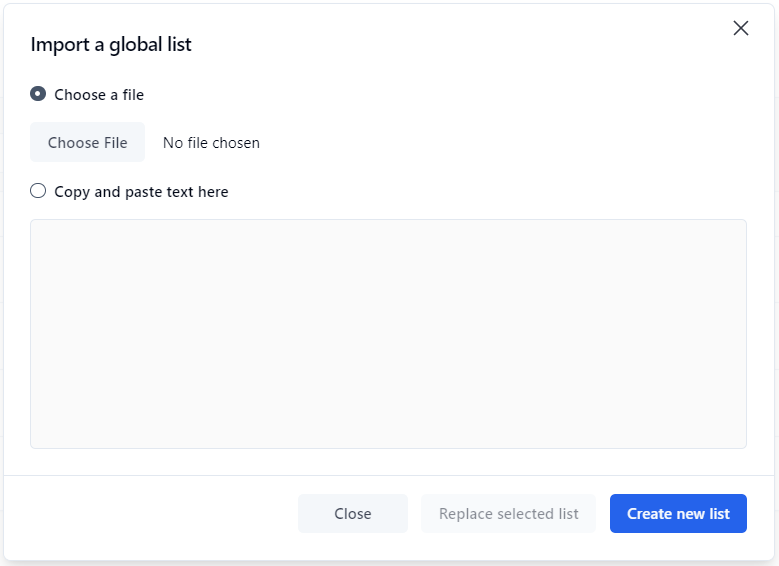
Click the **Import** button in the menu banner to import data into a global list from a file or a copy of your clipboard. The supported formats are WorkflowGen global list XML or CSV.

<div align="left"><figure><img src="https://content.gitbook.com/content/KjZcMxkzmJaMCI7tSLjB/blobs/yElbBP8lwpX7IN19fHhy/import_global_list.png" alt=""><figcaption></figcaption></figure></div>

The CSV format must be as follows:

```
COL_NAME[,...n]
["TEXT|NUMERIC|DATE"[,...n]]
VALUE[ ,...n]
```

### **Examples**

#### **Importing text-only columns**

By default, columns are considered as TEXT data types; therefore, if all columns are TEXT data type, it's not necessary to specify the data types.

```
iso,country
AD,Andorra
AE,United Arab Emirates
AF,Afghanistan
AG,Antigua and Barbuda
AI,Anguilla
```

#### **Importing with numeric and/or date data types**

In this case, the second line is used to set the columns’ data types.

```
Id,iso,Country
NUMERIC,TEXT,TEXT
1,AD,Andorra
2,AE,United Arab Emirates
3,AF,Afghanistan
4,AG,Antigua and Barbuda
5,AI,Anguilla
```

#### **Importing with enclosed strings**

To protect some data like double quotes, commas, etc., you can enclose the string with double quotes.

```
Id,Lastname,Firstname,Address,Birthday
NUMERIC,TEXT,TEXT,TEXT,DATE
1,DOE,John,"1111 N. Sample, Mt. Prospect, IL 60000","01/01/1980"
```

## Exporting data

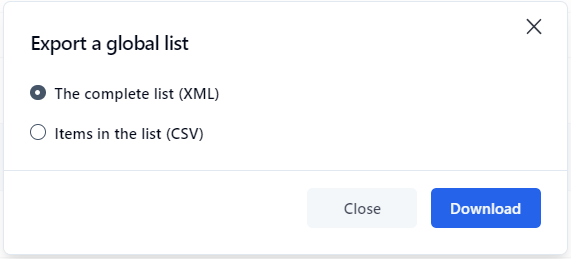
You can export data from a global list to a file by selecting the list and clicking the **Export** button in the menu banner.

<div align="left"><figure><img src="https://content.gitbook.com/content/KjZcMxkzmJaMCI7tSLjB/blobs/NoPmv9rGBXQNYTt5QLzx/export_global_list.png" alt=""><figcaption></figcaption></figure></div>

## Security

All connection strings in `\wwwroot\wfgen\web.config` are available for use in global lists and the Form Designer, except for the master database connection string. While the application tries to verify that user-supplied SQL queries used in these contexts are secure and contain only SELECT statements, you should also make sure that exposed connection strings are secured at the database level. This means that if you don’t want a process manager or a global list manager to be able to update or modify a certain database, the connection string should have read-only access to your database.

Keep in mind that process designers can also use any connection string that they have access to from the Form Designer’s code-behind editor. If you want to restrict a global list manager’s access to a connection string while still allowing the process designer to use it, you should add the connection string to the WebForm application’s `web.config` file (`\wwwroot\wfgen\WfApps\WebForms\web.config`).

Connection strings in the WebForms `web.config` aren't exposed in the WorkflowGen UI, so for process designers to be able to use them, they must know the name of the connection string. This is also a convenient way to give different process managers access to specific connection strings.