# Workflow

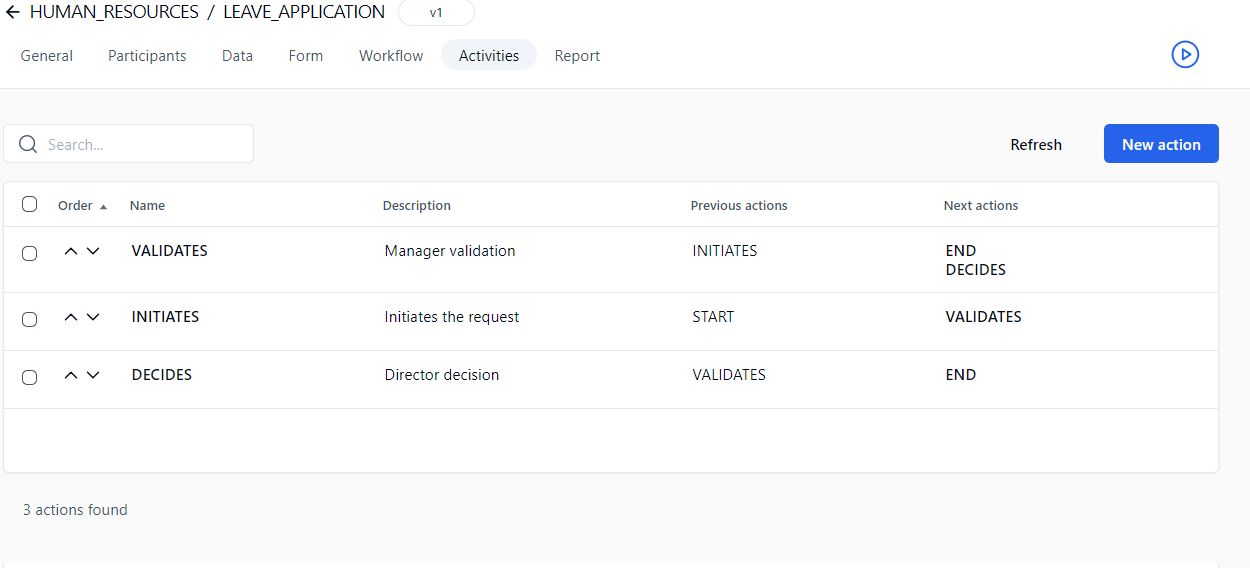
## Process workflow screen (activities list view) <a href="#process-workflow-screen-list-view" id="process-workflow-screen-list-view"></a>

<figure><img src="https://content.gitbook.com/content/KjZcMxkzmJaMCI7tSLjB/blobs/fYblC3CUcwBrtUaDfNMv/wfd_activities_view.png" alt=""><figcaption></figcaption></figure>

<table data-header-hidden><thead><tr><th valign="top">Button/Column</th><th valign="top">Remarks</th></tr></thead><tbody><tr><td valign="top"><strong>Button/Column</strong></td><td valign="top"><strong>Remarks</strong></td></tr><tr><td valign="top">New action</td><td valign="top">Opens the <strong>Select an action type</strong> window and then the <strong>Add action</strong> form</td></tr><tr><td valign="top">Refresh</td><td valign="top">Updates the action list</td></tr><tr><td valign="top">Delete</td><td valign="top">Deletes the selected action</td></tr><tr><td valign="top">Order</td><td valign="top">The arrows allow the action display order to be modified within the process workflow</td></tr><tr><td valign="top">Name</td><td valign="top"><p>Action name</p><p></p><p>Click the name to open the <strong>Edit action</strong> panel.</p></td></tr><tr><td valign="top">Description</td><td valign="top">Action description</td></tr><tr><td valign="top">Previous actions</td><td valign="top">Lists actions preceding the current action within the workflow</td></tr><tr><td valign="top">Next actions</td><td valign="top"><p>Lists actions following the current action within the workflow</p><p></p><p>A link displays the <strong>Edit action</strong> form, which lists actions that following the current one. The <strong>Add</strong> link on the <strong>Edit action</strong> form displays the action form in edit mode for each following action.</p></td></tr></tbody></table>

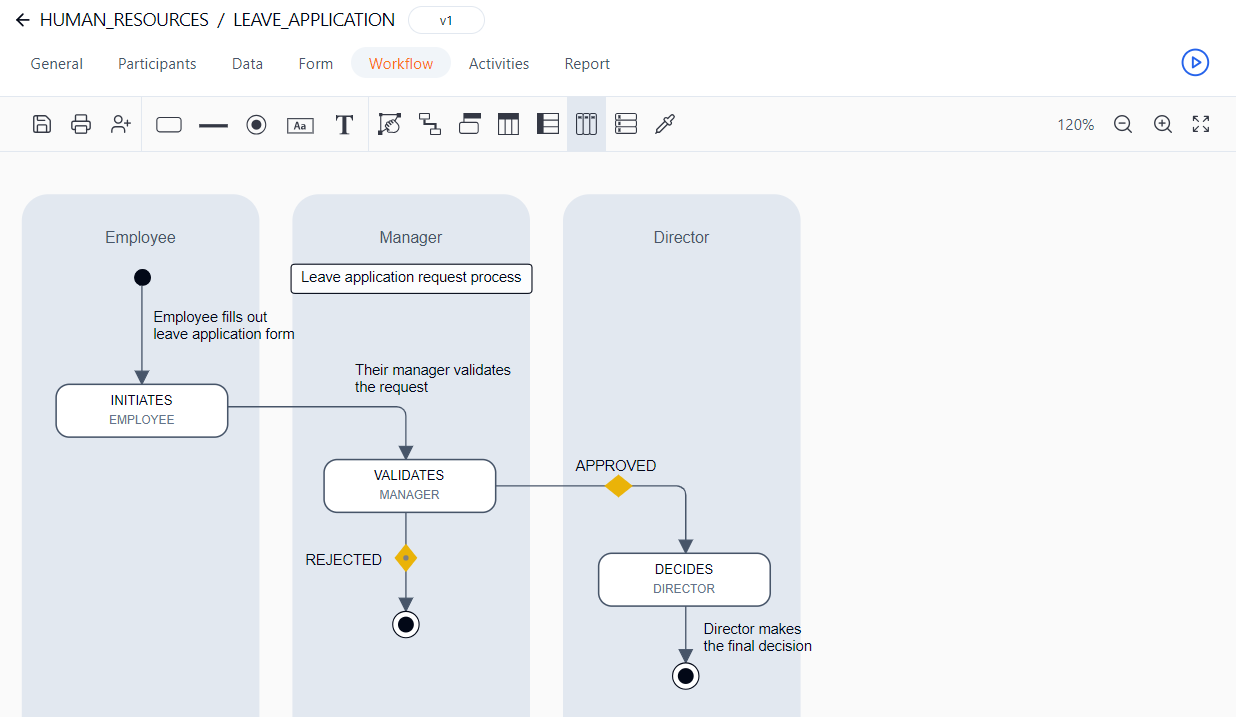
## Process workflow screen (graphical view) <a href="#graphical-view" id="graphical-view"></a>

WorkflowGen features an HTML5 graphical process workflow designer, built on the latest HTML5 and SVG standards. It provides a simple user interface and intuitive behavior for a more fluid design experience and enhanced compatibility with different design environments (such as mobile devices).

<figure><img src="https://content.gitbook.com/content/KjZcMxkzmJaMCI7tSLjB/blobs/JKMlz7tyJ08gS76FD6Qh/wfd_leave_application.png" alt=""><figcaption></figcaption></figure>

### Toolbar

<table data-header-hidden><thead><tr><th align="center" valign="top">Icon</th><th valign="top">Tools</th><th valign="top">Remarks</th></tr></thead><tbody><tr><td align="center" valign="top"><strong>Icon</strong></td><td valign="top"><strong>Tools</strong></td><td valign="top"><strong>Remarks</strong></td></tr><tr><td align="center" valign="top"><img src="https://content.gitbook.com/content/KjZcMxkzmJaMCI7tSLjB/blobs/aU75eN5tbhhVoHoHTl1K/wfd_save.png" alt="" data-size="original"></td><td valign="top">Save the layout</td><td valign="top">Save the current layout of the workflow diagram</td></tr><tr><td align="center" valign="top"><img src="https://content.gitbook.com/content/KjZcMxkzmJaMCI7tSLjB/blobs/Znbcv5M15IRyUVmJ1kaq/wfd_print.png" alt="" data-size="original"></td><td valign="top">Print the diagram</td><td valign="top">Print the current diagram</td></tr><tr><td align="center" valign="top"><img src="https://content.gitbook.com/content/KjZcMxkzmJaMCI7tSLjB/blobs/Nr1Bbgf4dhkSUPz1AUGb/wfd_add_participant.png" alt="" data-size="original"></td><td valign="top">Add participant</td><td valign="top">Add a new participant to the process</td></tr><tr><td align="center" valign="top"><img src="https://content.gitbook.com/content/KjZcMxkzmJaMCI7tSLjB/blobs/Qv6yy7TG0sqxaHDtCHCG/wfd_add_action.png" alt="" data-size="original"></td><td valign="top">Add action</td><td valign="top">Add a new action to the process</td></tr><tr><td align="center" valign="top"><div><figure><img src="https://content.gitbook.com/content/KjZcMxkzmJaMCI7tSLjB/blobs/0juaQP39XTZd75Id1C2O/wfd_synchro_bar.png" alt=""><figcaption></figcaption></figure></div></td><td valign="top">Add synchronization</td><td valign="top">Add a synchronization action to the process</td></tr><tr><td align="center" valign="top"><div><figure><img src="https://content.gitbook.com/content/KjZcMxkzmJaMCI7tSLjB/blobs/pJcnzwXXOdK4JlLnknAu/wfd_end_point.png" alt=""><figcaption></figcaption></figure></div></td><td valign="top">Add end point</td><td valign="top">Add an end point to the process</td></tr><tr><td align="center" valign="top"><div><figure><img src="https://content.gitbook.com/content/KjZcMxkzmJaMCI7tSLjB/blobs/Q9lIf38FGEi6wjvMgRR4/wfd_comment.png" alt=""><figcaption></figcaption></figure></div></td><td valign="top">Add comment</td><td valign="top">Add a comment to the process</td></tr><tr><td align="center" valign="top"><div><figure><img src="https://content.gitbook.com/content/KjZcMxkzmJaMCI7tSLjB/blobs/Xf1DNVuY6y5Ij8zyRDhI/wfd_text.png" alt=""><figcaption></figcaption></figure></div></td><td valign="top">Add text</td><td valign="top">Add text to the process</td></tr><tr><td align="center" valign="top"><img src="https://content.gitbook.com/content/KjZcMxkzmJaMCI7tSLjB/blobs/dWNtLWMfdu4LKBSamHiY/wfd_breakpoint.png" alt="" data-size="original"></td><td valign="top">Add break points</td><td valign="top">Add break points to transitions</td></tr><tr><td align="center" valign="top"><img src="https://content.gitbook.com/content/KjZcMxkzmJaMCI7tSLjB/blobs/ahcRd6lZBx7rKK4iwdnf/wfd_auto_positioning.png" alt="" data-size="original"></td><td valign="top">Choose auto positioning mode</td><td valign="top">Switch between auto and manual positioning mode for the transition anchors</td></tr><tr><td align="center" valign="top"><div><figure><img src="https://content.gitbook.com/content/KjZcMxkzmJaMCI7tSLjB/blobs/2TrLMZvEvdtN0NfPxjGM/wfd_assignment_methods.png" alt=""><figcaption></figcaption></figure></div></td><td valign="top">Show assignment methods</td><td valign="top">Show assignment methods on actions</td></tr><tr><td align="center" valign="top"><img src="https://content.gitbook.com/content/KjZcMxkzmJaMCI7tSLjB/blobs/1Inf8akHvMkIXbA7FdPR/wfd_vert_swimlanes.png" alt="" data-size="original"></td><td valign="top">Display vertical swimlanes</td><td valign="top">Add a vertical swim lane overlay on the graphical view with actions displayed in the participant columns</td></tr><tr><td align="center" valign="top"><img src="https://content.gitbook.com/content/KjZcMxkzmJaMCI7tSLjB/blobs/JxmLujymHQgI4nuxjqpF/wfd_horiz_swimlanes.png" alt="" data-size="original"></td><td valign="top">Display horizontal swimlanes</td><td valign="top">Add a horizontal swim lane overlay on the graphical view with actions displayed in the participant rows</td></tr><tr><td align="center" valign="top"><img src="https://content.gitbook.com/content/KjZcMxkzmJaMCI7tSLjB/blobs/fc9xbJS5fTDjMWbNITme/wfd_vert_panels.png" alt="" data-size="original"></td><td valign="top">Display vertical panels</td><td valign="top">Add a vertical panel overlay on the graphical view with actions displayed in the participant columns</td></tr><tr><td align="center" valign="top"><img src="https://content.gitbook.com/content/KjZcMxkzmJaMCI7tSLjB/blobs/c4GPP0ImAaasxyDjQLRt/wfd_horiz_panels.png" alt="" data-size="original"></td><td valign="top">Display horizontal panels</td><td valign="top">Add a horizontal panel overlay on the graphical view with actions displayed in the participant columns</td></tr><tr><td align="center" valign="top"><img src="https://content.gitbook.com/content/KjZcMxkzmJaMCI7tSLjB/blobs/BqLd8tyEe5AU4l8MjGav/wfd_color_picker.png" alt="" data-size="original"></td><td valign="top">Display color picker</td><td valign="top">Display a color picker from which you can choose the swimlane/panel and the background color</td></tr><tr><td align="center" valign="top"><div><figure><img src="https://content.gitbook.com/content/KjZcMxkzmJaMCI7tSLjB/blobs/SF3PzjsL9JRQy08T22yJ/wfd_zoom_out.png" alt=""><figcaption></figcaption></figure></div></td><td valign="top">Decrease zoom</td><td valign="top">Decrease the zoom scale by 15%</td></tr><tr><td align="center" valign="top"><div><figure><img src="https://content.gitbook.com/content/KjZcMxkzmJaMCI7tSLjB/blobs/WFoIVTRSiNRl5Pn1cgJ0/wfd_zoom_in.png" alt=""><figcaption></figcaption></figure></div></td><td valign="top">Increase zoom</td><td valign="top">Increase the zoom scale by 15%</td></tr><tr><td align="center" valign="top"><img src="https://content.gitbook.com/content/KjZcMxkzmJaMCI7tSLjB/blobs/MJzmo5u8qOfbB6fUNW13/wfd_maximize.png" alt="" data-size="original"></td><td valign="top">Maximize canvas</td><td valign="top">Maximize the canvas size</td></tr><tr><td align="center" valign="top"><img src="https://content.gitbook.com/content/KjZcMxkzmJaMCI7tSLjB/blobs/L6HbScoHt55NElm1ureb/wfd_restore_size.png" alt="" data-size="original"></td><td valign="top">Restore canvas</td><td valign="top">Restore the default canvas size</td></tr></tbody></table>

## Graphical workflow designer functions

<table data-header-hidden><thead><tr><th valign="top">Function</th><th valign="top">Method</th></tr></thead><tbody><tr><td valign="top"><strong>Function</strong></td><td valign="top"><strong>Method</strong></td></tr><tr><td valign="top">Add an element (action, synchronization, endpoint, comment, text)</td><td valign="top">Drag and drop the element from the toolbar onto the canvas.</td></tr><tr><td valign="top">Delete an element (action, synchronization, endpoint, comment, text)</td><td valign="top">Click the element, then click the <strong><code>x</code></strong> that appears in the top right corner.</td></tr><tr><td valign="top">Add a transition</td><td valign="top">Click the action and click the down arrow, then drag and drop it onto the desired action.</td></tr><tr><td valign="top">Add a transition loop</td><td valign="top">Click the action and click the down arrow, then drag and drop the transition onto the same action.</td></tr><tr><td valign="top">Delete a transition</td><td valign="top">Click the transition, then click the <strong><code>x</code></strong> that appears in the top right corner.</td></tr><tr><td valign="top">Add a condition</td><td valign="top">Double-click the transition.</td></tr><tr><td valign="top">Add more than one condition to a transition</td><td valign="top">You cannot add more than one condition to a single transition. Instead, create a new transition between the actions and add the condition here.</td></tr><tr><td valign="top">Update a condition</td><td valign="top">Double-click the transition or condition.</td></tr><tr><td valign="top">Delete a condition</td><td valign="top">Click the condition, then click the <strong><code>x</code></strong> that appears in the top right corner.</td></tr><tr><td valign="top">Delete a participant</td><td valign="top">Click the participant, then click the <strong><code>x</code></strong> that appears in the top right corner.</td></tr><tr><td valign="top">Auto positioning mode</td><td valign="top">Click the auto positioning mode tool then choose one of the options.</td></tr><tr><td valign="top">Add a breakpoint</td><td valign="top">Click the add breakpoint tool then click the transition (breakpoints will be created individually). As well, clicking the breakpoint tool will show all of the existing breakpoints.</td></tr><tr><td valign="top">Delete a breakpoint</td><td valign="top">Click the breakpoint, then click the <strong><code>x</code></strong> that appears in the top right corner or press the <strong><code>Delete</code></strong> key (only the selected breakpoint will be deleted). In the case of loop transitions, a minimum of two breakpoints are required.</td></tr><tr><td valign="top">Change the position of a loop transition</td><td valign="top">Change the position of each of the breakpoints so that the transition points to the new position.</td></tr><tr><td valign="top">Change the target/source of a transition</td><td valign="top">Click the transition, hover over the target/source of a transition until the hand pointer appears, then drag and drop the target/source onto another action.</td></tr><tr><td valign="top">Change the loop of an action toward another action</td><td valign="top">Click the loop, then change the target and the source toward the other action.</td></tr><tr><td valign="top">Resize swimlanes</td><td valign="top">Click the participant, place the pointer over the border between participants, click the border, then drop it on the new position.</td></tr><tr><td valign="top">Change the order of participants</td><td valign="top">Click the participant, then drag and drop it onto the new position (the orange header indicates the new position of the participant).</td></tr><tr><td valign="top">Associate actions with participants in swimlanes</td><td valign="top">Can be enabled and disabled in the <strong>Workflow</strong> section on the <strong>Administration</strong> tab in the <strong>Configuration</strong> panel.</td></tr><tr><td valign="top">Zoom</td><td valign="top">The zoom percentage is displayed in the top right corner of the workflow.</td></tr></tbody></table>


---

# Agent Instructions: Querying This Documentation

If you need additional information that is not directly available in this page, you can query the documentation dynamically by asking a question.

Perform an HTTP GET request on the current page URL with the `ask` query parameter:

```
GET https://docs.workflowgen.com/admin/workflow.md?ask=<question>
```

The question should be specific, self-contained, and written in natural language.
The response will contain a direct answer to the question and relevant excerpts and sources from the documentation.

Use this mechanism when the answer is not explicitly present in the current page, you need clarification or additional context, or you want to retrieve related documentation sections.