# ADOBESIGNCHECK

## Overview

The **ADOBESIGNCHECK** workflow application lets you verify the status of an agreement and download its associated file, which is a concatenation of attached files.

## How it works

* You can verify the status of an agreement and download the file from Adobe Sign based on your status criteria.<br>
* Application logs are available. These can be specified by setting the value of the `AdobeSignCheckLogLevel` parameter in the `web.config` file to `0` to deactivate logs, `1` for error logs, `2` for information logs, or `3` for debug logs; the default value is `0`.

## Configuring the Adobe Sign API

For instructions on how to configure the Adobe Sign API, see the [Configuring the Adobe Sign API](https://docs.workflowgen.com/admin/workflow-applications/adobesignsend-workflow-application#configuring-the-adobe-sign-api) section in the [ADOBESIGNSEND Workflow Application](https://docs.workflowgen.com/admin/workflow-applications/adobe-sign/adobesignsend-workflow-application) chapter.

## Required parameter

<table data-header-hidden><thead><tr><th valign="top">Parameter</th><th valign="top">Type</th><th valign="top">Direction</th><th valign="top">Description</th></tr></thead><tbody><tr><td valign="top"><strong>Parameter</strong></td><td valign="top"><strong>Type</strong></td><td valign="top"><strong>Direction</strong></td><td valign="top"><strong>Description</strong></td></tr><tr><td valign="top"><code>ADOBESIGN_AGREEMENT_ID</code></td><td valign="top">TEXT</td><td valign="top">IN</td><td valign="top">ID of the Adobe Sign agreement to verify</td></tr></tbody></table>

## Optional parameters

### Adobe Sign configuration

<table data-header-hidden><thead><tr><th valign="top">Parameters</th><th valign="top">Type</th><th valign="top">Direction</th><th valign="top">Description</th></tr></thead><tbody><tr><td valign="top"><strong>Parameters</strong></td><td valign="top"><strong>Type</strong></td><td valign="top"><strong>Direction</strong></td><td valign="top"><strong>Description</strong></td></tr><tr><td valign="top"><code>ADOBESIGN_CLIENT_ID</code></td><td valign="top">TEXT</td><td valign="top">IN</td><td valign="top"><p>Adobe Sign client ID<br></p><p>By default, this value comes from the <code>AdobeSignClientId</code> parameter in the <code>web.config</code> file.</p></td></tr><tr><td valign="top"><code>ADOBESIGN_CLIENT_SECRET</code></td><td valign="top">TEXT</td><td valign="top">IN</td><td valign="top"><p>Adobe Sign client secret</p><p></p><p>By default, this value comes from the <code>AdobeSignClientSecret</code> parameter in the <code>web.config</code> file.</p></td></tr><tr><td valign="top"><code>ADOBESIGN_REFRESH_TOKEN</code></td><td valign="top">TEXT</td><td valign="top">IN</td><td valign="top"><p>Authentication refresh token</p><p><br>By default, this value comes from the <code>AdobeSignAuthServer</code> parameter in the <code>web.config</code> file. </p><p></p><p>To obtain it, see the <a href="../adobesignsend-workflow-application#configuring-the-adobe-sign-api">Configuring the Adobe Sign API</a> section.</p></td></tr><tr><td valign="top"><code>ADOBESIGN_HOST_SERVER</code></td><td valign="top">TEXT</td><td valign="top">IN</td><td valign="top"><p>Adobe Sign host server (e.g. <code>https://api.naX.adobesign.com</code>, where <code>x</code> is the server ID)</p><p></p><p>By default, this value comes from the <code>AdobeSignHostServer</code> parameter in the <code>web.config</code> file.</p></td></tr></tbody></table>

### General

<table data-header-hidden><thead><tr><th valign="top">Parameters</th><th valign="top">Type</th><th valign="top">Direction</th><th valign="top">Description</th></tr></thead><tbody><tr><td valign="top"><strong>Parameters</strong></td><td valign="top"><strong>Type</strong></td><td valign="top"><strong>Direction</strong></td><td valign="top"><strong>Description</strong></td></tr><tr><td valign="top"><code>VALID_STATUS_LIST</code></td><td valign="top">TEXT</td><td valign="top">IN</td><td valign="top"><p>Valid status to download the document<br></p><p><strong>Possible values:</strong></p><ul><li><code>OUT_FOR_SIGNATURE</code></li><li><code>OUT_FOR_DELIVERY</code></li><li><code>OUT_FOR_ACCEPTANCE</code></li><li><code>OUT_FOR_FORM_FILLING</code></li><li><code>OUT_FOR_APPROVAL</code></li><li><code>AUTHORING</code></li><li><code>CANCELLED</code></li><li><code>SIGNED</code></li><li><code>APPROVED</code></li><li><code>DELIVERED</code></li><li><code>ACCEPTED</code></li><li><code>FORM_FILLED</code></li><li><code>EXPIRED</code></li><li><code>ARCHIVED</code></li><li><code>PREFILL</code></li><li><code>WIDGET_WAITING_FOR_VERIFICATION</code></li><li><code>DRAFT</code></li><li><code>DOCUMENTS_NOT_YET_PROCESSED</code></li><li><code>WAITING_FOR_FAXIN</code></li><li><code>WAITING_FOR_VERIFICATION</code></li></ul><p><strong>Default:</strong> <code>SIGNED,APPROVED,CANCELLED,EXPIRED,ARCHIVED</code></p></td></tr><tr><td valign="top"><code>ADOBESIGN_DOCUMENT</code></td><td valign="top">FILE</td><td valign="top">OUT</td><td valign="top">Adobe Sign document</td></tr><tr><td valign="top"><code>ADOBESIGN_STATUS</code></td><td valign="top">TEXT</td><td valign="top">OUT</td><td valign="top">Agreement status</td></tr></tbody></table>

## Example with ADOBESIGNSEND

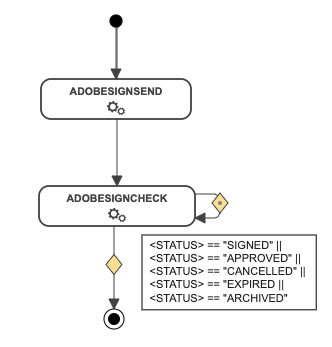
In the following example, the ADOBESIGNSEND action is directly followed  by the ADOBESIGNCHECK action. This action will loop back onto itself until the status changes to `SIGNED`, `APPROVED`, `CANCELLED`, `EXPIRED`, or `ARCHIVED`.

If the status returned meets the condition, the document will be downloaded from Adobe Sign.

<div align="left"><img src="https://content.gitbook.com/content/KjZcMxkzmJaMCI7tSLjB/blobs/vHv3cF7LhpIrlkRtMD5Y/image.png" alt=""></div>

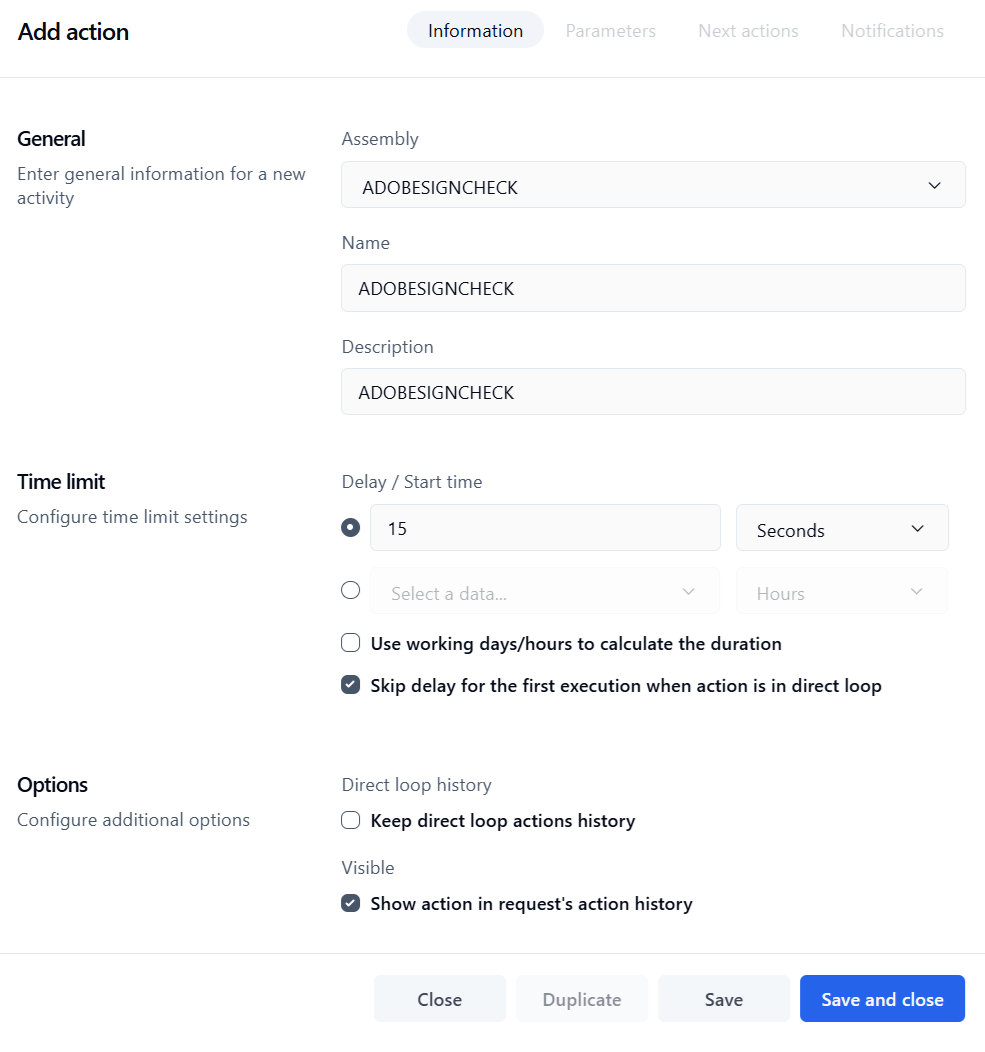
With the system loop action function, the ADOBESIGNCHECK action will be executed every `x` seconds until the OUT condition is met.

<div align="left"><figure><img src="https://content.gitbook.com/content/KjZcMxkzmJaMCI7tSLjB/blobs/6Vg56mpdsmZLXWY8ekwH/ADOBESIGNCHECK_edit_action.png" alt=""><figcaption></figcaption></figure></div>


---

# Agent Instructions: Querying This Documentation

If you need additional information that is not directly available in this page, you can query the documentation dynamically by asking a question.

Perform an HTTP GET request on the current page URL with the `ask` query parameter:

```
GET https://docs.workflowgen.com/admin/workflow-applications/adobe-sign/adobesigncheck-workflow-application.md?ask=<question>
```

The question should be specific, self-contained, and written in natural language.
The response will contain a direct answer to the question and relevant excerpts and sources from the documentation.

Use this mechanism when the answer is not explicitly present in the current page, you need clarification or additional context, or you want to retrieve related documentation sections.