# Notifications

## Notifications tab

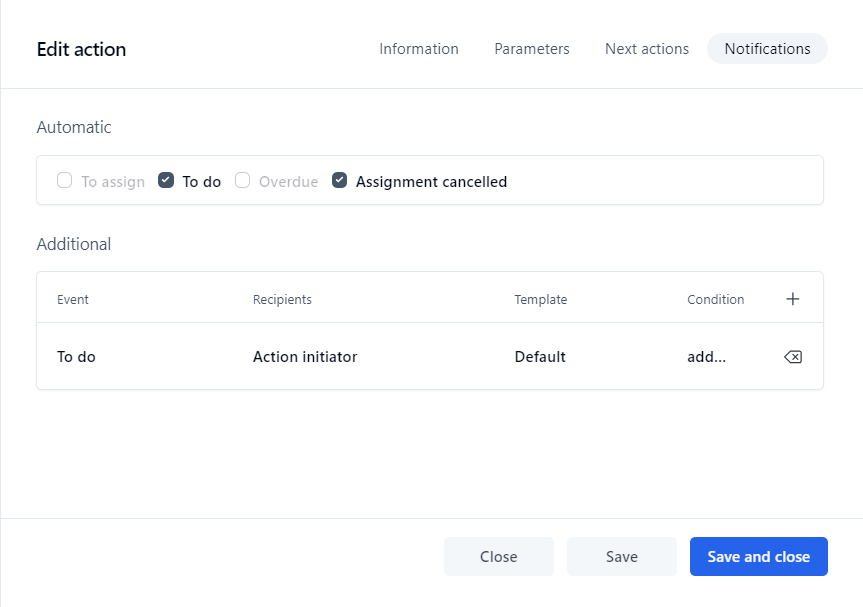
<figure><img src="https://content.gitbook.com/content/KjZcMxkzmJaMCI7tSLjB/blobs/4bBs8yP7hOjyg7U18OKv/edit_action_notification.png" alt=""><figcaption></figcaption></figure>

## Automatic notifications

<table data-header-hidden><thead><tr><th valign="top">Fields</th><th valign="top">Remarks</th></tr></thead><tbody><tr><td valign="top"><strong>Fields</strong></td><td valign="top"><strong>Remarks</strong></td></tr><tr><td valign="top">To assign</td><td valign="top">Specifies if an email is automatically sent to the user who has to assign the action</td></tr><tr><td valign="top">To do</td><td valign="top">Specifies if an email is automatically sent to the user who has to handle the action</td></tr><tr><td valign="top">Overdue</td><td valign="top">Specifies if an email is automatically sent to the user who has to handle an overdue action</td></tr><tr><td valign="top">Assignment cancelled</td><td valign="top">Specifies if an email is automatically sent when an action assignment has been automatically or manually cancelled</td></tr></tbody></table>

## Additional notifications

<table data-header-hidden><thead><tr><th valign="top">Fields</th><th valign="top">Remarks</th></tr></thead><tbody><tr><td valign="top"><strong>Fields</strong></td><td valign="top"><strong>Remarks</strong></td></tr><tr><td valign="top">Event</td><td valign="top"><p>Type of event notifications:</p><ul><li>To do</li><li>Cancelled</li><li>Assignment cancelled</li><li>Assignment error</li><li>Overdue</li><li>Prior overdue (pre-overdue) *</li><li>Closed</li><li>Execution error</li></ul></td></tr><tr><td valign="top">Recipients</td><td valign="top"><p>Recipient(s) of the notification:</p><ul><li>The requester</li><li>The action initiator (if the assignment method is manual)</li><li>The action assignee</li><li>Free-form email addresses (comma or semicolon separated)</li><li>The users associated to a participant</li><li>The user who has handled the action ... (action name)</li><li>Email addresses contained in the data ... (selected from the list below). Use  <strong><code>,</code></strong>  (comma) or  <strong><code>;</code></strong> (semicolon) as email separator.</li></ul></td></tr><tr><td valign="top">Template</td><td valign="top"><p>Email message templates:</p><ul><li>Default (uses the standard email template located in <code>\App_Data\Templates\Emails</code>)</li><li>Use the content of the data (select one in the list below); the list is filled in with text and file process data.</li></ul><p>When defining your own template in data or a file you can use:</p><ul><li>The reserved keyword <code>SUBJECT</code> to define an email custom subject line</li><li>Macros</li><li>Custom email templates; see <a href="../custom-notification-templates">Custom notification templates</a> for instructions on how to create custom email templates</li></ul></td></tr></tbody></table>

\* The pre-overdue notification feature is available in WorkflowGen 5.1.7 and later. A process XPDL using this feature will not be compatible with previous versions of WorkflowGen including release 5.1.6. An error will be raised when trying to import the new XPDL into those versions.

<table data-header-hidden><thead><tr><th valign="top">Columns</th><th valign="top">Remarks</th></tr></thead><tbody><tr><td valign="top"><strong>Columns</strong></td><td valign="top"><strong>Remarks</strong></td></tr><tr><td valign="top">Event</td><td valign="top">The type of event notification</td></tr><tr><td valign="top">Recipients</td><td valign="top">Recipient(s) of the email</td></tr><tr><td valign="top">Template</td><td valign="top">The selected template of the message to be sent</td></tr><tr><td valign="top">Condition</td><td valign="top">A link displays the notifications condition form in edit mode</td></tr><tr><td valign="top">Deletion</td><td valign="top">Click the <strong><code>x</code></strong> to delete the notification</td></tr></tbody></table>

### Adding and editing additional notifications

To add an additional notification, click the plus sign (**`+`**) in the rightmost column header, choose an event and a template if desired (otherwise these will use the defaults of **To do** and **Default**, respectively), then choose the recipient(s). Click again to save the notification. You can then add a condition if desired.

Click on the event, the recipient(s), the template, or the condition to edit them. To remove a notification, click the **`x`** to the right of the notification.

{% hint style="info" %}
While additional notifications are automatically saved, you must click **Save** or **Save and close** to save changes to automatic notifications.
{% endhint %}

## Overdue and pre-overdue notifications

You can define a hierarchy to handle overdue and pre-overdue action notifications by specifying additional notification conditions based on JavaScript or VBScript date/time calculation functions. You can do this in JavaScript by manipulating the date object directly, in VBScript using the `DateDiff` function, or by using the `Current Action.Overdue` and `Current Action.Pre-overdue` macros (see the [Macros](https://docs.workflowgen.com/admin/macros) section for more information).

{% hint style="info" %}

* With overdue notification macros, the actual time overdue is rounded **down** to the nearest time unit, while with pre-overdue notification macros, the actual time pre-overdue is rounded **up** to the nearest time unit.
* For better precision in calculating the duration, it is suggested to use minutes as the time unit in your condition. For example, if you’re using the VBScript `DateDiff` function in a condition, use `n` as the unit parameter; if you’re using a macro, use `<WF_ACTIVITY_INST_OVERDUE_MINUTES>` or `<WF_ACTIVITY_INST_PREOVERDUE_MINUTES>`.
  {% endhint %}

### Examples

In a process action, if you want to notify the requester that the action is late within one day, and also notify the process supervisor should the action continue to be late after two days, you have to add the two additional notifications on the action with the following settings:

#### **Notify the requester if the action is late within 1 day**

**Type:** Overdue\
**Recipient:** Requester

* JavaScript: &#x20;

  ```javascript
  (<WF_SYSTEM_DATETIME> - <WF_ACTIVITY_INST_LIMIT_DATETIME>) / 3600000 < 24
  ```
* VBScript: &#x20;

  ```javascript
  DateDiff("h",<WF_ACTIVITY_INST_LIMIT_DATETIME>,<WF_SYSTEM_DATETIME>) < 24
  ```
* Using a macro:&#x20;

  ```
  <WF_ACTIVITY_INST_OVERDUE_HOURS> < 24
  ```

#### **Notify the process supervisor if the action is late by 2 days**

**Type:** Overdue\
**Recipient:** The supervisor participant

* JavaScript:&#x20;

  ```javascript
  (<WF_SYSTEM_DATETIME> - <WF_ACTIVITY_INST_LIMIT_DATETIME>) / 3600000 >= 48
  ```
* VBScript:&#x20;

  ```javascript
  DateDiff("h",<WF_ACTIVITY_INST_LIMIT_DATETIME>,<WF_SYSTEM_DATETIME>) >= 48
  ```
* Using a macro:&#x20;

  ```
  <WF_ACTIVITY_INST_OVERDUE_HOURS> >= 48j
  ```

### Pre-overdue notifications

In a process action, if you want to notify a user that an action will become late in advance of a due date, you have to add an additional notification on the action using the **Prior overdue** (pre-overdue) event.

To add a new pre-overdue notification to an action:

1. In a process action notification tab, under the **Additional** section, select the **Prior overdue** event.
2. Select the recipient(s).
3. Select the `Default` template or a custom template previously created.
4. Click **Add**.
5. Enter the condition (see below for examples).

#### 📌 Examples

#### **Notification sent within 3 days prior to being overdue**

* JavaScript:&#x20;

  ```javascript
  (<WF_ACTIVITY_INST_LIMIT_DATETIME> - <WF_SYSTEM_DATETIME>) / 86400000 <= 3
  ```
* VBScript: &#x20;

  ```javascript
  DateDiff("d", <WF_SYSTEM_DATETIME> , <WF_ACTIVITY_INST_LIMIT_DATETIME>) <= 3
  ```
* Using a macro:&#x20;

  ```
  <WF_ACTIVITY_INST_PREOVERDUE_DAYS> <= 3
  ```

#### **Notification sent within 15 minutes prior to being overdue**

* JavaScript: &#x20;

  ```javascript
  (<WF_ACTIVITY_INST_LIMIT_DATETIME> - <WF_SYSTEM_DATETIME>) / 60000 <= 15
  ```
* VBScript: &#x20;

  ```javascript
  DateDiff("n", <WF_SYSTEM_DATETIME> , <WF_ACTIVITY_INST_LIMIT_DATETIME>) <= 15
  ```
* Using a macro:&#x20;

  ```
  <WF_ACTIVITY_INST_PREOVERDUE_MINUTES> <= 15
  ```

There's no limit to the number of additional pre-overdue notifications that can be added to an action (e.g. 2 days, 1 day, 1 hour, 30 minutes, etc.).

{% hint style="info" %}

* If you don't specify a condition, the pre-overdue notification will be sent whenever an action is created with a lead time and the Windows Engine service is run. It is best practice to add a condition as per the above examples to control when the prior overdue notification is sent.
* As of version 5.1.7, any process that includes a pre-overdue notification in an action cannot be imported into WorkflowGen versions 5.1.6 and earlier due to incompatibilities.
  {% endhint %}


---

# Agent Instructions: Querying This Documentation

If you need additional information that is not directly available in this page, you can query the documentation dynamically by asking a question.

Perform an HTTP GET request on the current page URL with the `ask` query parameter:

```
GET https://docs.workflowgen.com/admin/workflow/notifications.md?ask=<question>
```

The question should be specific, self-contained, and written in natural language.
The response will contain a direct answer to the question and relevant excerpts and sources from the documentation.

Use this mechanism when the answer is not explicitly present in the current page, you need clarification or additional context, or you want to retrieve related documentation sections.
