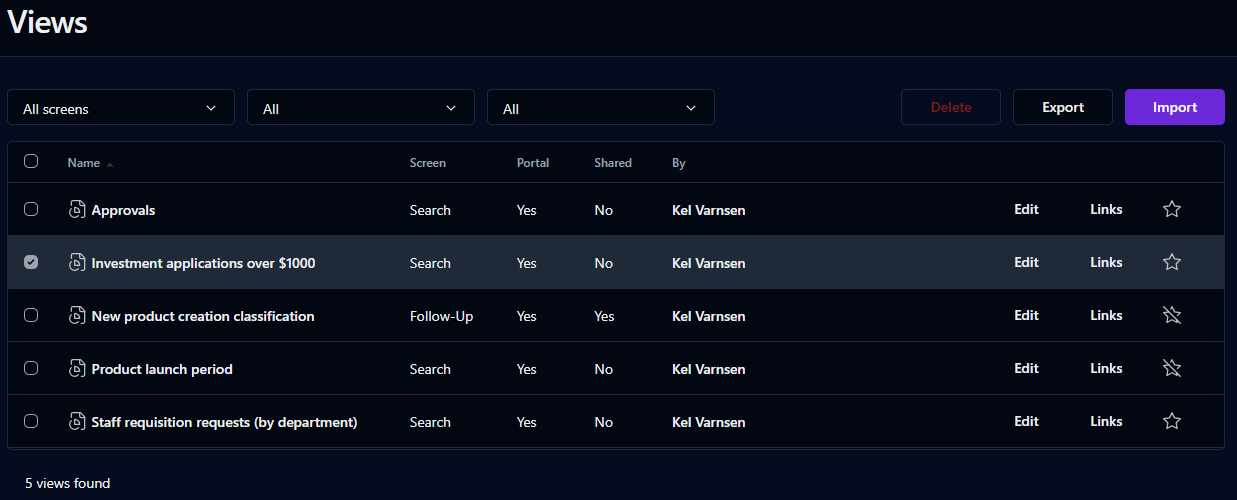
This page displays all of the views you've saved.
To add a view to the My favorites list on the Dashboard, click the star outline. You can then open the view from either the My favorites or My views expandable lists. To remove a view from your favorites, click the star again.
Filter
Remarks
Screen
You can sort the list descending or ascending by any of the elements by clicking on the corresponding column header.
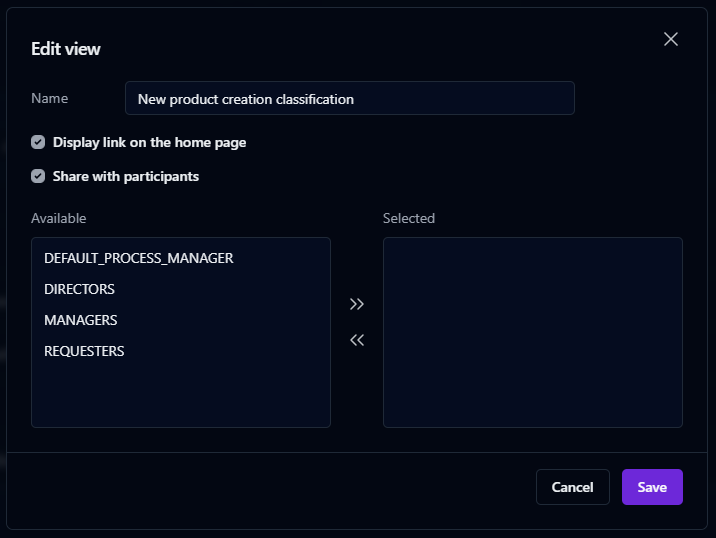
Click Edit to change the view's description, choose whether to include the view as a link available on the Dashboard, and share the view with other process participants.
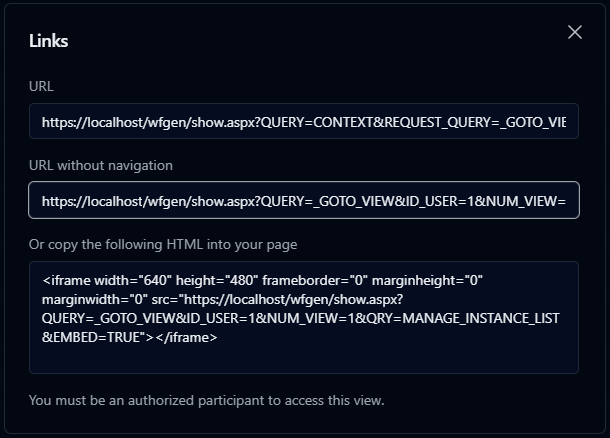
Click Links to display the view's URLs and HTML code, which you can use to embed the view in an external page.
To import a view, click the Import button above the list, select the view's previously exported .xml definition file, then click Import.
To export a view, check the checkbox to the left of the view's name, then click the Export button that appears above the list.
To delete a view, check the checkbox to the left of the view's name, then click the Delete button that appears above the list.
Portal
Display (or don't display) the view on the Dashboard
Shared
View shared by other users (or not)
By
Owner of the shared view
Edit
Edit the view
Link
Display the view's URL and HTML
Filter by the screen used to save the view
Portal
Filter based on views that have links on the Dashboard
Shared
Filter based on views shared by other users
Columns
Remarks
Checkbox
Select view for export or deletion
Name
Name of the view
Screen
View’s screen type
URL will display the view within the User Portal. URL without navigation will display the view on its own, without User Portal menus.
Only one view can be exported at a time.