# Request Information Form

## Request information form screen

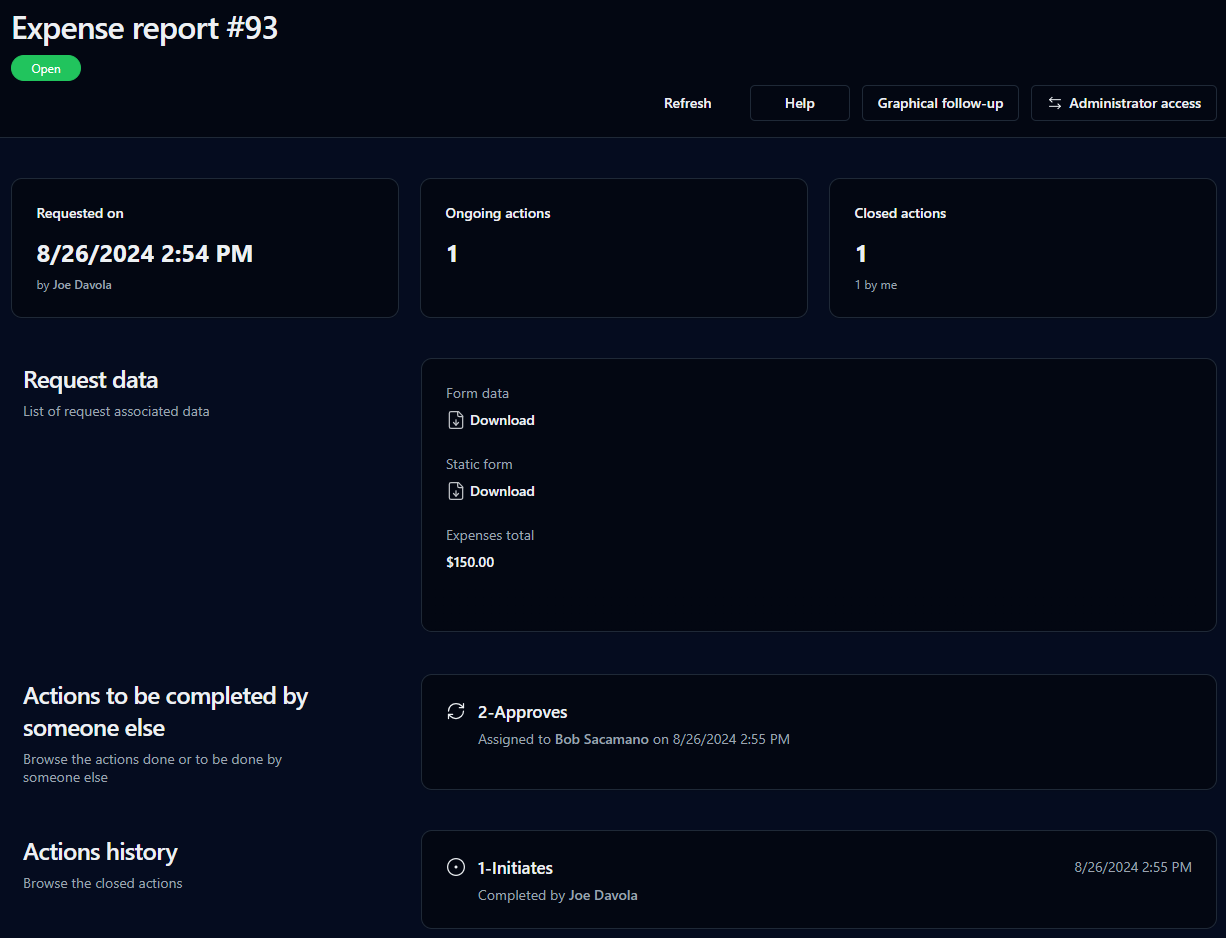
Click the request number or the description in the requests list, or click ![](https://content.gitbook.com/content/87PQd7lEGiEgmvvK00Jy/blobs/c5wUdwqTROyODyaTf7ZV/left_menu_request_follow-up_small.png) in the request form left menu, to display the request information form.   &#x20;

### User view

<figure><img src="https://content.gitbook.com/content/87PQd7lEGiEgmvvK00Jy/blobs/z8V0031xuFgfJJvGO9CW/request_follow-up_form.png" alt=""><figcaption></figcaption></figure>

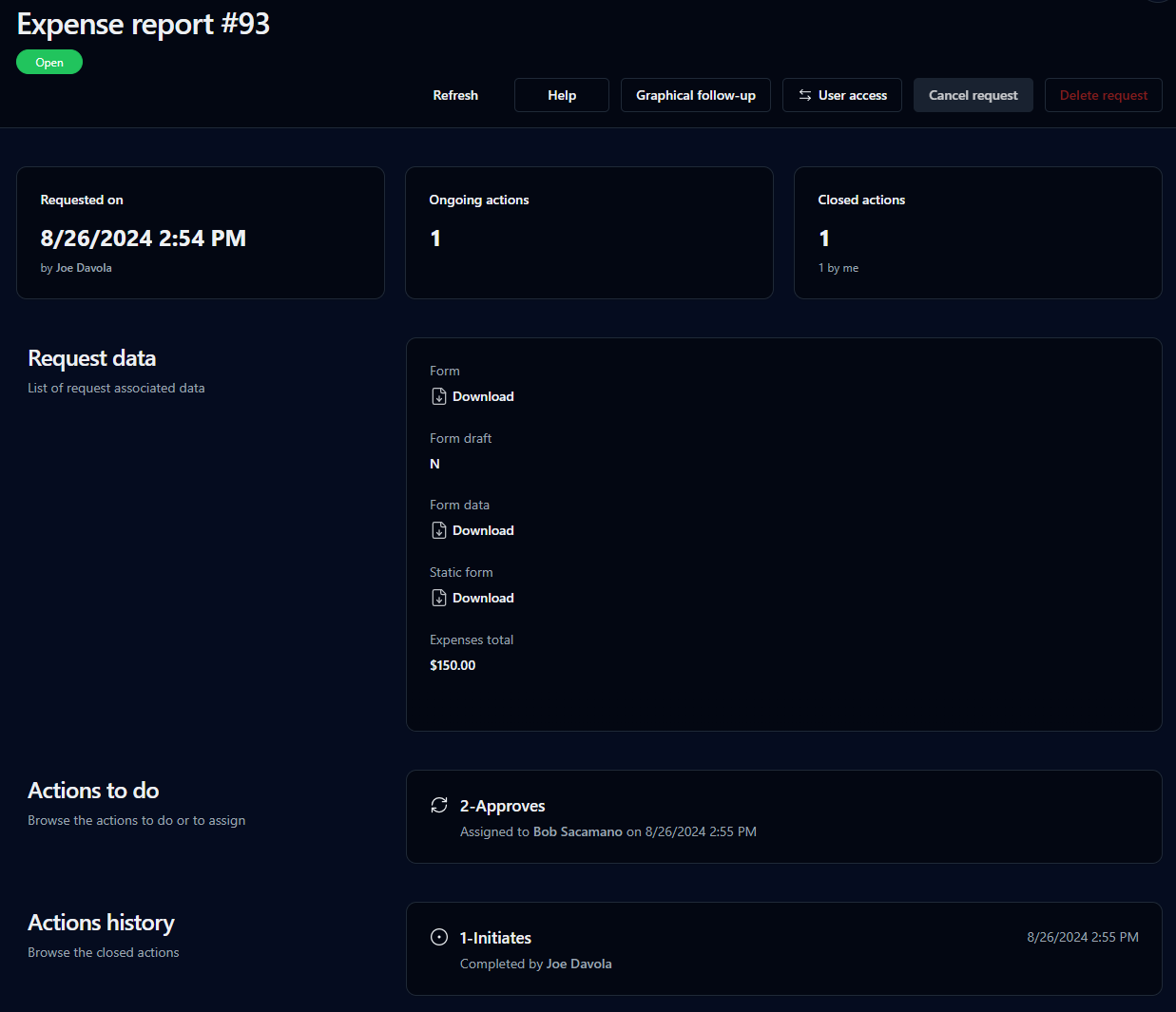
### Administrator view

<div align="left"><figure><img src="https://content.gitbook.com/content/87PQd7lEGiEgmvvK00Jy/blobs/U7JyLtzeOPPwo2P5Sh97/request_follow-up_form_admin.png" alt=""><figcaption></figcaption></figure></div>

## Request information

<table data-header-hidden><thead><tr><th valign="top">Fields</th><th valign="top">Remarks</th></tr></thead><tbody><tr><td valign="top"><strong>Fields</strong></td><td valign="top"><strong>Remarks</strong></td></tr><tr><td valign="top">Status badge</td><td valign="top"><p>Status of the request:</p><ul><li><strong>Open:</strong> The request has been launched</li><li><strong>Closed – Completed:</strong> the request has ended as per the process workflow</li><li><strong>Closed – Cancelled:</strong> The request has been cancelled</li></ul></td></tr><tr><td valign="top">Parent request</td><td valign="top">Link that goes back to the parent request follow-up form (only available for sub-requests)</td></tr><tr><td valign="top">Refresh</td><td valign="top">Click to update the page; this is useful when the process has some actions completed in background mode</td></tr><tr><td valign="top">Help</td><td valign="top">Display the process help window, including a diagram of the workflow</td></tr><tr><td valign="top">Graphical follow-up</td><td valign="top">Display the graphical follow-up of the request (only available for allowed participants)</td></tr><tr><td valign="top">User access / Administrator access</td><td valign="top">Click to toggle between User view and Administrator view (if the user has supervisor rights to the request)</td></tr><tr><td valign="top">Cancel request</td><td valign="top">Cancel the request (only available in Administrator view)</td></tr><tr><td valign="top">Delete request</td><td valign="top">Delete the request  (only available in Administrator view)</td></tr><tr><td valign="top">Requested on</td><td valign="top">Request launch date and name of requester</td></tr><tr><td valign="top">Request data</td><td valign="top">List of request-associated data that have been defined as visible by the process designer</td></tr><tr><td valign="top">File icon</td><td valign="top">The following file extensions are displayed with a specific icon: <code>PDF</code>, <code>FDF</code>, <code>DOC</code>, <code>XLS</code>, <code>PPT</code>, <code>HTML</code> / <code>HTM</code> / <code>XML</code>, <code>ZIP</code>, <code>TXT</code>, <code>BAT</code>, <code>SYS</code>, Undefined (for other extensions)</td></tr><tr><td valign="top">Time limit</td><td valign="top">Request deadline (if applicable)</td></tr><tr><td valign="top">Comments panel</td><td valign="top">Click  <img src="https://content.gitbook.com/content/87PQd7lEGiEgmvvK00Jy/blobs/lTAY8MmHx7CxKa9CfH19/left_menu_comments._small.png" alt="">  in the top right corner of the screen to open a slide-out panel that displays the list of comments on the request and lets you leave new comments</td></tr></tbody></table>

## Action lists

Action lists include:

* My actions to do
* My team actions to do
* List of actions to assign to a person
* Other actions to be done by someone else

<table data-header-hidden><thead><tr><th valign="top">Columns</th><th valign="top">Remarks</th></tr></thead><tbody><tr><td valign="top"><strong>Columns</strong></td><td valign="top"><strong>Remarks</strong></td></tr><tr><td valign="top">Name</td><td valign="top"><p>Action icon and action name</p><ul><li>Click the action icon to display the<a href="action-follow-up-form"> action information form</a></li><li>Click the action name to launch the action</li></ul><p>By default, clicking the action name launches the action, but WorkflowGen can be configured in order to change this behavior and display the action information form instead of launching the action.</p></td></tr><tr><td valign="top">Description</td><td valign="top">Action description</td></tr><tr><td valign="top">Assigned to</td><td valign="top">Name of the user to whom the action has been assigned</td></tr><tr><td valign="top">Time limit</td><td valign="top">Action deadline (if applicable)</td></tr><tr><td valign="top">Help</td><td valign="top">Display the action help window, including a diagram of the workflow</td></tr></tbody></table>

## Action history

<table data-header-hidden><thead><tr><th valign="top">Columns</th><th valign="top">Remarks</th></tr></thead><tbody><tr><td valign="top"><strong>Columns</strong></td><td valign="top"><strong>Remarks</strong></td></tr><tr><td valign="top">Name</td><td valign="top">Action icon and action name; click to display the action follow-up form</td></tr><tr><td valign="top">Description</td><td valign="top">Action description</td></tr><tr><td valign="top">Completed by...</td><td valign="top">Name of the user to whom the action has been assigned</td></tr><tr><td valign="top">On the...</td><td valign="top">Date and time of the action completion</td></tr></tbody></table>

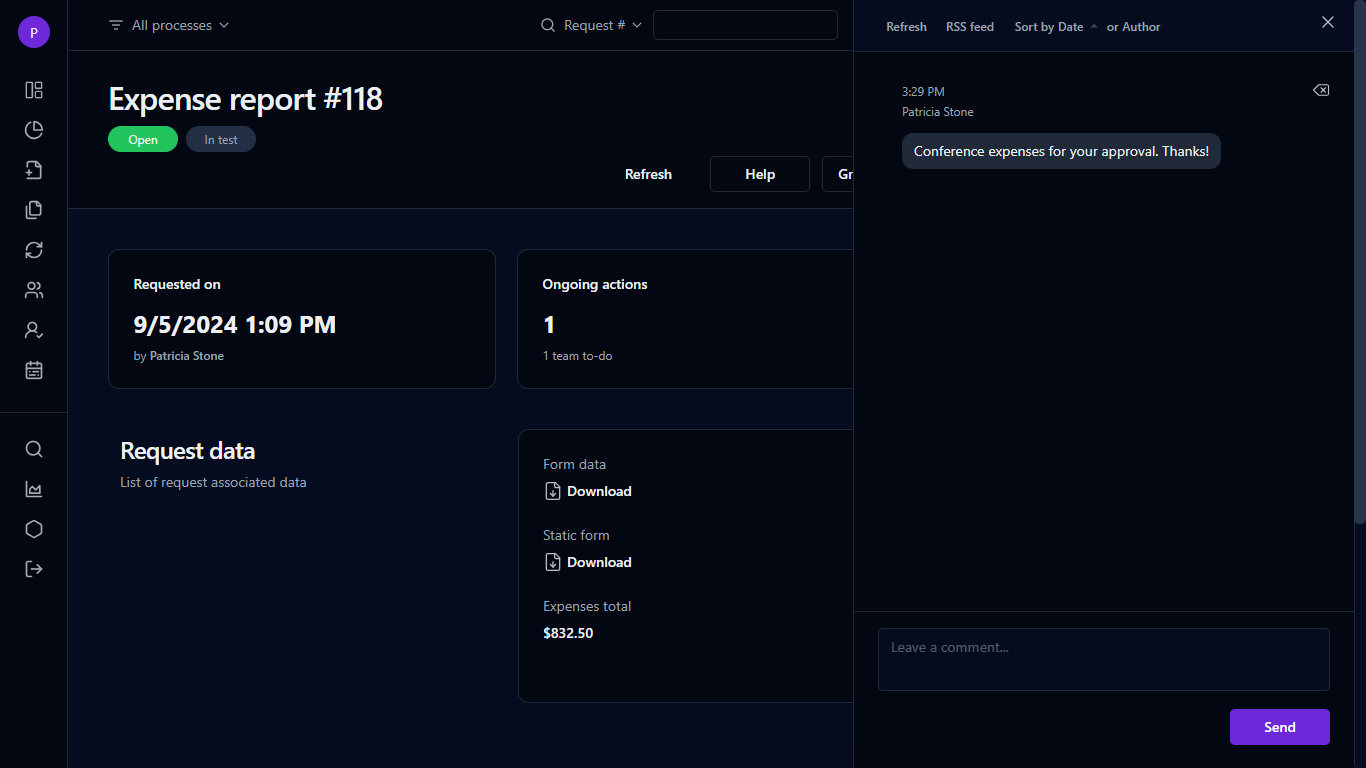
## Comments panel

Click  ![](https://content.gitbook.com/content/87PQd7lEGiEgmvvK00Jy/blobs/lTAY8MmHx7CxKa9CfH19/left_menu_comments._small.png)  in the top right corner of the screen to open a slide-out panel where request participants can post free-form comments. Here, you can:

* View, refresh, and sort the comments list by date posted or author in ascending or descending order
* Post a new comment
* Delete an existing comment of which you're the author or administrator/supervisor
* Subscribe to the comments list RSS feeds

The associated users of each process participant can have read, read/write, or no permissions given to them by the process administrator.

WorkflowGen Administrators, process administrators, and supervisors have read/write permissions by default.

{% hint style="info" %}
Comments displayed in the Dashboard comments panel are read-only. To add a comment, click the request number above a comment, which will open the request or action information form with the comments panel expanded.
{% endhint %}

<figure><img src="https://content.gitbook.com/content/87PQd7lEGiEgmvvK00Jy/blobs/gpULouRm6GhX8Qt4qP2B/comments_panel.png" alt=""><figcaption><p>Leaving a comment on a request from its information form</p></figcaption></figure>

## Launching a request

A process can be launched if its status is active. Only process managers, process supervisors, and WorkflowGen administrators can launch processes in test mode, and they can only launch those for which they are requesters. A process cannot start if its definition is invalid. A process can be started by any user associated with the requester participant.

## Cancelling a request

An ongoing request can be cancelled by the requester if no action assigned to another user is running, or if the user is the process manager, process supervisor, or a WorkflowGen Administrator.

## Deleting a request

A request can only be deleted:

* If it's in test mode,
* By a user if the first open action is assigned to them,
* By a WorkflowGen Administrator, or
* By the process manager or supervisor if **Allow process managers and supervisors to delete requests** has been enabled in the Administration Module **Configuration** panel.