# Search

## Search screen

<figure><img src="https://content.gitbook.com/content/87PQd7lEGiEgmvvK00Jy/blobs/TJWKToj09Krt9EkBYyF8/search.png" alt=""><figcaption></figcaption></figure>

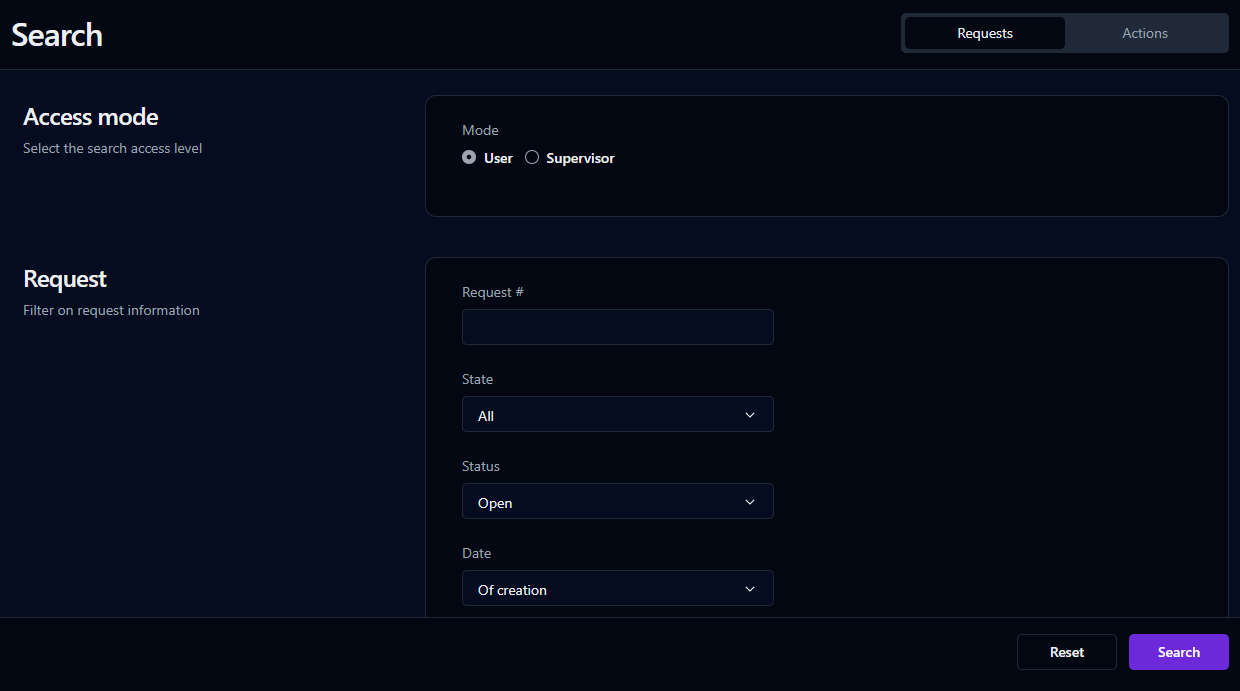
The **Search** screen allows searches to be conducted on user-accessible requests and actions. The search criteria can be saved as a view so that the user can quickly display the search results without having to repeatedly fill out the search form (see [Save as view](https://docs.workflowgen.com/portal/9.3/advanced-view#save-as-view) for more information).

By default, only requests initiated by the user and actions performed by the user will be listed in the search. This applies to all user types, including process supervisors, managers, and administrators.

In **Supervisor mode**, more search options are available, and the search will be performed for all activities of the processes the user supervises (see the [Supervisor mode](#supervisor-mode) section below for more information).

By checking **Customizable report** (under **Advanced view** in the **Display** section), the search results will be displayed in a customizable format, which gives the user control of how the results are organized.

By checking **Display approval buttons**, **Quick approval** buttons will appear next to validation actions if **Quick approval** has been enabled. This option is only available when searching in **User** mode.

## Search form

Click **Requests** to search requests or **Actions** to search actions. The search form is in **User mode** by default and includes the following search filters:

<table data-header-hidden><thead><tr><th valign="top">Button / Field</th><th valign="top">Description</th></tr></thead><tbody><tr><td valign="top"><strong>Button / Field</strong></td><td valign="top"><strong>Description</strong></td></tr><tr><td valign="top">Requests</td><td valign="top">Define a search for requests</td></tr><tr><td valign="top">Actions</td><td valign="top">Define a search for actions</td></tr><tr><td valign="top">Access mode</td><td valign="top">Switch between <strong>User</strong> and <strong>Supervisor</strong> search modes (see the next section, <a href="#supervisor-mode">Supervisor mode</a>)</td></tr><tr><td valign="top">Request #</td><td valign="top">Filter by request number</td></tr><tr><td valign="top">State</td><td valign="top">Filter by request state: <strong>All</strong>, <strong>In test</strong>, or <strong>Active</strong></td></tr><tr><td valign="top">Status</td><td valign="top">Filter by request or action status: <strong>All</strong>, <strong>All except closed (cancelled), Open</strong>, <strong>Closed</strong>, <strong>Closed (completed)</strong>, or <strong>Closed (cancelled)</strong></td></tr><tr><td valign="top">Date</td><td valign="top">Filter by date: <strong>Of creation</strong>, <strong>Of closing</strong>, or <strong>Limit</strong></td></tr><tr><td valign="top">Period</td><td valign="top">Filter by a predefined period</td></tr><tr><td valign="top">Or from... to...</td><td valign="top">Filter by a date range (click the fields to display a calendar date picker)</td></tr><tr><td valign="top">Category</td><td valign="top">Filter by process category</td></tr><tr><td valign="top">Process</td><td valign="top">Filter by process name</td></tr><tr><td valign="top">Version <sup>1</sup></td><td valign="top">Filter by process version</td></tr><tr><td valign="top">Action <sup>1</sup> (actions search only)</td><td valign="top">Filter by action<br>✏️ <strong>Note:</strong> By default, the search can filter only by actions in which the user is a participant. In Supervisor mode, the search can filter by any action in the selected process for which the user is a supervisor.</td></tr><tr><td valign="top">Data filters <sup>2</sup></td><td valign="top"><p>Filter by process data values</p><p>✏️ <strong>Note:</strong> The <code>does not contain</code> operator excludes <code>NULL</code> values.</p></td></tr><tr><td valign="top">Advanced view</td><td valign="top"><ul><li>Display results in a customizable report</li><li>Display paging<br>✏️ <strong>Note:</strong> The server-side paging feature does not support some of the existing Advanced View functions such as <code>Export grid</code>, <code>View chart</code>, and <code>Column filtering</code>.</li><li>Display Quick approval buttons for validation actions (actions search in User mode only)</li></ul></td></tr><tr><td valign="top">Action display (actions search only)</td><td valign="top">Hide action numbers in search results</td></tr></tbody></table>

1. Available when filtering by process or in single-process search mode.
2. Available when filtering by process or in single-process search mode; available in multi-process mode if common process data has been set up by your WorkflowGen Administrator.

{% hint style="info" %}
By default, the search can filter only by the actions of which the user is a participant. In Supervisor mode, the search can filter for any action of the selected process of which the user is a supervisor (see the next section, [Supervisor mode](#supervisor-mode)).
{% endhint %}

### Supervisor mode <a href="#supervisor-mode" id="supervisor-mode"></a>

In **Supervisor mode**, the following additional search filters are available:

<table data-header-hidden><thead><tr><th valign="top">Field</th><th valign="top">Description</th></tr></thead><tbody><tr><td valign="top"><strong>Field</strong></td><td valign="top"><strong>Description</strong></td></tr><tr><td valign="top">Requester’s last name (requests search only)</td><td valign="top">Filter by the requester’s last name</td></tr><tr><td valign="top">Requester’s username (requests search only)</td><td valign="top">Filter by the requester’s username</td></tr><tr><td valign="top">Assignee’s last name (actions search only)</td><td valign="top">Filter by the assignee’s last name</td></tr><tr><td valign="top">Assignee’s username (actions search only)</td><td valign="top">Filter by the assignee’s username</td></tr><tr><td valign="top">Participant</td><td valign="top">Filter by participant (global or process) in all processes the user supervises</td></tr><tr><td valign="top">Past due (days)</td><td valign="top">Filter by requests or actions that are past due by the number of days specified in the drop-down list</td></tr><tr><td valign="top">Not assigned (actions search only)</td><td valign="top">Filter by actions not yet assigned</td></tr><tr><td valign="top">To accept (actions search only)</td><td valign="top">Filter by actions to accept</td></tr></tbody></table>

## Search results

### Request list

<table data-header-hidden><thead><tr><th valign="top">Columns</th><th valign="top">Remarks</th></tr></thead><tbody><tr><td valign="top"><strong>Columns</strong></td><td valign="top"><strong>Remarks</strong></td></tr><tr><td valign="top">Request #</td><td valign="top">Request number; click the icon to display the request form in Quick view, or click the number to display the form information screen</td></tr><tr><td valign="top">Process</td><td valign="top">Process name</td></tr><tr><td valign="top">Launched</td><td valign="top">Request creation date</td></tr><tr><td valign="top">Closed</td><td valign="top">Request closure date</td></tr><tr><td valign="top">Time limit</td><td valign="top">Request deadline</td></tr><tr><td valign="top">Additional data elements</td><td valign="top">Any additional associated data elements (as defined by the process designer) will appear as extra columns in when in single-process view</td></tr></tbody></table>

{% hint style="info" %}
The results list allows drag-and-drop reordering of columns. Column order is specific to the user and is retained thereafter.
{% endhint %}

### Action list

<table data-header-hidden><thead><tr><th valign="top">Columns</th><th valign="top">Remarks</th></tr></thead><tbody><tr><td valign="top"><strong>Columns</strong></td><td valign="top"><strong>Remarks</strong></td></tr><tr><td valign="top">Request #</td><td valign="top">Request number; click the icon to display the request form in Quick view, or click the number to display the <a href="request-follow-up-form">request information form</a></td></tr><tr><td valign="top">Process</td><td valign="top">Process name</td></tr><tr><td valign="top">Requester</td><td valign="top">Requester name</td></tr><tr><td valign="top">Action</td><td valign="top">Action name; click to open the <a href="action-follow-up-form">action information form</a></td></tr><tr><td valign="top">Launched</td><td valign="top">Action creation date</td></tr><tr><td valign="top">Closed</td><td valign="top">Action closure date</td></tr><tr><td valign="top">Time limit</td><td valign="top">Action deadline</td></tr><tr><td valign="top">Additional data elements</td><td valign="top">Any additional associated data elements (as defined by the process designer) will appear as extra columns when in single-process view</td></tr></tbody></table>

### Save as view

The current search results can be saved as a view by clicking the **Save as view** button displayed above the search results. See the [Views](https://docs.workflowgen.com/portal/9.3/views#views) section for information on how to use views, and the [Dashboar](https://docs.workflowgen.com/portal/9.3/dashboard#dashboard-pop-up-panels)[d pop-up panels](https://docs.workflowgen.com/portal/9.3/dashboard#dashboard-pop-up-panels) section to find out how to turn saved views into pop-up panels on your Dashboard.

<table data-header-hidden><thead><tr><th valign="top">Fields</th><th valign="top">Remarks</th></tr></thead><tbody><tr><td valign="top"><strong>Fields</strong></td><td valign="top"><strong>Remarks</strong></td></tr><tr><td valign="top">Name</td><td valign="top">Name of the new view</td></tr><tr><td valign="top">Replace</td><td valign="top">Select an existing view to replace</td></tr><tr><td valign="top">Display link in the home page</td><td valign="top">Display this view on your home page</td></tr><tr><td valign="top">Share with participants</td><td valign="top">Select which participants to share this view with</td></tr></tbody></table>
