# Views

## Views screen

<div align="left"><figure><img src="/files/0JD4oADYORaLF9gAxlzf" alt=""><figcaption></figcaption></figure></div>

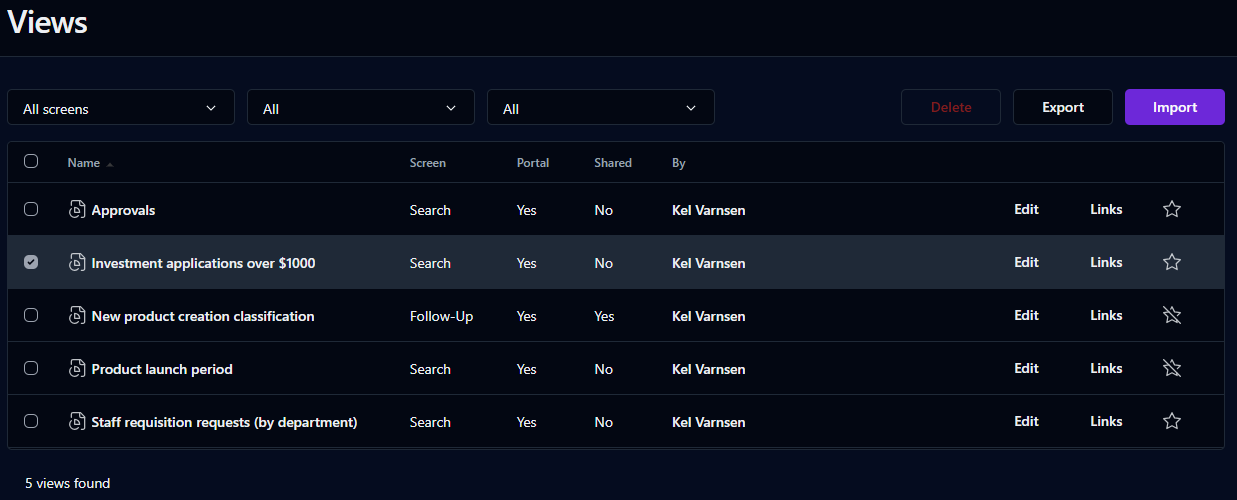
This page displays all of the views you've saved.

To add a view to the **My favorites** list on the Dashboard, click the star outline. You can then open the view from either the **My favorites** or **My views** expandable lists. To remove a view from your favorites, click the star again.

## Search filters

<table data-header-hidden><thead><tr><th valign="top">Filter</th><th valign="top">Remarks</th></tr></thead><tbody><tr><td valign="top"><strong>Filter</strong></td><td valign="top"><strong>Remarks</strong></td></tr><tr><td valign="top">Screen</td><td valign="top">Filter by the screen used to save the view</td></tr><tr><td valign="top">Portal</td><td valign="top">Filter based on views that have links on the Dashboard</td></tr><tr><td valign="top">Shared</td><td valign="top">Filter based on views shared by other users</td></tr></tbody></table>

## List

<table data-header-hidden><thead><tr><th valign="top">Columns</th><th valign="top">Remarks</th></tr></thead><tbody><tr><td valign="top"><strong>Columns</strong></td><td valign="top"><strong>Remarks</strong></td></tr><tr><td valign="top">Checkbox</td><td valign="top">Select view for export or deletion</td></tr><tr><td valign="top">Name</td><td valign="top">Name of the view</td></tr><tr><td valign="top">Screen</td><td valign="top">View’s screen type</td></tr><tr><td valign="top">Portal</td><td valign="top">Display (or don't display) the view on the Dashboard</td></tr><tr><td valign="top">Shared</td><td valign="top">View shared by other users (or not)</td></tr><tr><td valign="top">By</td><td valign="top">Owner of the shared view</td></tr><tr><td valign="top">Edit</td><td valign="top">Edit the view</td></tr><tr><td valign="top">Link</td><td valign="top">Display the view's URL and HTML</td></tr></tbody></table>

You can sort the list descending or ascending by any of the elements by clicking on the corresponding column header.

## Editing a view

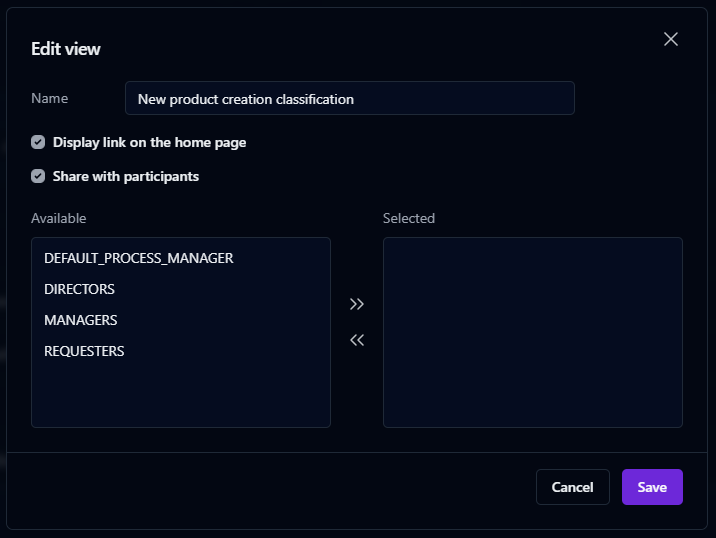
Click **Edit** to change the view's description, choose whether to include the view as a link available on the Dashboard, and share the view with other process participants.

<div align="left"><figure><img src="/files/pZFN4pjCwkDrd7Wm7Let" alt=""><figcaption></figcaption></figure></div>

## Getting the link to a view

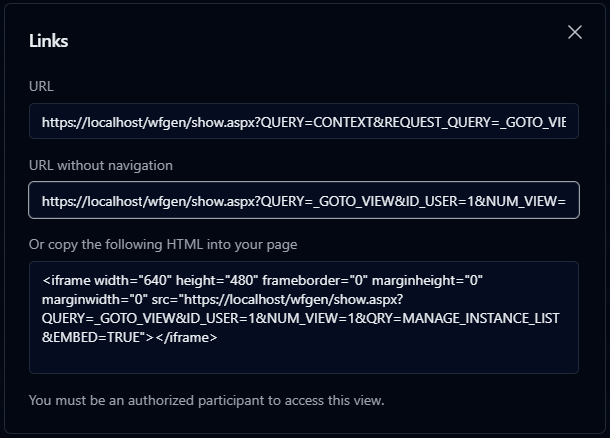
Click **Links** to display the view's URLs and HTML code, which you can use to embed the view in an external page.

{% hint style="info" %}
**URL** will display the view within the User Portal. **URL without navigation** will display the view on its own, without User Portal menus.
{% endhint %}

<div align="left"><figure><img src="/files/9lC5BM8kU2Q8mguZRyot" alt=""><figcaption></figcaption></figure></div>

## Importing a view

To import a view, click the **Import** button above the list, select the view's previously exported `.xml` definition file, then click **Import**.

## Exporting a view

To export a view, check the checkbox to the left of the view's name, then click the **Export** button that appears above the list.

{% hint style="info" %}
Only one view can be exported at a time.
{% endhint %}

## Deleting a view

To delete a view, check the checkbox to the left of the view's name, then click the **Delete** button that appears above the list.


---

# Agent Instructions: Querying This Documentation

If you need additional information that is not directly available in this page, you can query the documentation dynamically by asking a question.

Perform an HTTP GET request on the current page URL with the `ask` query parameter:

```
GET https://docs.workflowgen.com/portal/9.4/views.md?ask=<question>
```

The question should be specific, self-contained, and written in natural language.
The response will contain a direct answer to the question and relevant excerpts and sources from the documentation.

Use this mechanism when the answer is not explicitly present in the current page, you need clarification or additional context, or you want to retrieve related documentation sections.