# New Request

## New request screen

<figure><img src="/files/jlBROVWAJoFaDEp2qCch" alt=""><figcaption></figcaption></figure>

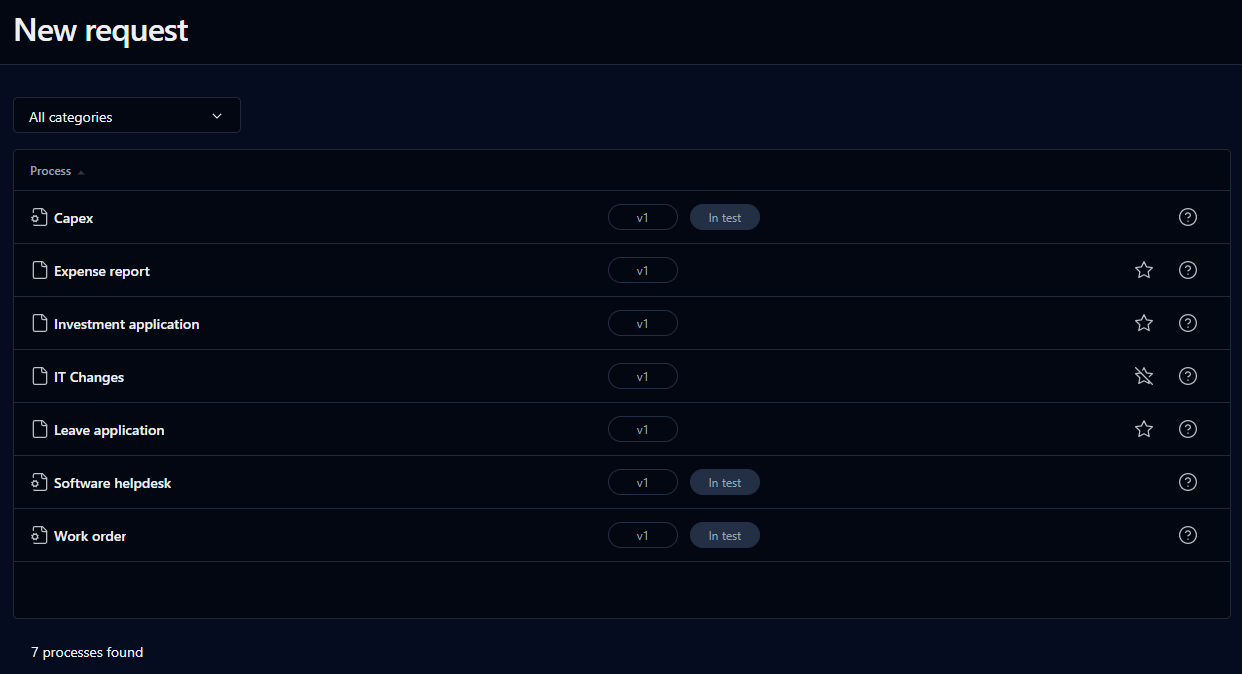
This screen lets you view all the processes you have access to and launch new requests.

To add a process to the **My favorites** list on your Dashboard, click the star outline. You can then open the process from either the **My favorites** or **New request** lists on your Dashboard. To remove a process from your favorites, click the star again.

## Search filter

<table data-header-hidden><thead><tr><th valign="top">Filter</th><th valign="top">Remarks</th></tr></thead><tbody><tr><td valign="top"><strong>Filter</strong></td><td valign="top"><strong>Remarks</strong></td></tr><tr><td valign="top">Category</td><td valign="top">Filter by process category</td></tr></tbody></table>

## List

<table data-header-hidden><thead><tr><th valign="top">Columns</th><th valign="top">Remarks</th></tr></thead><tbody><tr><td valign="top"><strong>Columns</strong></td><td valign="top"><strong>Remarks</strong></td></tr><tr><td valign="top">Description</td><td valign="top"><p>Process icon and process name (or process description):<br><img src="/files/1VpCLjR79MwOy88z1HBI" alt="">  identifies processes with <strong>In test</strong> status<br><img src="/files/quZTSVpzXYcqKzXJC04l" alt="">  identifies processes with <strong>Active</strong> status</p><p></p><p>Click the process icon to launch a new request form. If the <strong>Quick view</strong> functionality has been activated, the form will open in a pop-up window. Otherwise, click the process name to open the request form in its own window.</p></td></tr></tbody></table>

Click ![](/files/cKM3YNjYqOvGMOEmuOwb) on the right-hand side of the row to open a pop-up help window.

You can sort the list ascending or descending by any of the elements by clicking on the corresponding column header.

## Request form left menu

<figure><img src="/files/vvpu5T4rXKEkdTrpkItu" alt=""><figcaption></figcaption></figure>

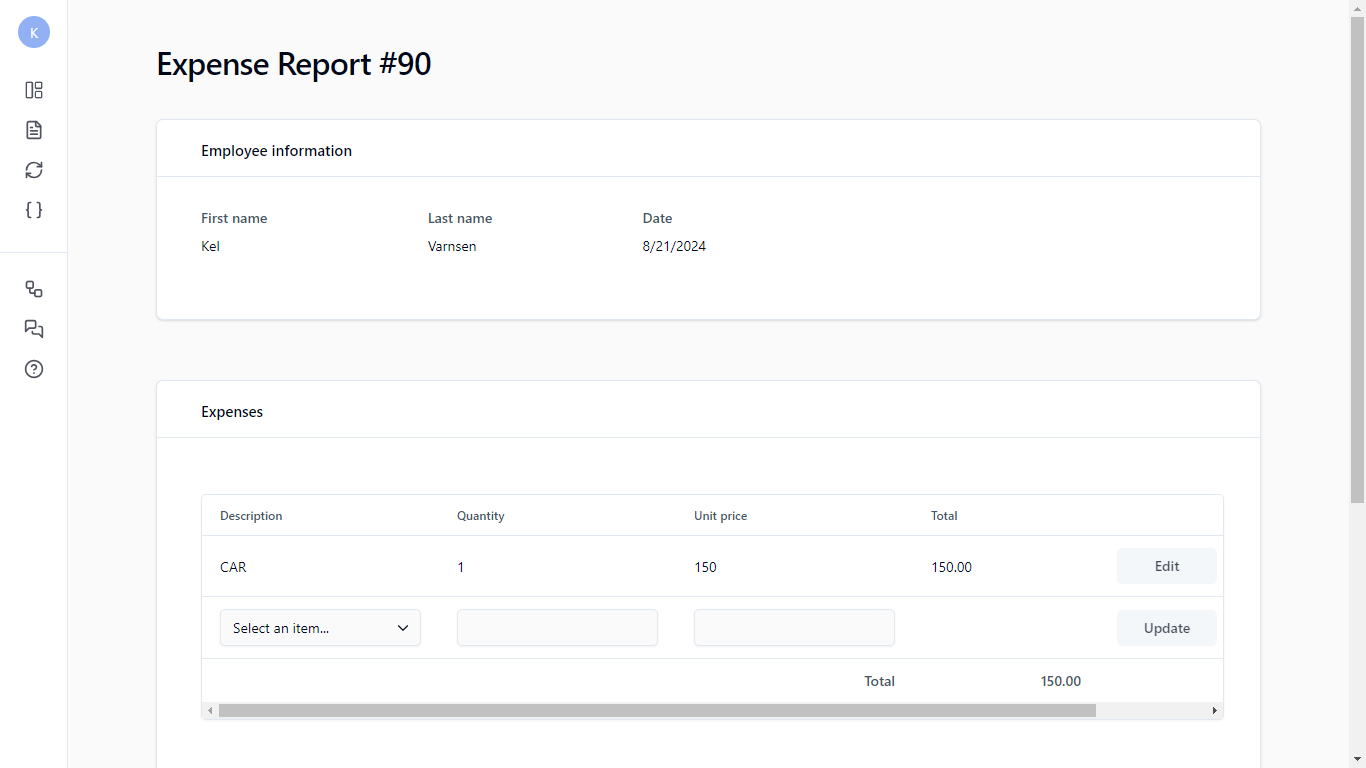
When you launch a new request, a new left menu appears.

<table data-header-hidden><thead><tr><th width="138.5" align="center" valign="top">Icon</th><th valign="top">Description</th></tr></thead><tbody><tr><td align="center" valign="top"><strong>Icon</strong></td><td valign="top"><strong>Description</strong></td></tr><tr><td align="center" valign="top"><img src="/files/MLI3pxxZwLFSxzNXOpcA" alt="" data-size="original"></td><td valign="top">Return to the Dashboard</td></tr><tr><td align="center" valign="top"><img src="/files/YdDydeISzJ4Had9YSsc9" alt="" data-size="original"></td><td valign="top">Open the <a href="/pages/-LV02Y7Tke0bVTBafwsz">request information form</a></td></tr><tr><td align="center" valign="top"><img src="/files/tRP9XcwE25WKF0ORUgPZ" alt="" data-size="original"></td><td valign="top">Open the <a href="/pages/-LV02Y7UvICcCq1oW5Si">action information form</a></td></tr><tr><td align="center" valign="top"><img src="/files/H4kpa1cBYal5cLjmBfy1" alt="" data-size="original"></td><td valign="top">Show the process data associated with the request</td></tr><tr><td align="center" valign="top"><img src="/files/MMqQy1U3FhB0F8OsDKoL" alt="" data-size="original"></td><td valign="top">Display the graphical follow-up pop-up window</td></tr><tr><td align="center" valign="top"><img src="/files/6eXREKjAREHzbaEsdOi7" alt="" data-size="original"></td><td valign="top"><p>Open a pop-up panel that displays the list of comments on the request</p><p></p><p>A process participant’s associated users can view, refresh, or sort the comments list, post a new comment, delete an existing comment, and subscribe to the comment list RSS feeds.</p></td></tr><tr><td align="center" valign="top"><img src="/files/oIioj0I7YXxer0ihlMaZ" alt="" data-size="original"></td><td valign="top">Display the <a href="/pages/-LV02Y7Yafssbslf-SPN">help</a> pop-up window</td></tr></tbody></table>


---

# Agent Instructions: Querying This Documentation

If you need additional information that is not directly available in this page, you can query the documentation dynamically by asking a question.

Perform an HTTP GET request on the current page URL with the `ask` query parameter:

```
GET https://docs.workflowgen.com/portal/9.5/new-request.md?ask=<question>
```

The question should be specific, self-contained, and written in natural language.
The response will contain a direct answer to the question and relevant excerpts and sources from the documentation.

Use this mechanism when the answer is not explicitly present in the current page, you need clarification or additional context, or you want to retrieve related documentation sections.