The WorkflowGen User Portal is a web application that allows users to:
Launch and follow up on requests
Perform and follow up on actions
Assign actions
Perform searches on actions and requests
Save searches as custom views, and place the saved views on the home page as floating dashboard panels if desired
Delegate actions
Generate and view analytics
Access the Administration Module (if permitted)
Access to the User Portal is available through the URL http://[yourwebsite]/wfgen/default.aspx.
According to the authentication method chosen by the WorkflowGen Administrators, you may have to specify a username and a password when you log in to WorkflowGen. For Windows users, these are typically the same as those used to log in to Windows.
Your Administrator can set a maximum number of failed connection attempts due to an incorrect password, after which the account will be locked. If this happens, you will be redirected to a password reset page, where you will be prompted to enter an email address to which an email will be sent with a link to reset your password.
You can also change your password at any time by clicking the user icon in the top left of the Dashboard, which opens the user settings panel where you can set a new password.
If you've forgotten your password, you can access the password reset page via the URL http://[yourwebsite]/wfgen/forgotpassword.aspx.
To select a language and, if desired, a language culture, click the circular user icon at the top left of the Dashboard to open the user settings panel.
The language culture (indicated by country) shown beside the language defines the regional settings used in WorkflowGen, in particular when displaying dates and numerical values.
English (United Kingdom) corresponds to English with United Kingdom regional settings (date format dd/mm/yyyy).
English (United States) corresponds to English with United States regional settings (date format m/d/yyyy).
You can select from the following list of languages:
English (Australia)
English (Canada)
English (United Kingdom)
English (United States)
The User Portal's main screens are accessible from the Dashboard left menu.
In the User Portal, access to information is personalized based on users’ profiles and roles in processes.
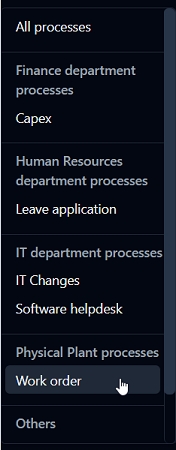
You can switch from the default multi-process mode to single-process mode by selecting a process from drop-down list at the top left of the WorkflowGen application banner.
The list is filtered based on the user’s WorkflowGen profile and process role.
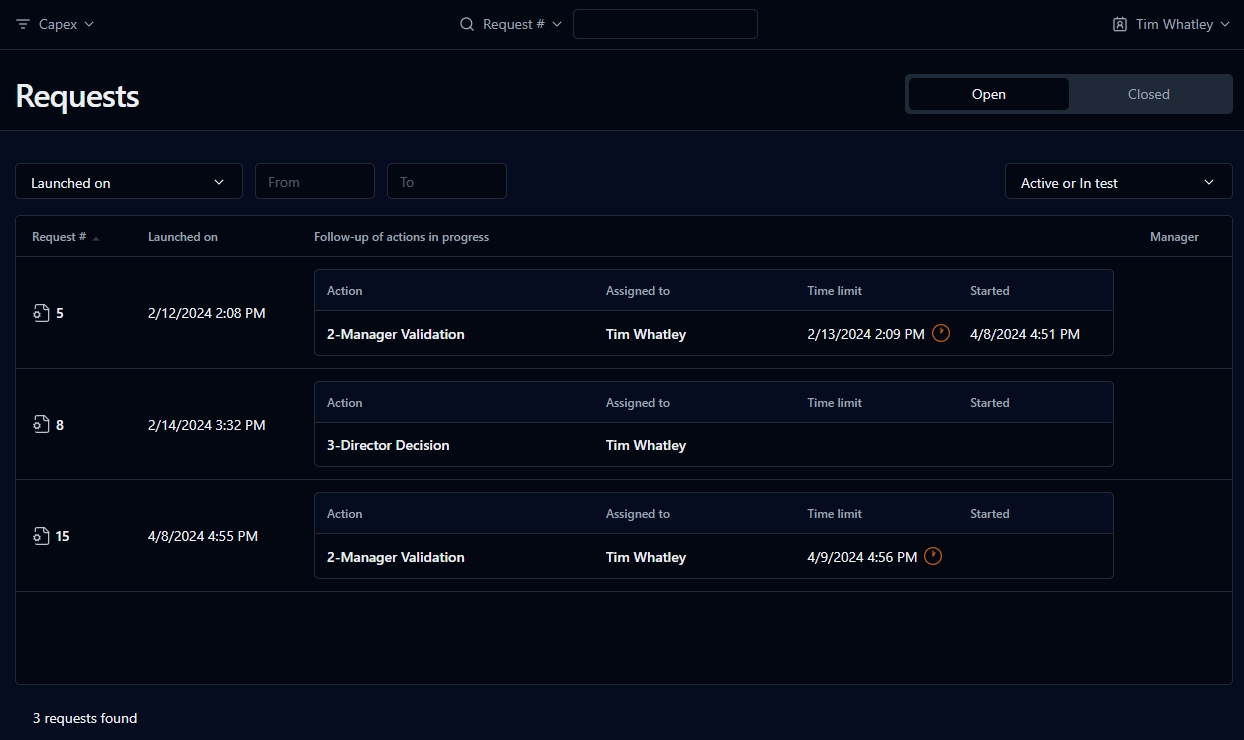
In all single-process screens, the associated process data are displayed to the right of the request number and creation date columns, as shown in the screenshot below. The process data that are displayed are determined by the visibility and security options set within the process design in the Administration Module.
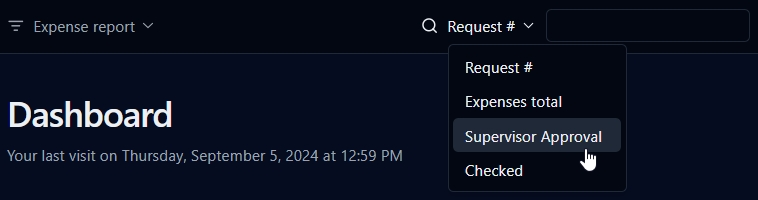
You can always search for workflows using the request number (Request #). However, the Portal common process data feature also allows you to display process data that have the same name and data type, such as first or last name, depending on the parameters that have been set in the Administration Module.
In delegation mode, the user plays the role of another user on delegated process participants. If there's an active delegation defined for you, a user list is displayed in the the top right corner of the Dashboard. You can switch from one user to another using this drop-down list, or using the Act as drop-down list in the General section on the user settings panel. The process list is filtered by the process for which the user has a delegation assigned by the selected user.
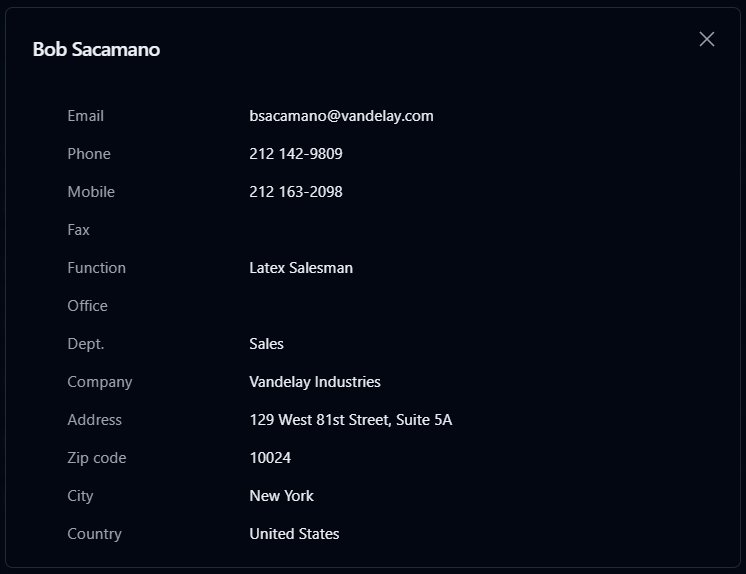
Clicking the name of a user displays their , which contains information defined in their user profile.
This gives access to the search function for a user’s own requests and actions. If the user is given the role of requester for a process, access is given to the following functions:
New request
Current requests
If the user is an actor in a process, access is given to the following functions:
Actions to do
Team actions to do
Actions to assign as coordinator to someone
Views created for themselves or shared views (if the user belongs to one or more participants granted access to shared view)
This gives access to follow-up functions for the requests of the process the user manages.
This gives access to follow-up functions for all processes.
Français (Canada)
Français (France)
Français (Suisse)
Deutsch (Deutschland)
Deutsch (Schweiz)
Italiano (Italia)
Português (Portugal)
Español (España)
Opens the screen, which contains a list of your actions to assign or that you've already assigned
Opens the screen, which contains a list of participant delegations on active processes
Opens the screen, which contains a form to search requests and actions
Opens the screen, where you can produce detailed reports on ongoing and closed requests
Opens the in a separate browser tab or window, if you have the required permissions
Logs you out of WorkflowGen
Returns to the Dashboard
Opens the Views screen, which contains a list of the views you've saved
Opens the New request screen, which contains a list of processes you have access to and can launch
Opens the Requests screen, which contains a list of ongoing and closed requests that you've launched
Opens the Actions screen, which contains a list of your actions to do and the actions you've closed
Opens the Team actions screen, which contains a list of team actions you have to do or have closed; these actions are defined with the Self-service assignment method
WorkflowGen profile
Process list content
User
List of processes in which the user is a participant (also through a delegation)
User with process manager role
List of processes in which the user is a participant (also through a delegation) plus all the folder processes
Administrator
No filter
Profile
Permissions
Requester
New request
Current requests
Actor
Actions to do
Team actions to do
Actions to assign
Views created by the user or shared views (if the user belongs to one or more participants granted access to shared view)
Process manager or supervisor
Follow-up on the processes of which the user is supervisor or manager
Administrator
Follow-up on all processes