> For the complete documentation index, see [llms.txt](https://docs.workflowgen.com/llms.txt). Markdown versions of documentation pages are available by appending `.md` to page URLs; this page is available as [Markdown](https://docs.workflowgen.com/tech/9.1/auth0-integration/authentication.md).
# Authentication
## Prerequisites
* Make sure to have a licensed copy of WorkflowGen installed and running on a server. You must be a WorkflowGen administrator.
* Make sure to have Auth0 administrator access.
* Make sure to have provisioned an existing Auth0 user that you can authenticate with to WorkflowGen and that the user has administrator privileges. This is important because once you activate the delegation, you'll need to still be able to manage the application. (The Auth0 user is in fact a user of an identity provider that's linked to Auth0, such as GitHub or Google. You have to have provisioned at least one user.)
* AES encryption mode and its key are required for the authentication to work.
{% hint style="info" %}
* To test your configuration after you complete the steps below, you can add an Auth0 user in the **Users** section of the Auth0 portal.
* When importing users into WorkflowGen from the Auth0 database, make sure to set the username as the email (e.g. `john.doe@example.com`).
{% endhint %}
## Auth0 configuration
The configuration of Auth0 is done in several steps. First, you have to register the WorkflowGen web application and link it to your instance of WorkflowGen; then, you have to register the WorkflowGen GraphQL API to be able to register custom applications to access it.
### Step 1: Create a new regular web application
1. Go to the Auth0 portal **Applications** section.
2. Click **Create Application**, and fill in the form:
* **Name:** `WorkflowGen Web App`
* **Type:** Regular Web Application
3. Click **Create**. You should now see the application's Quick Start page:

4. On the **Settings** tab, scroll down to the **Allowed Callback URLs** section and add `https:///auth/callback` to it.
5. Scroll down to the **Allowed Logout URLs** section and add `https:///auth/logout/return` to it.
Your WorkflowGen Regular Web App is now configured.
### Step 2: Register the GraphQL API
Now, you need to register the WorkflowGen GraphQL API module so that applications external to WorkflowGen can use the API by authentication through Auth0 using the OpenID Connect protocol.
#### **Classic usage:**
1. Go to the Auth0 portal **APIs** section.
2. Click **Create API**, and fill in the form:
* **Name:** `WorkflowGen GraphQL API`
* **Identifier:** `https:///graphql`
* **Signing algorithm:** `RS256`
Your form should look like this:

3. Click **Create**.
#### **With multi-audience support:**
1. Go to the Auth0 portal **APIs** section.
2. Click **Create API**, and fill in the form:
* **Name:** `My APIs`
* **Identifier:** `my-apis`
* **Signing algorithm**: `RS256`
3. Click **Create**.
4. Click **Permissions**.
5. In the **Define all the permissions (scopes) that this API uses** section, enter the following information:
* **Permission:** `wfgen-graphql-full-access`
* **Description:** `Full access to the WorkflowGen GraphQL API`
6. Click **ADD**.
The GraphQL API is now registered in Auth0.
### Step 3: Add an Auth0 action
In order to get a proper username from the access token when receiving one in the GraphQL API, you need to use a special feature of Auth0 called an **action**. Actions act as middleware between the linked cloud provider and Auth0 in order to get the correct values when needed.
1. Go to the Auth0 portal and select **Actions** in the left menu, then select **Library** in the sub-menu.
2. Click **Create Action**, then choose the **Build from scratch** template.
3. Give the action a name (e.g. `WorkflowGen (Action)`). **Trigger** should be set to **Login / Post Login** and **Runtime** set to **Node 18 (Recommended)**.\

4. Replace the code with the following:
5. Click **Deploy**.
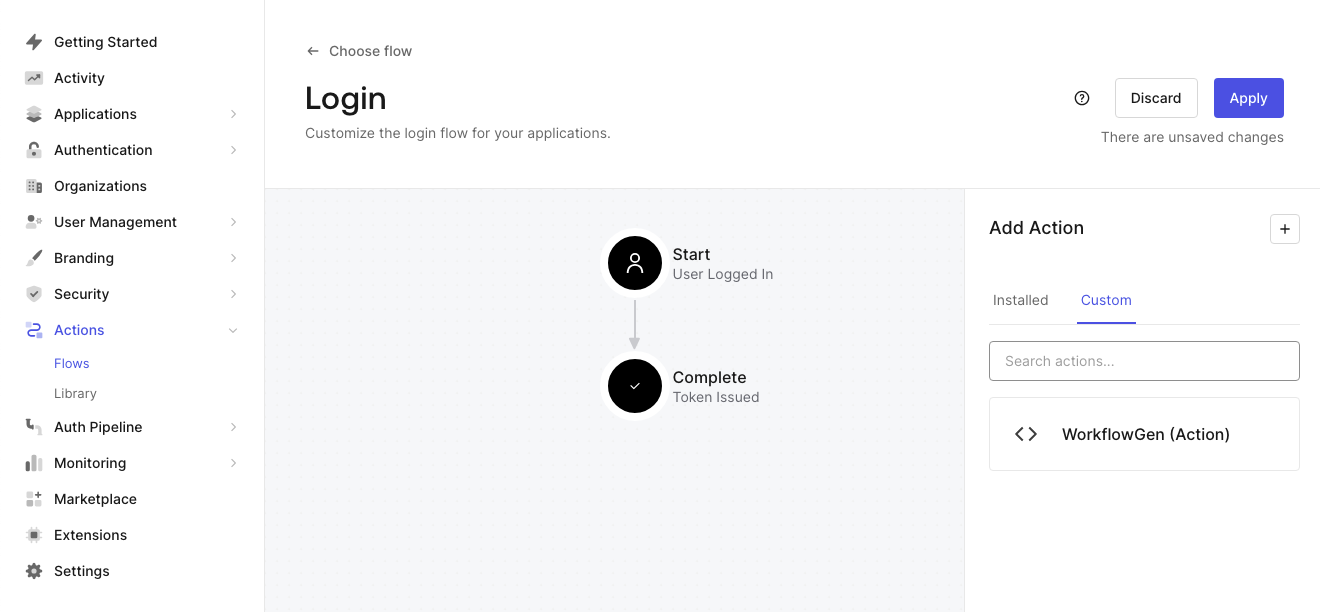
6. Go to the Auth0 portal and select **Actions** in the left menu, then select **Flows** in the sub-menu.
7. On the **Flows** page, click the **Login** icon.
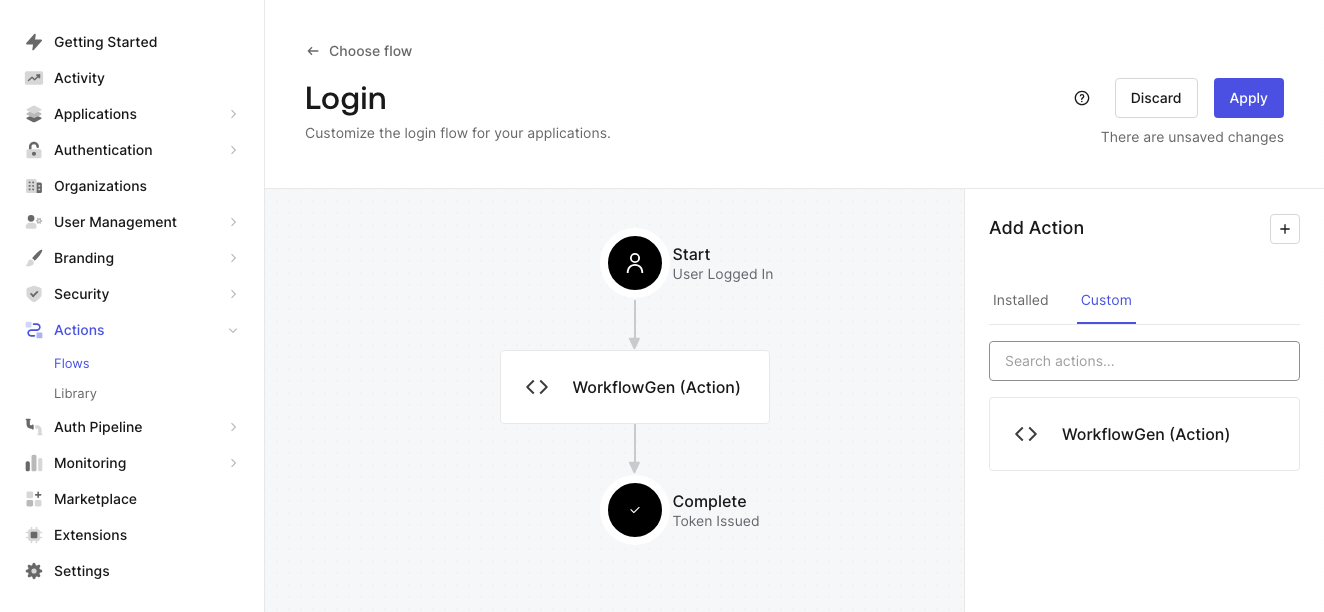
8. In the right panel of the graphical view, select the **Custom** tab, where your custom action should appear.
9. Drag and drop your action between the **Start** and **Complete** actions.
10. Click the **Apply** button in the top right.
This step will ensure that WorkflowGen and the GraphQL API always get a username through the same claim instead of having to make a lot of conditional statements. However, this doesn't apply to machine-to-machine authentication since there's no human user involved.
If you use a different claim from the Auth0 mapping than the one specified in the function above (e.g. `user.username`, `user.email`, `user.nickname`), just modify this rule or add your own. Make sure to populate `https://api.workflowgen.com/username` with the value or to configure the `ApplicationSecurityAuthUsernameClaim` option in your `web.config` with the correct claim to take. Note that this option is used both in the authentication application and the GraphQL API.
## WorkflowGen configuration
Now, you have to configure WorkflowGen to delegate its authentication to Auth0.
### Step 1: Add Auth0 values to the WorkflowGen `web.config`
1. Open the WorkflowGen `web.config` file and add the following properties under ``:
**Classic usage:**
```markup
```
\
**With multi-audience support:**
```markup
```
2. Replace `` with the client ID of the WorkflowGen Regular Web App in Auth0.
3. Replace `` with the client secret of the WorkflowGen Regular Web App in Auth0.
4. Replace `` with the URL that you built earlier from your domain name in Auth0. The `METADATA URL` is `https://[YOUR_AUTH0_DOMAIN].auth0.com/.well-known/openid-configuration`.
Note that the `ApplicationSecurityAuthUsernameClaim` key is set to the value entered in the rule earlier. Therefore, you can use any value here as long as you also modify the rule.
{% hint style="info" %}
For information about available configuration options to use with your instance, see the [Web and Application Configuration Parameters](/tech/9.1/appendix-web-and-application-configuration-parameters.md#auth) appendix.
{% endhint %}
WorkflowGen is now linked to Auth0 and back. The last thing left to do is configure a few more options in order to finish the internal wiring of WorkflowGen so that it can delegate its authentication.
### Step 2: Add security values for session generation
In order to generate a session token, you need to add a few more settings to the `web.config`.
1. Open the WorkflowGen `web.config` file and add the following properties under ``:
```markup
```
2. Replace `` with a value that can't be guessed, such as a UUID.
The secret will be only accessible inside your instance of WorkflowGen, so when generating a session token, WorkflowGen will sign it with this secret in order to check the validity of all session tokens passed to it.
### Step 3: Activate the authentication delegation
You now need to activate the delegation by replacing the authentication system in IIS and pointing WorkflowGen's modules to the correct authentication module.
#### **Configure IIS**
1. In IIS Manager, click on the WorkflowGen application in the tree view.
2. Click the **Authentication** button.

3. Enable **Anonymous Authentication**, and disable all other authentications.
4. Perform these steps for all sub-applications as well.
#### **Add properties to the `web.config` files of certain modules**
Certain modules need to have their authentication checked by the special `Advantys.Security.JWTAuthenticationModule` WorkflowGen authentication module, but certain other modules should not because they are either public or aren't part of the global authentication system.
1. In the WorkflowGen `web.config`, add the following property:
```markup
```
2. In the `auth` module's `web.config`, add the following property:
```markup
```
This line removes the authentication Node.js module from the global authentication system, because this Node.js application encapsulates the OpenID Connect authentication mechanisms.
3. Repeat the above two steps for the `hooks` and `scim` modules as well.
4. Copy the following .NET assemblies and dependency libraries from `\wfgen\bin` to each custom webform's `\bin` folder (`\wfgen\wfapps\webforms\\bin`):
* `Advantys.My.dll`
* `Advantys.Security.dll`
* `Newtonsoft.Json.dll`
* `jose-jwt.dll`
{% hint style="success" %}
You should now have a working WorkflowGen instance with the authentication delegated to Auth0 through the OpenID Connect protocol. Make sure to have provisioned your users to WorkflowGen in order for them to successfully access WorkflowGen.
{% endhint %}
## Configuring the authentication without the GraphQL API
{% hint style="warning" %}
This feature is not supported for Auth0. It is necessary to configure the GraphQL API on the provider.
{% endhint %}
---
# Agent Instructions
This documentation is published with GitBook. GitBook is the documentation platform designed so that both humans and AI agents can read, navigate, and reason over technical content effectively. Learn more at gitbook.com.
## Querying This Documentation
If you need additional information that is not directly available in this page, you can query the documentation by asking a question.
Perform an HTTP GET request on the following URL with the `ask` and `goal` query parameters:
```
GET https://docs.workflowgen.com/tech/9.1/auth0-integration/authentication.md?ask=&goal=
```
`ask` is the immediate question: it should be specific, self-contained, and written in natural language.
`goal` is what the user is ultimately trying to achieve, the reason they need the answer. Sharing it helps GitBook give you a better, more relevant answer. A goal is most helpful when it describes the outcome the user wants rather than restating the question. For example, with `ask=how do I create an API token`, a goal like `automate deployments from our CI pipeline` lets GitBook tailor the answer to that use case.
The response will contain a direct answer to the question and relevant excerpts and sources from the documentation.
Use this mechanism when the answer is not explicitly present in the current page, you need clarification or additional context, or you want to retrieve related documentation sections.