# Form

## Form Designer

### Design mode

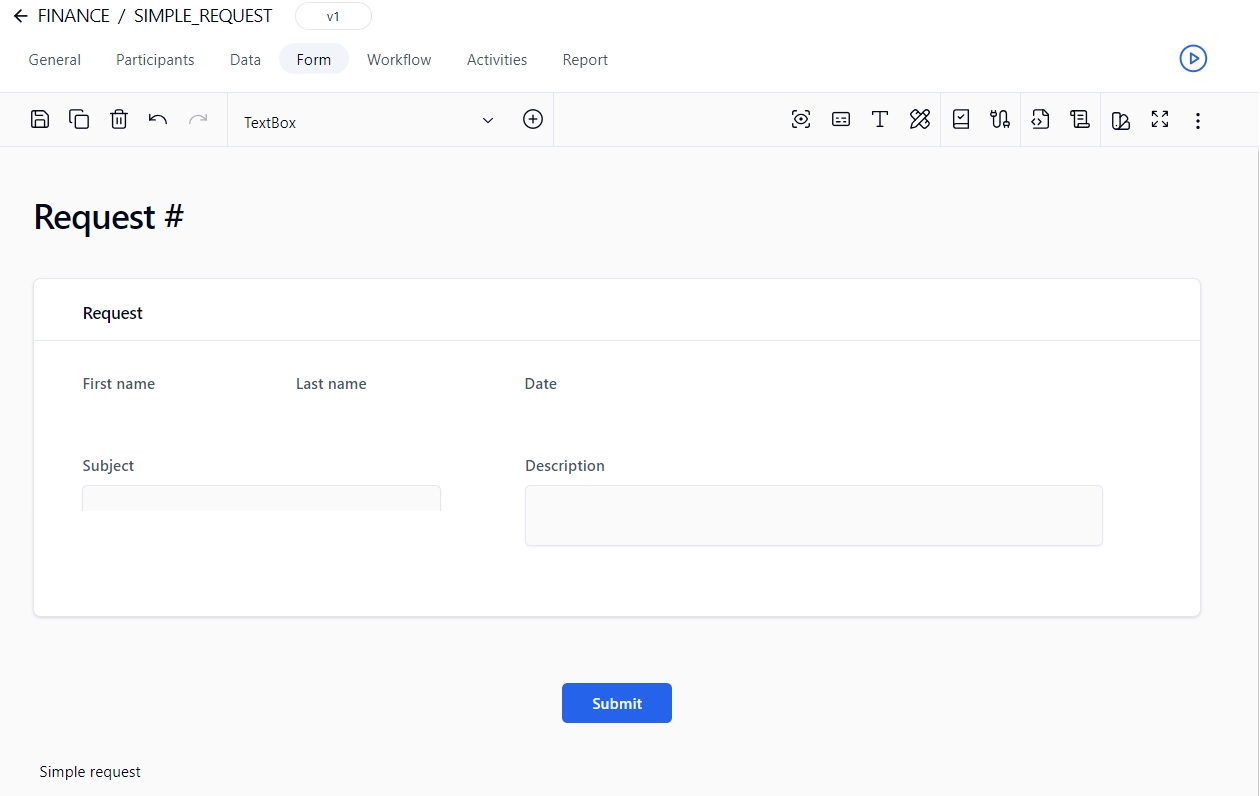
<figure><img src="https://content.gitbook.com/content/5hqlx79C7yAtTmCBPpSq/blobs/3pcbcmSOrR5jZT8v59Bo/fd_simple_request.png" alt=""><figcaption></figcaption></figure>

### ASP.NET editor

Click ![](https://content.gitbook.com/content/5hqlx79C7yAtTmCBPpSq/blobs/MVlWA64feiaoFMlaNZAR/fd_aspnet.png) in the toolbar to open the ASP.NET code editor, which can be used to define server-side procedures, events, and global variables to handle any specific custom tasks. This feature is mainly intended for ASP.NET server-side development.
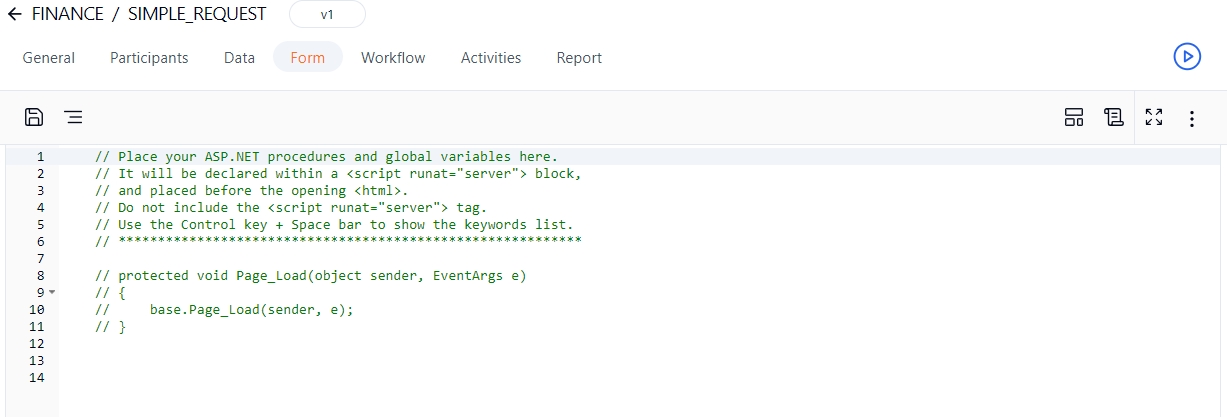
<figure><img src="https://content.gitbook.com/content/5hqlx79C7yAtTmCBPpSq/blobs/E5cTxj5uJChGD5U9hL96/fd_aspnet_editor.png" alt=""><figcaption></figcaption></figure>

{% hint style="info" %}
As of WorkflowGen version 7.19.0, all `default.aspx` files are saved with the `Page Async` property set to `true` (e.g. `<%@ Page Async="true" ... %>`). This allows asynchronous ASP.NET web form development (see the [Using Asynchronous Methods in ASP.NET 4.5](https://docs.microsoft.com/en-us/aspnet/web-forms/overview/performance-and-caching/using-asynchronous-methods-in-aspnet-45) Microsoft article for more information).
{% endhint %}

### JavaScript editor

Click ![](https://content.gitbook.com/content/5hqlx79C7yAtTmCBPpSq/blobs/9gAK2M5uPis7QXpfjnoG/fd_js_small.png) in the toolbar to open the JavaScript code editor, which can be used to define server-side procedures, events, and global variables to handle any specific custom tasks. This feature is mainly intended for JavaScript client-side development.
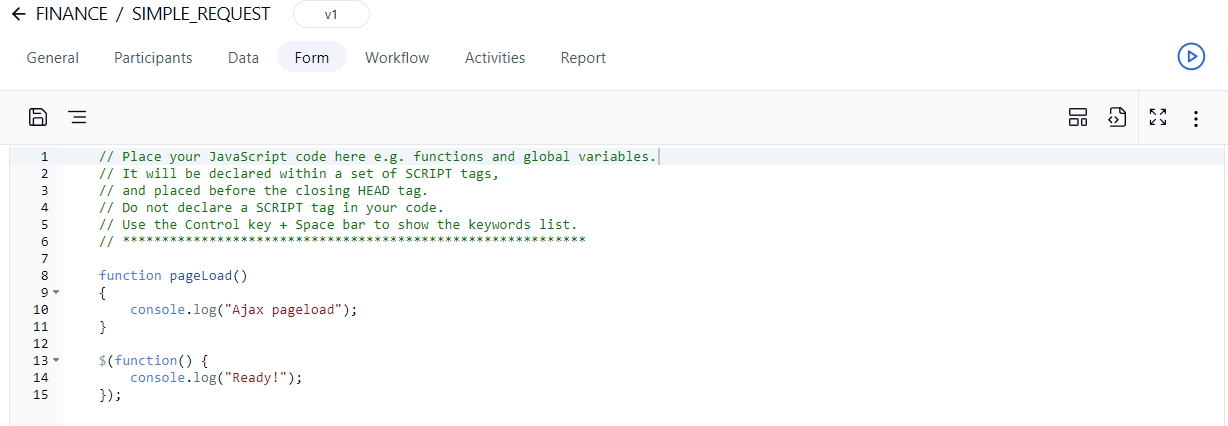
<figure><img src="https://content.gitbook.com/content/5hqlx79C7yAtTmCBPpSq/blobs/g5cFSzvjh2a9lzVGMP1J/fd_js_editor.png" alt=""><figcaption></figcaption></figure>

### Advanced features

#### Server-side editing mode

Check **Enable server-side editing mode** on the **General** tab in the **Form configuration** panel to activate this mode, which allows form designers to modify the content of the form's C# `runat` server tag (e.g. `<script runat="server"`) and JavaScript script tag (e.g. `<script jseditor="true">`) directly in the generated `default.aspx` file on the server (usually located in the `\wfapps\webforms[PROCESSNAME]\V[VERSION]` folder) using Visual Studio Professional or Visual Studio Code.&#x20;

{% hint style="info" %}
The .NET and JavaScript editors are disabled when server-side editing mode is enabled.
{% endhint %}

{% hint style="warning" %}
You must save the form on the WorkflowGen **Form** screen every time you make changes to a script's code in the `default.aspx` file in order to keep the form's HTML script tags (`FORM_HTML`) up to date. This is mandatory before you can export the XPDL process definition for deployment on another server.
{% endhint %}

#### AJAX mode

If you're using the Form Designer, you can enable AJAX mode by checking **Enable AJAX mode** on the **General** tab of the **Form configuration** panel.

{% hint style="info" %}
When adding a custom control (e.g. a button to handle form submission), you must register the control ID as a postback control in the `Page_Load` event's `ScriptManager` object. For example:

```csharp
protected void Page_Load(object sender, EventArgs e)
{
    base.Page_Load(sender, e);    
    
    // Register the custom button to the script manager for postback management in AJAX mode
    if (ScriptManager.GetCurrent(this) != null) {
        ScriptManager.GetCurrent(this).RegisterPostBackControl(ACTION1_BUTTON1);
    }
}
```

{% endhint %}

## Toolbars

### Design mode

<table data-header-hidden><thead><tr><th align="center" valign="top">Icon</th><th valign="top">Name</th><th valign="top">Description</th></tr></thead><tbody><tr><td align="center" valign="top"><strong>Icon</strong></td><td valign="top"><strong>Name</strong></td><td valign="top"><strong>Description</strong></td></tr><tr><td align="center" valign="top"><img src="https://content.gitbook.com/content/5hqlx79C7yAtTmCBPpSq/blobs/0iVis2m0MvjtHwdXIAQJ/fd_save.png" alt="" data-size="original"></td><td valign="top">Save the form</td><td valign="top">Saves the current form (you can also press <strong><code>Ctrl+S</code></strong> to save)</td></tr><tr><td align="center" valign="top"><img src="https://content.gitbook.com/content/5hqlx79C7yAtTmCBPpSq/blobs/XNn77JdlodczTGuX6Bx8/fd_duplicate.png" alt="" data-size="original"></td><td valign="top">Duplicate a section or field</td><td valign="top">Makes a copy of the selected section or field and inserts it in the form; the duplicate section or field will appear below the selected section or field</td></tr><tr><td align="center" valign="top"><img src="https://content.gitbook.com/content/5hqlx79C7yAtTmCBPpSq/blobs/qYbbJ80msbrv9l044XSv/fd_delete.png" alt="" data-size="original"></td><td valign="top">Delete a section or field</td><td valign="top">Deletes the selected section or field from the form</td></tr><tr><td align="center" valign="top"><img src="https://content.gitbook.com/content/5hqlx79C7yAtTmCBPpSq/blobs/dJHDtPWLKcRYgT1CIaQB/fd_undo.png" alt="" data-size="original"> <img src="https://content.gitbook.com/content/5hqlx79C7yAtTmCBPpSq/blobs/uAVdiIxSOWScSlbuJbW0/image.png" alt=""></td><td valign="top">Undo/redo</td><td valign="top">Undoes or redoes the most recent changes made to the form</td></tr><tr><td align="center" valign="top"><img src="https://content.gitbook.com/content/5hqlx79C7yAtTmCBPpSq/blobs/qfM6KcO62CMC4hPzIRwd/fd_style.png" alt="" data-size="original"></td><td valign="top">Select a style</td><td valign="top">List of default and custom styles; select an item to change the style of the current form</td></tr><tr><td align="center" valign="top"><strong>Tools</strong><br><strong>drop-down list</strong> </td><td valign="top">Select a tool</td><td valign="top">List of default and custom tools; select an item in order to add the tool to the form using the Insert button</td></tr><tr><td align="center" valign="top"><img src="https://content.gitbook.com/content/5hqlx79C7yAtTmCBPpSq/blobs/r9pX6w8GPycgwyG1LIWN/fd_insert_tool.png" alt="" data-size="original"></td><td valign="top">Insert the selected tool</td><td valign="top">Inserts the selected tool in the form</td></tr><tr><td align="center" valign="top"><img src="https://content.gitbook.com/content/5hqlx79C7yAtTmCBPpSq/blobs/yujoLjyHj51pzsuJJG79/fd_id.png" alt="" data-size="original"></td><td valign="top">Edit field ID</td><td valign="top">Edit section and field identifiers</td></tr><tr><td align="center" valign="top"><img src="https://content.gitbook.com/content/5hqlx79C7yAtTmCBPpSq/blobs/zZzz3r0PBivE2ZPfTmGz/fd_tooltip.png" alt="" data-size="original"></td><td valign="top">Edit field tooltip</td><td valign="top">Edit section and field tooltips</td></tr><tr><td align="center" valign="top"><img src="https://content.gitbook.com/content/5hqlx79C7yAtTmCBPpSq/blobs/19ZpkjYwBxsWuxuL4DY2/fd_field_format.png" alt="" data-size="original"></td><td valign="top">Edit field format</td><td valign="top">Edit section and field format</td></tr><tr><td align="center" valign="top"><img src="https://content.gitbook.com/content/5hqlx79C7yAtTmCBPpSq/blobs/AvQWBcel4FQ6guqHWCPa/fd_style_layout.png" alt="" data-size="original"></td><td valign="top">Edit form's style and layout</td><td valign="top">Edit the appearance of headers, footers, labels, sections, and fields (see <a href="form-appearance-and-management#appearance">Appearance</a>)</td></tr><tr><td align="center" valign="top"><img src="https://content.gitbook.com/content/5hqlx79C7yAtTmCBPpSq/blobs/d0PlcGBjy51rBOKfusZL/fd_behavior.png" alt="" data-size="original"></td><td valign="top">Edit field's action behavior</td><td valign="top">Displays the interactive view of the workflow, activates the <strong>Required</strong>, <strong>Read-only</strong>, and <strong>Hidden</strong> clickable options for each form field, and sets the behavior of sections and form fields for each action (see <a href="form-appearance-and-management#field-and-section-behavior">Field &#x26; section behavior</a>)</td></tr><tr><td align="center" valign="top"><img src="https://content.gitbook.com/content/5hqlx79C7yAtTmCBPpSq/blobs/PG1a1wzQOuceUy7VNFlW/fd_mapping.png" alt="" data-size="original"></td><td valign="top">Edit field’s action data mapping</td><td valign="top">Displays the interactive view of the workflow, activates clickable options <strong>Retrieve the value</strong> and <strong>Send the value</strong> for each form field and defines the data input and output for each action (see <a href="form-appearance-and-management#field-data-mapping">Field data mapping</a>)</td></tr><tr><td align="center" valign="top"><img src="https://content.gitbook.com/content/5hqlx79C7yAtTmCBPpSq/blobs/RpRf8Znxg1rMyteBgyEm/fd_aspnet.png" alt="" data-size="original"></td><td valign="top">ASP.NET</td><td valign="top">Switch to the ASP.NET code-behind editor</td></tr><tr><td align="center" valign="top"><img src="https://content.gitbook.com/content/5hqlx79C7yAtTmCBPpSq/blobs/oeUN2niARsU67ju0wzPe/fd_js.png" alt="" data-size="original"></td><td valign="top">JavaScript</td><td valign="top">Switch to the JavaScript code editor</td></tr><tr><td align="center" valign="top"><img src="https://content.gitbook.com/content/5hqlx79C7yAtTmCBPpSq/blobs/sTWwtB7069IPRZLd5aTx/wfd_maximize.png" alt="" data-size="original"></td><td valign="top">Maximize canvas</td><td valign="top">Maximize the canvas size</td></tr><tr><td align="center" valign="top"><img src="https://content.gitbook.com/content/5hqlx79C7yAtTmCBPpSq/blobs/2LWlztxmzIDFYowhgwl9/wfd_restore_size.png" alt="" data-size="original"></td><td valign="top">Restore canvas</td><td valign="top">Restore the canvas to its default size</td></tr><tr><td align="center" valign="top"><em>Click</em> <img src="https://content.gitbook.com/content/5hqlx79C7yAtTmCBPpSq/blobs/cvapxoqZKp7QOiqw5v1S/fd_additional_small.png" alt=""> <em>to display the additional functions listed below</em></td><td valign="top"></td><td valign="top"></td></tr><tr><td align="center" valign="top"><img src="https://content.gitbook.com/content/5hqlx79C7yAtTmCBPpSq/blobs/j7qCAE9yMD1fsL4DkZVq/fd_new_form.png" alt="" data-size="original"></td><td valign="top">New form</td><td valign="top">Creates a new form or replaces the current form</td></tr><tr><td align="center" valign="top"><img src="https://content.gitbook.com/content/5hqlx79C7yAtTmCBPpSq/blobs/INLT1KFSAE8wVGJYxg9p/fd_save_as_tool.png" alt="" data-size="original"></td><td valign="top">Save a section or field as tool</td><td valign="top">Saves the selected section or field as a custom tool</td></tr><tr><td align="center" valign="top"><img src="https://content.gitbook.com/content/5hqlx79C7yAtTmCBPpSq/blobs/s3i7OXY2J2jCpDlTTLQp/fd_manage_tools.png" alt="" data-size="original"></td><td valign="top">Manage custom tools</td><td valign="top">Allows you to name custom sections and tools</td></tr><tr><td align="center" valign="top"><img src="https://content.gitbook.com/content/5hqlx79C7yAtTmCBPpSq/blobs/SdwOtIREEGV4qdeZ5jpb/fd_workflow_view.png" alt="" data-size="original"></td><td valign="top">Workflow view</td><td valign="top">Displays the interactive workflow view</td></tr><tr><td align="center" valign="top"><img src="https://content.gitbook.com/content/5hqlx79C7yAtTmCBPpSq/blobs/Ohi9jqFA5EJm1fUhV4st/fd_config.png" alt="" data-size="original"></td><td valign="top">Form configuration</td><td valign="top">Opens the <strong>Form configuration</strong> panel</td></tr><tr><td align="center" valign="top"><img src="https://content.gitbook.com/content/5hqlx79C7yAtTmCBPpSq/blobs/teDkw8lP0rNcCYTYE0WO/wfd_print.png" alt="" data-size="original"></td><td valign="top">Print</td><td valign="top">Prints the current form</td></tr></tbody></table>

### ASP.NET editor

<table data-header-hidden><thead><tr><th align="center" valign="top">Icon</th><th valign="top">Name</th><th valign="top">Description</th></tr></thead><tbody><tr><td align="center" valign="top"><strong>Icon</strong></td><td valign="top"><strong>Name</strong></td><td valign="top"><strong>Description</strong></td></tr><tr><td align="center" valign="top"><img src="https://content.gitbook.com/content/5hqlx79C7yAtTmCBPpSq/blobs/LK43ZzrCmlG3lL6QlrSV/fd_save.png" alt="" data-size="original"></td><td valign="top">Save</td><td valign="top">Saves the ASP.NET code</td></tr><tr><td align="center" valign="top"><img src="https://content.gitbook.com/content/5hqlx79C7yAtTmCBPpSq/blobs/Tzp7QFSnr3CQv0hb8GfI/fd_asp_comment.png" alt="" data-size="original"></td><td valign="top">Comment/uncomment</td><td valign="top">Adds or removes <code>//</code> before the selected line(s)</td></tr><tr><td align="center" valign="top"><img src="https://content.gitbook.com/content/5hqlx79C7yAtTmCBPpSq/blobs/bFbuaOkAWdckjkZawJJZ/fd_asp_switch_form_designer.png" alt="" data-size="original"></td><td valign="top">Form Designer</td><td valign="top">Switch to the Form Designer</td></tr><tr><td align="center" valign="top"><img src="https://content.gitbook.com/content/5hqlx79C7yAtTmCBPpSq/blobs/w04WZqB4D2IXKehHHRPT/fd_js.png" alt="" data-size="original"></td><td valign="top">JavaScript</td><td valign="top">Switch to the JavaScript code editor</td></tr><tr><td align="center" valign="top"><img src="https://content.gitbook.com/content/5hqlx79C7yAtTmCBPpSq/blobs/sTWwtB7069IPRZLd5aTx/wfd_maximize.png" alt="" data-size="original"></td><td valign="top">Maximize canvas</td><td valign="top">Maximize the canvas size</td></tr><tr><td align="center" valign="top"><img src="https://content.gitbook.com/content/5hqlx79C7yAtTmCBPpSq/blobs/2LWlztxmzIDFYowhgwl9/wfd_restore_size.png" alt="" data-size="original"></td><td valign="top">Restore canvas</td><td valign="top">Restore the canvas to its default size</td></tr><tr><td align="center" valign="top"><em>Click</em> <img src="https://content.gitbook.com/content/5hqlx79C7yAtTmCBPpSq/blobs/cvapxoqZKp7QOiqw5v1S/fd_additional_small.png" alt=""> <em>to display the additional function listed below</em></td><td valign="top"></td><td valign="top"></td></tr><tr><td align="center" valign="top"><img src="https://content.gitbook.com/content/5hqlx79C7yAtTmCBPpSq/blobs/RpRf8Znxg1rMyteBgyEm/fd_aspnet.png" alt="" data-size="original"></td><td valign="top">New</td><td valign="top">Clears the ASP.NET code</td></tr></tbody></table>

### JavaScript editor

<table data-header-hidden><thead><tr><th align="center" valign="top">Icon</th><th valign="top">Name</th><th valign="top">Description</th></tr></thead><tbody><tr><td align="center" valign="top"><strong>Icon</strong></td><td valign="top"><strong>Name</strong></td><td valign="top"><strong>Description</strong></td></tr><tr><td align="center" valign="top"><img src="https://content.gitbook.com/content/5hqlx79C7yAtTmCBPpSq/blobs/LK43ZzrCmlG3lL6QlrSV/fd_save.png" alt="" data-size="original"></td><td valign="top">Save</td><td valign="top">Saves the JavaScript code</td></tr><tr><td align="center" valign="top"><img src="https://content.gitbook.com/content/5hqlx79C7yAtTmCBPpSq/blobs/Tzp7QFSnr3CQv0hb8GfI/fd_asp_comment.png" alt="" data-size="original"></td><td valign="top">Comment/uncomment</td><td valign="top">Adds or removes <code>//</code> before the selected line(s)</td></tr><tr><td align="center" valign="top"><img src="https://content.gitbook.com/content/5hqlx79C7yAtTmCBPpSq/blobs/bFbuaOkAWdckjkZawJJZ/fd_asp_switch_form_designer.png" alt="" data-size="original"></td><td valign="top">Form Designer</td><td valign="top">Switch to the Form Designer</td></tr><tr><td align="center" valign="top"><img src="https://content.gitbook.com/content/5hqlx79C7yAtTmCBPpSq/blobs/RpRf8Znxg1rMyteBgyEm/fd_aspnet.png" alt="" data-size="original"></td><td valign="top">ASP.NET</td><td valign="top">Switch to the ASP.NET code-behind editor</td></tr><tr><td align="center" valign="top"><em>Click</em> <img src="https://content.gitbook.com/content/5hqlx79C7yAtTmCBPpSq/blobs/cvapxoqZKp7QOiqw5v1S/fd_additional_small.png" alt=""> <em>to display the additional function listed below</em></td><td valign="top"></td><td valign="top"></td></tr><tr><td align="center" valign="top"><img src="https://content.gitbook.com/content/5hqlx79C7yAtTmCBPpSq/blobs/CRetQoZXOhy0DRdPhkjH/fd_js.png" alt="" data-size="original"></td><td valign="top">New</td><td valign="top">Clears the JavaScript code</td></tr></tbody></table>

## Form configuration

A form created with the built-in Form Designer has one header, one or several sections, one or several fields per section, a **Submit** button, an optional **Save as a draft** button, and one footer.

Click ![](https://content.gitbook.com/content/5hqlx79C7yAtTmCBPpSq/blobs/N9oiuHtEhTLhEvD1Ygh2/image.png) in the top right corner of the Form Designer toolbar then ![](https://content.gitbook.com/content/5hqlx79C7yAtTmCBPpSq/blobs/sRn0ewlSWrDXsXVQ4Jpn/fd_config_small.png) to open the **Form configuration** panel.&#x20;

### General tab

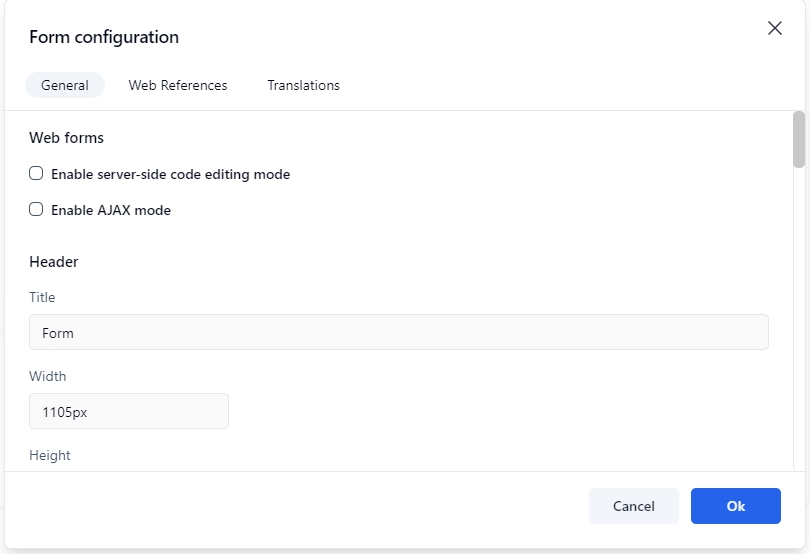
<figure><img src="https://content.gitbook.com/content/5hqlx79C7yAtTmCBPpSq/blobs/z2CcUVRYqAdeGCIq5Cp9/fd_form_config_general.png" alt=""><figcaption></figcaption></figure>

<table data-header-hidden><thead><tr><th valign="top">Name</th><th valign="top">Description</th></tr></thead><tbody><tr><td valign="top"><strong>Name</strong></td><td valign="top"><strong>Description</strong></td></tr><tr><td valign="top"><strong>Web forms</strong></td><td valign="top"></td></tr><tr><td valign="top">Enable server-side code editing mode</td><td valign="top">See <a href="#server-side-editing-mode">Server-side editing mode</a></td></tr><tr><td valign="top">Enable AJAX mode</td><td valign="top">See <a href="#ajax-mode">AJAX mode</a></td></tr><tr><td valign="top"><strong>Header</strong></td><td valign="top"></td></tr><tr><td valign="top">Title</td><td valign="top">The title of the form</td></tr><tr><td valign="top">Width</td><td valign="top"><p>The width of the form header</p><p></p><p>Numeric value with or without the unit of measure (<code>px</code>, <code>pt</code>, <code>in</code>, <code>cm</code>, <code>mm</code>, <code>pc</code>, <code>em</code>, <code>ex</code>, <code>%</code>), e.g. <code>720px</code></p></td></tr><tr><td valign="top">Height</td><td valign="top"><p>The height of the form header</p><p></p><p>Numeric value with or without the unit of measure (<code>px</code>, <code>pt</code>, <code>in</code>, <code>cm</code>, <code>mm</code>, <code>pc</code>, <code>em</code>, <code>ex</code>, <code>%</code>), e.g. <code>38px</code></p></td></tr><tr><td valign="top">Image alignment</td><td valign="top"><p>The alignment for the header image:</p><ul><li><strong>Right</strong>: The image will be aligned to the right</li><li><strong>Left</strong>: The image will be aligned to the left</li><li><strong>None</strong>: No alignment</li></ul></td></tr><tr><td valign="top">Image URL</td><td valign="top">The URL of the image to be shown</td></tr><tr><td valign="top">Image width</td><td valign="top">The width of the image</td></tr><tr><td valign="top">Image height</td><td valign="top">The height of the image</td></tr><tr><td valign="top">Image repeat</td><td valign="top"><p>Sets if and how the image will be repeated:</p><ul><li><strong>No-repeat</strong>: the image will not be repeated</li><li><strong>Repeat</strong>: the image will be repeated both vertically and horizontally (this is the default setting)</li><li><strong>Repeat x</strong>: the image will be repeated only horizontally</li><li><strong>Repeat y</strong>: the image will be repeated only vertically</li></ul></td></tr><tr><td valign="top"><strong>Sections</strong></td><td valign="top"></td></tr><tr><td valign="top">Width</td><td valign="top"><p>The width for all sections</p><p></p><p>Numeric value with or without the unit of measure (<code>px</code>, <code>pt</code>, <code>in</code>, <code>cm</code>, <code>mm</code>, <code>pc</code>, <code>em</code>, <code>ex</code>, <code>%</code>), e.g. <code>720px</code></p></td></tr><tr><td valign="top">Adjust width automatically</td><td valign="top">Check to apply adjusted width to all sections</td></tr><tr><td valign="top"><strong>Labels</strong></td><td valign="top"></td></tr><tr><td valign="top">Alignment</td><td valign="top"><p>The alignment for all field labels:</p><ul><li><strong>Right</strong>: the label will be aligned to the right of the field</li><li><strong>Left</strong>: the label will be aligned to the left of the field</li><li><strong>Top</strong>: the label will be aligned on top of the field</li></ul></td></tr><tr><td valign="top">Width</td><td valign="top"><p>The width for all field labels</p><p></p><p>Numeric value with or without the unit of measure (<code>px</code>, <code>pt</code>, <code>in</code>, <code>cm</code>, <code>mm</code>, <code>pc</code>, <code>em</code>, <code>ex</code>, <code>%</code>), e.g. <code>150px</code></p></td></tr><tr><td valign="top">Apply the width</td><td valign="top">Check to apply the width to all field labels</td></tr><tr><td valign="top"><strong>Buttons</strong></td><td valign="top"></td></tr><tr><td valign="top">Submit label</td><td valign="top">The label for the submit button</td></tr><tr><td valign="top">Save-as-draft label</td><td valign="top">The label for the save as draft button</td></tr><tr><td valign="top">Enable save-as-draft</td><td valign="top">Check to enable and display the save as draft button</td></tr><tr><td valign="top"><strong>Footer</strong></td><td valign="top"></td></tr><tr><td valign="top">Width</td><td valign="top"><p>The width of the form footer</p><p></p><p>Numeric value with or without the unit of measure (<code>px</code>, <code>pt</code>, <code>in</code>, <code>cm</code>, <code>mm</code>, <code>pc</code>, <code>em</code>, <code>ex</code>, <code>%</code>), e.g. <code>720px</code></p></td></tr><tr><td valign="top">Height</td><td valign="top"><p>The height of the form header</p><p></p><p>Numeric value with or without the unit of measure (<code>px</code>, <code>pt</code>, <code>in</code>, <code>cm</code>, <code>mm</code>, <code>pc</code>, <code>em</code>, <code>ex</code>, <code>%</code>), e.g. <code>22px</code></p></td></tr><tr><td valign="top">Image alignment</td><td valign="top"><p>The alignment for the footer image:</p><ul><li><strong>Right</strong>: the image will be aligned to the right side</li><li><strong>Left</strong>: the image will be aligned to the left side</li><li><strong>None</strong>: no alignment</li></ul></td></tr><tr><td valign="top">Image URL</td><td valign="top">The URL of the image to be shown</td></tr><tr><td valign="top">Image width</td><td valign="top">The width of the image</td></tr><tr><td valign="top">Image height</td><td valign="top">The height of the image</td></tr><tr><td valign="top">Image repeat</td><td valign="top"><p>Sets if and how the image will be repeated:</p><ul><li><strong>No repeat</strong>: the image will not be repeated</li><li><strong>Repeat</strong>: the image will be repeated both vertically and horizontally (this is the default setting)</li><li><strong>Repeat-x</strong>: the image will be repeated only horizontally</li><li><strong>Repeat-y</strong>: the image will be repeated only vertically</li></ul></td></tr><tr><td valign="top"><strong>Security</strong></td><td valign="top"></td></tr><tr><td valign="top">Enable XML Signature</td><td valign="top"><p>Check to enable the use of XML signature in the form data</p><p></p><p>Digital signatures are used to certify that a document has not been modified by the system or by someone who gained unauthorized access to the system. The XML signature is a W3C standard that defines the syntax and processing rules for creating and representing digital signatures. This is a method of associating a key with referenced data to insure the integrity of this data.</p></td></tr><tr><td valign="top"><strong>Misc.</strong></td><td valign="top"></td></tr><tr><td valign="top">Display a confirmation message for quick deletion</td><td valign="top">Check to prompt a confirmation message prior to deletion</td></tr></tbody></table>

### Web References tab

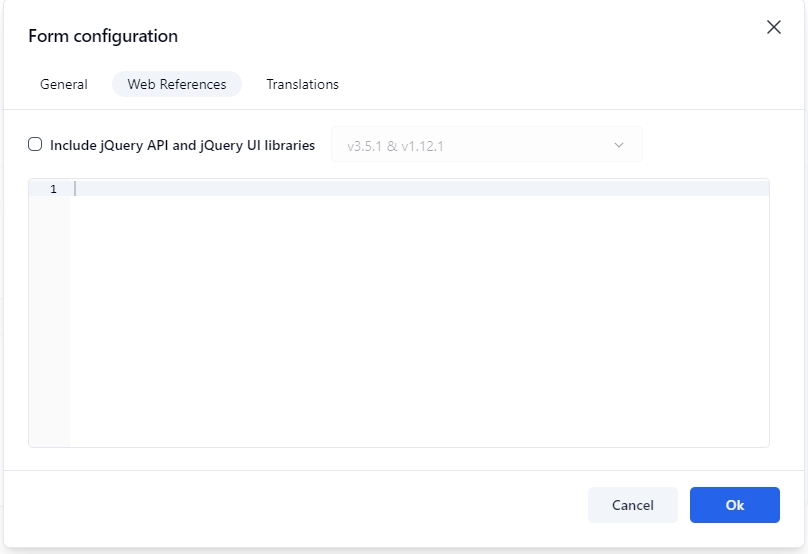
<figure><img src="https://content.gitbook.com/content/5hqlx79C7yAtTmCBPpSq/blobs/87HBrfMUzfoG38peBu9A/fd_form_config_web_ref.png" alt=""><figcaption></figcaption></figure>

<table data-header-hidden><thead><tr><th valign="top">Name</th><th valign="top">Description</th></tr></thead><tbody><tr><td valign="top"><strong>Name</strong></td><td valign="top"><strong>Description</strong></td></tr><tr><td valign="top">Include jQuery API and jQuery UI libraries</td><td valign="top"><p>Check this option to include the <strong>jQuery</strong> and <strong>jQuery UI</strong> libraries in runtime mode (form execution); by default, these libraries are available in design mode</p><p></p><p>Available versions:</p><ul><li>v1.7.2 &#x26; v1.8.20</li><li>v1.10.2 &#x26; v1.10.3</li><li>v3.5.1 &#x26; v1.12.1 (default)</li></ul></td></tr><tr><td valign="top">Free text</td><td valign="top"><p>Custom web references to be included in the HTML head that will be available in both design and run-time modes. Only <code>&#x3C;script></code>, <code>&#x3C;meta></code>, <code>&#x3C;link></code>, and <code>&#x3C;style></code> tags are supported. When you enter a tag, the free text editor automatically inserts its closing tag.</p><p></p><p>📌 <strong>Example:</strong></p><pre class="language-html"><code class="lang-html">&#x3C;link rel="stylesheet" type="text/css" href="mystyle.css" />
&#x3C;style type="text/css">
    body {background-color: yellow;}
    p {color: blue;}
&#x3C;/style>
&#x3C;meta name="description" content="my content" />
&#x3C;script type="text/javascript">
    alert("Hello World!");
&#x3C;/script>
&#x3C;script type="text/javascript" src="myscript.js">
&#x3C;/script>
</code></pre><p><br>To fold a code block, click the down arrow next to the line number, which will insert a double-arrow icon in place of the code. To unfold the code block, click the right arrow. <br><br>Press <strong><code>Ctrl+Space</code></strong>to display a drop-down menu that lists the available variables and keywords.</p></td></tr></tbody></table>

### Translations tab

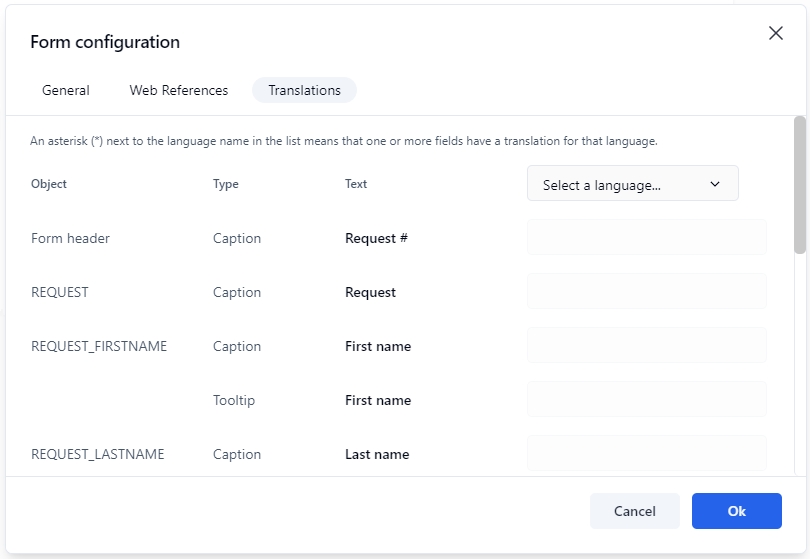
<figure><img src="https://content.gitbook.com/content/5hqlx79C7yAtTmCBPpSq/blobs/dg0OFcXb5KTMcGXLNtEw/fd_form_config_translations.png" alt=""><figcaption></figcaption></figure>

<table data-header-hidden><thead><tr><th valign="top">Name</th><th valign="top">Description</th></tr></thead><tbody><tr><td valign="top"><strong>Name</strong></td><td valign="top"><strong>Description</strong></td></tr><tr><td valign="top">Select a language</td><td valign="top"><p>The Form Designer allows you to translate form labels and error messages to the languages available in WorkflowGen. Select a language for translation from the languages available in the drop-down list.</p><p></p><p>✏️ <strong>Note:</strong> Generic language selections such as English, French, Spanish, etc., correspond to the version of the language that the administrator initially used to create a form. For example, if the administrator used <strong>English (United States)</strong> to create a form, then in this instance the selections <strong>English (United States)</strong> and <strong>English</strong> would be one and the same.</p></td></tr><tr><td valign="top">Free text</td><td valign="top">Write translated text that corresponds to the selected language. If a field is left empty, then the language will defer in the following order: <strong>Country-specific language > Generic language > Default language</strong>.</td></tr></tbody></table>